Alerts
Alerts help you monitor important price levels and events without constantly watching each symbol manually. You can set an alert level in the order book or on the chart, assign a sound, and receive notifications when the specified price is reached.
Alerts are especially useful when you have several symbols, several workspaces, or several monitors open at the same time.
You can also manage price alerts through the AI assistant: for it, they are the same alert levels.
| Element | Description |
|---|---|
| Alert level | A price mark at which the terminal can trigger an alert. |
| Alerts window | Shows created alert levels and their state. |
| Notifications window | The history of triggered alerts and other terminal alerts — see Notifications. |
| Alert sound | A sound played when a level is triggered. |
| Cloud alerts | The alert levels of your account on the JetScalp server: the same in all terminals and in the mobile app. |
Alerts window
The Alerts window opens from the Windows → Alerts menu and shows the created alert levels and their parameters. Triggered alerts go to the Notifications window.
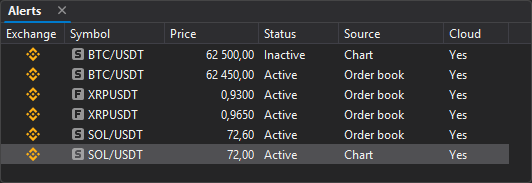
| Column | Description |
|---|---|
| Exchange | The icon of the symbol’s exchange. |
| Symbol | The symbol for which the alert was created, with the type icon: S — spot, F — futures. |
| Price | Price of the alert level. |
| Status | Active — the level is waiting for the price, Inactive — the level has already triggered. |
| Source | Where the alert was created: Order book or Chart. |
| Cloud | Yes — the level is stored on the JetScalp server, No — so far only in this terminal. See Cloud alerts. |
Alert levels in the order book
In the order book, alert levels are displayed as horizontal dashed lines. They run across the working area and help you visually track important prices relative to the current market.
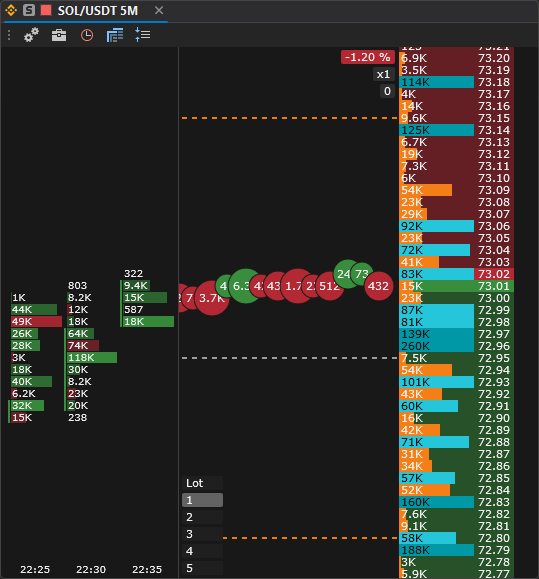
An active alert level is usually displayed as a colored dashed line. The color, thickness, and sound of the level are set in the alert level settings.
Alert levels on the chart
Alert levels can be displayed not only in the order book but also on the chart. On the chart, they appear as horizontal dashed lines in the price area.
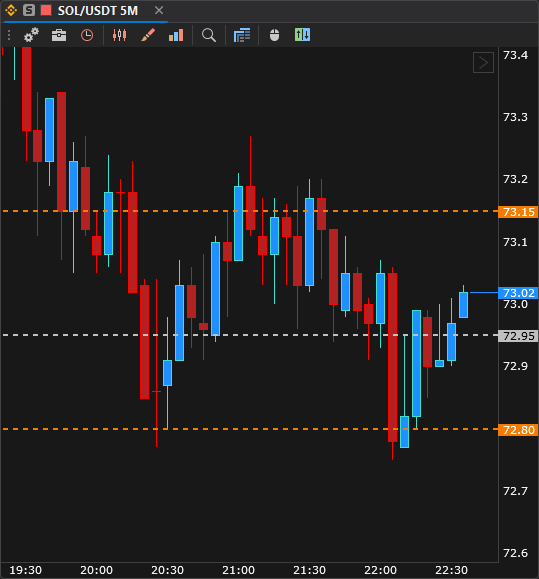
If an alert level is created for the symbol associated with the current chart, it is visible directly in the chart area. This lets you assess the position of the level relative to price movement, candles, and other analysis objects. More in Alert levels.
Completed alert level
After an alert level is triggered, it is marked as completed. Such a level is displayed in gray. This helps you distinguish levels that are still waiting to trigger from levels that have already been processed.
A gray level in the order book or on the chart means that its alert has already been executed or processed.
Alert level settings
Level parameters are set in the level manager — the Levels window, Alerts tab: the price, line color and width, and the alert sound. To open it on a level, double-click the level line.
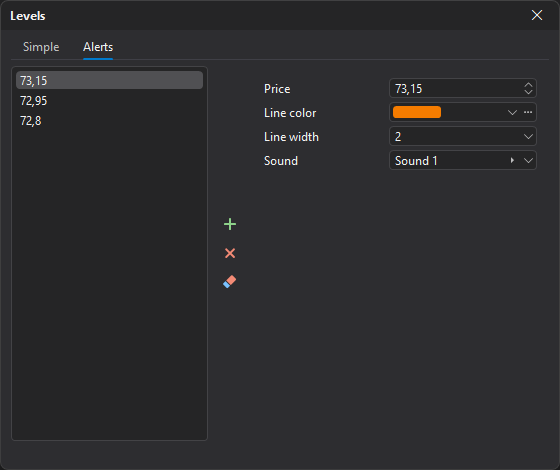
| Parameter | Description |
|---|---|
| Price | The price at which the alert should trigger. |
| Line color | Color of the level on the chart or in the order book. |
| Line width | Width of the displayed level line. |
| Sound | Sound played when the alert triggers. |
Creating, moving, and removing levels
You can create and modify alert levels directly in the order book or on the chart.
- To set a level in the order book, hold down the hotkey of the Set/remove alert level command and click the desired price. By default, no key is assigned to this command — assign one in Hot keys → Order book, the Actions group (Order book hotkeys). On the chart, a level is added with the + button that appears when you hover over the price scale (Adding a level).
- To remove a level, click the existing level again.
- To change the price of a level, drag the level to another price with the mouse.
- To open the level settings, double-click the level.
Moving or removing an alert level affects only the alert and its visual mark. Active orders, stop loss and take profit do not change.
Cloud alerts
All alert levels are the cloud set of your JetScalp account. It is the same in all terminals signed in to this account and in the mobile app: a level set, moved, or deleted on one device changes the same way on the others.
How a level triggers:
- The terminal itself watches the price by the trades of all symbols that have levels — even if no window with the symbol is open.
- When the price crosses a level, the terminal alerts right away: a sound and a row in the Notifications window. The level becomes inactive.
- The terminal reports the trigger to the JetScalp server. The server sends a push notification to phones with the JetScalp app and a Telegram message if a chat is linked. In other terminals the level is turned off without alerting again.
- If a level triggered on another device or on the server, the terminal shows that trigger once. If more than 5 minutes have passed since the trigger (for example, the terminal was off), the notification appears without a sound.
In the Cloud column of the Alerts window, Yes means the level is stored on the server. No means the level so far exists only in this terminal: for example, there is no connection to the server. Changes made without a connection go to the server when it is back, also after a terminal restart.
Alerts work through the JetScalp server: without signing in, levels stay only in this terminal, and no notifications go to phones or Telegram. If the terminal has no suitable connection for a level’s symbol (for example, the level was set on a phone), the level is visible in the Alerts window but not in the order book or on the chart — it appears there once a connection with this symbol is added.
Context menu of the Alerts window
In the Alerts window, a context menu is available on an alert row or on an empty area of the table.
| Command | Description |
|---|---|
| Delete | Deletes the selected alert. |
| Clear inactive | Deletes all completed alerts. The item is shown if there are such alerts. |
| Clear all | Deletes all alerts. |
Important: Before clearing the list, make sure you no longer need the displayed alerts.
Configuring columns
The table header of the Alerts window has a context menu for configuring columns.
Use the Choose columns item to show or hide columns. The Best fit columns command automatically fits the column widths to the contents.
Sound settings
Sounds are configured in Settings → App settings → Sounds.
| Group | Events |
|---|---|
| Alerts | Alert sound 1 … Alert sound 7. |
For each event, you can select a sound file, play it, or clear it. The Reset and Clear commands are available at the bottom of the window.
Telegram notifications
To receive alerts in Telegram, link a chat to your account in Settings → App settings → Authorization: click Link, and in the chat with the JetScalp bot that opens, tap Start — within a few seconds the chat identifier appears in the Telegram ID field. You do not need to enter the Telegram ID manually. For details, see Authorization and Telegram ID.
Once the chat is linked, triggered levels come not only to the terminal but also to Telegram. To stop receiving them, click Unlink.
Important: Do not share your account data with others. In screenshots you send to other people, hide your email and Telegram ID.