Main panel
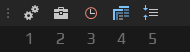
The main panel is the row of buttons at the top of the order book window. Here you choose the symbol you trade, set the cluster timeframe and price compression, apply templates and open the window settings.
Settings
Click the Order book settings icon to open the parameters of this window. They are grouped into tabs:
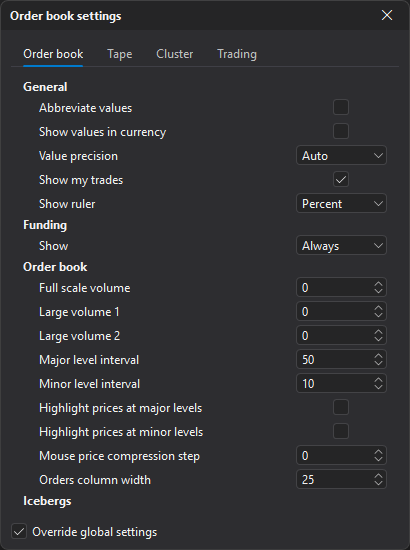
See Order book settings for details.
Symbols
In the symbol search panel you choose the symbol for the window and the account you will trade it through.
To open it, click Symbols: the panel opens below the button. How the text is searched, in what order the results come and what the columns show — see Symbol search.
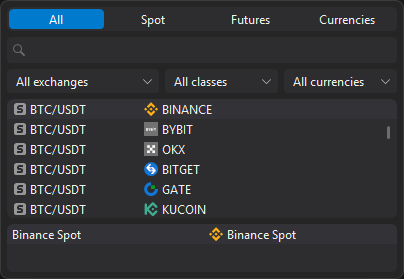
Symbols are grouped into tabs by market type:
- All
- Spot
- Futures
- Currencies
The Currencies tab is there when MOEX symbols are on.
| Field | Description |
|---|---|
| Search | Symbol name. |
| List | Symbols matching the query and filters. |
| Exchange selection | Filter by exchange (All exchanges — no filter). |
| Class selection | Filter by symbol class: TradFi, Perpetual, Delivery, Pre-market (All classes — no filter). |
| Currency selection | Filter by quote currency (All currencies — no filter). |
| Accounts | Trading accounts through which you can trade the selected symbol (the Account column). |
Selecting a symbol
- Enter the symbol name in the search field.
- If needed, narrow the list: choose a tab, exchange, class and currency.
- Select the symbol in the list.
- If the symbol can be traded through several accounts, select the account you need in the accounts list.
Which symbols appear in the list is set in the Symbols settings section.
Timeframe
A timeframe is the duration of one bar. In the order book it defines the period each cluster in the clusters area covers.
To choose a timeframe, click the Timeframe icon and select a value in the menu.
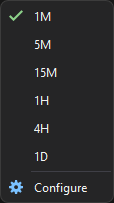
Timeframe list
The Configure item opens the Timeframes window, where you edit the menu values. The list is shared by the order book clusters and the chart.
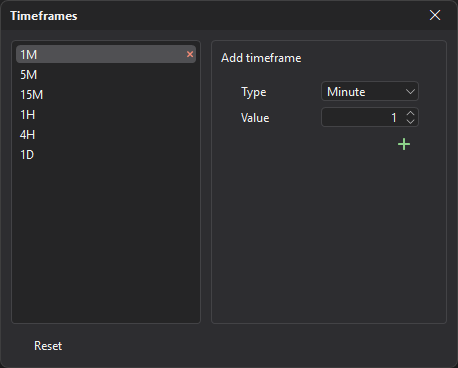
Timeframes in the list and in the menu are written as a number and a time unit letter: S — seconds, M — minutes, H — hours, D — days. For example, 5M is 5 minutes, 30S is 30 seconds. The list is sorted by duration.
| Field | Description |
|---|---|
| Type | Unit of time: second, minute, hour or day. |
| Value | Number of time units, from 1 to 60. |
- To add a timeframe, enter a value, select the type and click the Add to list button. The shortest timeframe is 1 second. If the timeframe is already in the list, it is not added again.
- To delete a timeframe, click × in its row.
- The Reset button restores the standard list:
1M,5M,15M,1H,4H,1D.
You can also switch the timeframe with the Increase and Decrease hotkeys.
Templates
A template saves order book settings so you can quickly apply them to other windows: for example, keep separate sets for liquid and illiquid symbols.
To open the Order book templates window, click the Templates icon.
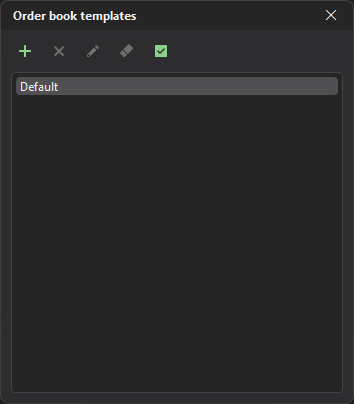
Window buttons:
- Create — saves the current order book settings to a new template;
- Rename and Delete — for the selected template;
- Clear — deletes all your templates;
- Apply to all order books — applies the selected template to all order books of the terminal.
The built-in Default template contains the standard settings; it cannot be renamed or deleted.
Creating a template
- Configure the order book.
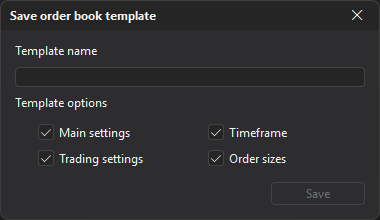
- Click the Create button — the Save order book template window opens.
- Enter the Template name and check which settings to include: Main settings, Trading settings, Timeframe, Order sizes.
- Click Save. If a template with this name already exists, the terminal offers to overwrite it.
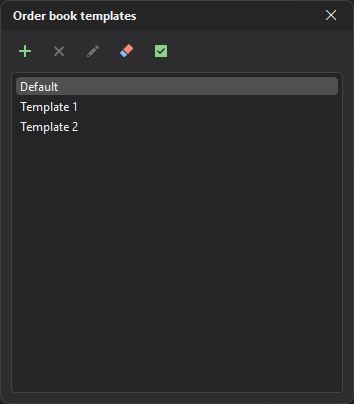
The saved template appears in the list.
Applying a template
Double-click a template in the list to apply it to the current order book. To apply it to all order books at once, select the template and click Apply to all order books.
Price compression
Price compression combines several neighboring prices into one order book row. This is useful for illiquid symbols, where orders stand far apart: the order book becomes more compact and large orders are easier to spot.
To choose a compression step, click the Price compression icon and select a value in the menu.
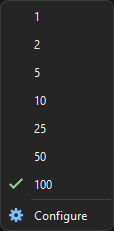
Below are order books of the same symbol with different price compression:
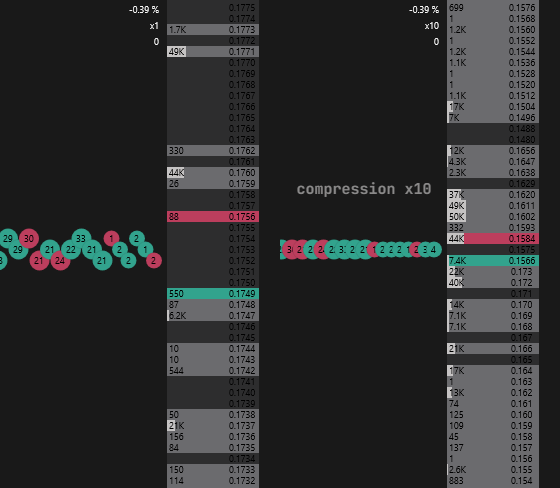
Compression reduces the empty space between orders: some orders move closer to each other, others are combined into one row. In a sparse order book this gives a more complete picture.
Compression step list
The Configure item opens the Price compression window, where you edit the list of steps. The list is shared by the order book and the chart.
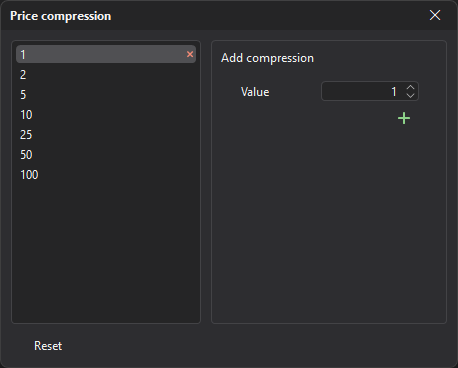
A compression step is a whole number: how many symbol price steps are combined into one row (x1 — no compression). The list is sorted in ascending order.
- To add a step, enter the Value (1 or more) and click the Add button. If the step is already in the list, it is not added again.
- To delete a step, click × in its row.
- The Reset button restores the standard list: 1, 2, 5, 10, 25, 50, 100.
Compression with keys and the mouse wheel
- The Compress prices and Expand prices hotkeys step through the list.
- With the Mouse adjust key held, the mouse wheel changes the compression by the Mouse price compression step (the Order book tab of the window settings; at 0 the value from the global order book settings applies).
The timeframe and price compression keys are not assigned by default — assign them in Order book hotkeys.