Configuration
A configuration is a saved set of terminal settings, broader than a single workspace: it can include application settings, workspaces, window layout, tabs, themes, hotkeys, order sizes, templates and other parameters. Save the configuration to a file to keep a backup of your settings or move them to another computer.
The configuration commands are in the Settings → Configuration menu.
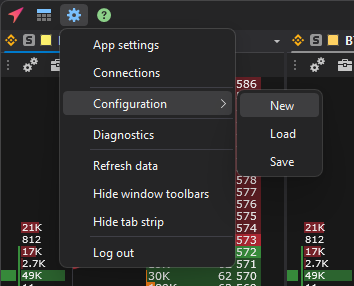
| Command | Description |
|---|---|
| New | Resets the configuration settings and restarts the terminal with the default settings. A new configuration has no default layout — one empty tab opens. Use it when you need to set up the terminal from scratch. |
| Load | Loads a configuration from a file: the standard Windows file open dialog appears. The current settings are replaced with the settings from the file, and the terminal restarts. |
| Save | Saves the current terminal settings to a file: the standard Windows file save dialog appears, and you choose the folder and file name yourself. |
Configuration files have the .jsc extension (“JetScalp configuration” in the file dialog). If the file you select for loading is not a configuration, the terminal reports “The file is not a JetScalp configuration.”, and the current settings stay unchanged.
You do not need to save the configuration for everyday work: when closing, the terminal saves the settings and window layout by itself. A configuration file is a backup or a way to move your settings.
Exchange connections, proxies, sign-in (login, Telegram ID, MCP server settings), price lines and alert levels are stored separately from the configuration: the New and Load commands do not change them, and the Save command does not write them to the file.
Important: The New command deletes all configuration settings. Before that, the terminal warns: “Creating a new configuration will discard all current settings. Continue?” If you may still need the settings, save them first with Save.
Settings sync
If you use the terminal on several computers with one login, the settings can be synced between them through the JetScalp server: a change made on one computer reaches the others while the terminal runs on them, and the switched-off ones at the next sign-in. You do not need to save and load a configuration file for this.
Sync is off by default. Turn it on on each computer where you need it: the Sync settings with other computers check box in the Interface section of the app settings.
What is synced:
- the app settings: interface, symbols, trading, order book, chart, sounds, working volumes, combo window, exchanges;
- the order book and chart themes and the saved themes;
- the chart and order book templates, the drawing object and indicator templates, your own footprint presets;
- timeframes and zoom levels;
- hotkeys — between computers with the same system: Windows and macOS have their own;
- the saved workspaces;
- the order book settings of individual symbols — what the order book remembers for a symbol, except the price compression and the template details. An open order book of the same symbol applies the incoming changes at once; changes of different parameters made on two computers are not lost.
Each computer keeps its own:
- the current window layout: computers have different screens and monitors;
- the order book price compression of each symbol;
- a sound from a file that is not on this computer: the sound chosen here stays;
- the sync switch itself.
Exchange connections, proxies and sign-in are not synced, just as they are not in the configuration file. Price lines and alert levels are not synced either; alert levels are carried separately — as cloud alerts.
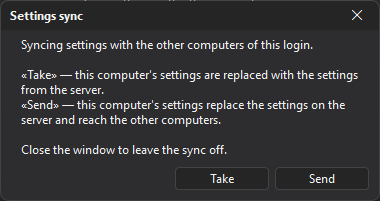
Turning it on. When you select the check box, the terminal asks in the “Settings sync” window what to do:
- Take — this computer’s settings are replaced with the settings from the server;
- Send — this computer’s settings replace the settings on the server and reach the other computers.
If you close the window without choosing, sync stays off. The question is asked every time sync is turned on: the choice decides everything anew. When the terminal starts, sync that is on continues without a question. If the terminal does not know which choice was made for this login (signing in with another login, a settings folder copied from another computer), sync is turned off without a question — turn it on again.
Turning it off. Clear the same check box. Each computer has its own switch: a computer with sync off does not send its changes and does not apply the others’. A new configuration (the New command) starts with the defaults, with sync off.
Moving settings to another computer
With the same login, sync carries the settings. The configuration file is for moving settings to a computer where sync is off, or for keeping a copy of them:
- On the old computer, select Settings → Configuration → Save and save the
.jscfile. - Copy the file to the new computer in any convenient way.
- On the new computer, select Settings → Configuration → Load and choose this file. The terminal restarts with the transferred settings.
- Add the exchange connections again (Connections) and, if you use proxies, set them up too (Proxy settings).
Important: For security reasons, exchange connection settings are not included in the configuration. Proxy settings, sign-in, price lines and alert levels are not included either.