Trading from the chart
You can trade from the chart the same way as from the order book: place, move and cancel orders, set a stop loss and take profit, close and reverse the position. For this, the chart window has a trading panel, a trading layer with order and position lines, and a mouse trading mode.
Important: Orders from the chart are real exchange orders placed through the account bound to the chart. In Mouse trading mode, clicking the Buy or Sell button at the cursor places a limit order right away — without confirmation, unless the price crosses the spread. Before your first trade, check the account in the panel header and the order quantity.
Turning it on
On a new chart, trading is off. Turn it on with the toggle buttons at the end of the main panel:
- Trading panel — shows the trading panel on the chart;
- Mouse trading — turns on mouse trading: order buttons at the cursor.
The buttons are independent: you can trade with the mouse only, from the panel only, or both. The trading layer with order and position lines works whatever the buttons’ state.
Trading account
Orders from the chart are placed through the chart window’s trading account. Until an account is chosen, you cannot trade: the trading panel header says “Choose an account”, and there are no order or position lines.
To choose an account, click the panel header. A menu opens with the accounts through which the chart’s symbol can be traded; the current account is checked. If there are no suitable accounts, the menu says “No accounts for the symbol”. The Symbol and account… item opens the Symbols window, where you choose both the symbol and the account. The chosen account is saved in the chart window settings.
If you click Buy or Sell while no account is chosen, the panel also opens the accounts menu.
Trading panel
The trading panel is a floating panel over the chart. It shows the account and the position, and its fields are used to place orders.
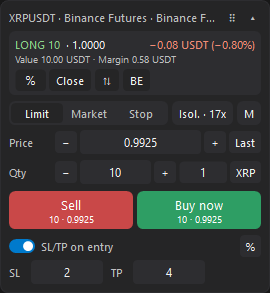
Header and position
The header shows the symbol and the account (connection · account); on the right there is the ⠿ handle for dragging and the collapse button.
When a position is open, the header is followed by its side and size (LONG or SHORT), the entry price and the PnL in the quote currency and in percent. The line below shows the position Value, and for an isolated position also the Margin. The PnL percent is calculated from the position value at the entry price, as in the order book.
Position buttons:
| Button | Description |
|---|---|
| % | The Close 25%, Close 50%, Close 75% menu — close part of the position at market. |
| Close | Close the whole position at market. |
| ⇅ | Reverse the position: close it at market and open the same quantity in the other direction. The terminal asks “Reverse the position at market?”. |
| BE | Breakeven: set the stop loss at the entry price. Works only if the market has already moved from the entry price in the profit direction. |
| Cancel N | Cancel all orders of the symbol (N is their number). The terminal asks “Cancel all orders of the symbol?”. The button is shown only when there are orders, including without a position. |
If there is no position, the panel says “No position” instead.
Leverage and margin
To the right of the order type there is the leverage chip: “Cross · 10x” or “Isol. · 20x” (the symbol’s margin mode and leverage on the account). Click it to open the Leverage and margin window. For an open isolated position, there is also the M button next to it: it opens the Position margin window. The chip is shown only for symbols with leverage.
Placing an order
- Select the order type: Limit, Market or Stop.
- Set the Price (a market order has no price field). The − and + buttons change the price by the symbol’s price step, the Last button puts in the last price. You can also take the price from the chart — click it.
- Set the Qty. The − and + buttons switch the quantity to the neighboring one in the set, and beyond the ends of the set change it by a tenth.
- Click Sell or Buy. The buttons show the quantity and price of the order.
The mouse wheel over the price or quantity field works like the − and + buttons.
Next to the quantity field there are two buttons:
- the set button shows the selected quantity from the set (or “own” if the quantity was entered by hand) and opens a menu of five quantities. The set is the same as in the order book: the order sizes for the symbol’s exchange and market;
- the unit button switches the quantity between the coin (lots on MOEX) and the quote currency. A quantity in the currency is converted to coins at the order price.
How the order types work:
- Limit — a limit order at the price from the field. If the price crosses the spread (a buy at or above the best ask, a sell at or below the best bid), the button reads Buy now or Sell now: the order fills at once, and the terminal asks for confirmation;
- Market — a market order; the buttons show the best opposite prices. The terminal asks for confirmation, for example “Buy 0.5 BTC at market?”;
- Stop — a stop order at the price from the field: a buy stop above the market, a sell stop below. Otherwise the panel shows “A buy stop goes above the market, a sell stop below.”.
If the quantity or the price is not set, the panel shows “Enter the quantity.” or “Enter the price.”.
SL/TP on entry
Turn on the SL/TP on entry switch to have the terminal set a stop loss and take profit when a position opens. In the SL and TP fields, set the distance from the entry price, and choose the unit with the button on the right: ticks (price steps) or % (percent of the entry price). 0 means no such level. The mouse wheel over a field changes the distance by one step or by 0.1%.
The levels are set when the position opens or reverses, if it has no stop loss or take profit yet. A level the market has already passed is not set. These settings belong to each chart and do not depend on the order book.
Moving and collapsing
Drag the panel by the ⠿ handle in its header — it stays within the chart and remembers its place.
The ▴ button in the header collapses the panel into a line: it shows the position (or the symbol), the Sell and Buy buttons and the quantity between them — clicking the quantity opens the set menu. In the collapsed panel, Sell and Buy place market orders. The ▾ button expands the panel. On a narrow chart, the collapsed panel takes two lines.

Trading layer
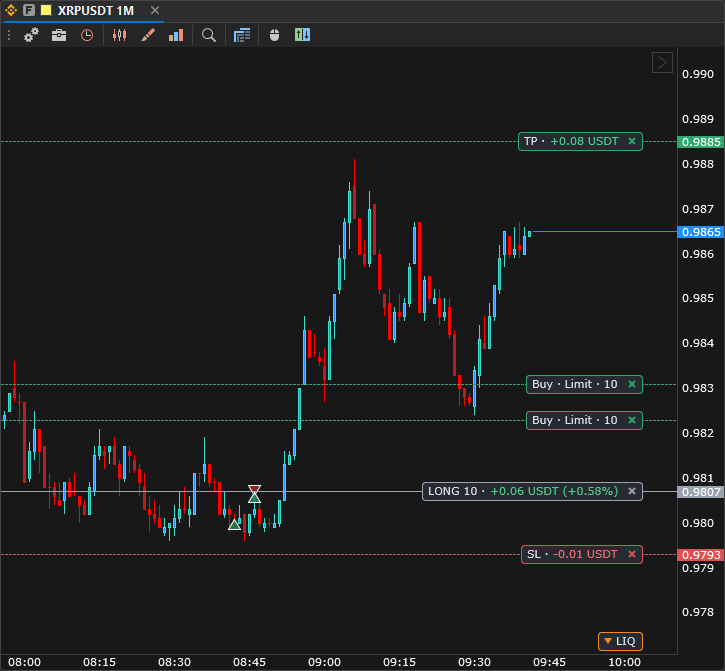
The trading layer shows your order and position lines over the price chart, with labels at the price scale:
- orders — dashed, green for a buy and red for a sell; the label shows the side, type and quantity, for example “Buy · Limit · 0.5”;
- position — a gray line at the entry price; the label shows the side, size and PnL in the currency and in percent;
- stop loss and take profit — red and green dashed lines; the label shows
SLorTPand the amount you get or lose when it triggers; - liquidation — an orange dashed
LIQline at the position’s liquidation price.
The amounts on the labels — the position PnL and the amount at stop loss or take profit trigger — are colored as profit or loss. If a line is outside the visible part of the chart, its label sticks to the edge with an arrow. Labels at the same price do not overlap: the next one moves to the left.
The colors above are those of the built-in dark theme. The colors of the lines, labels, preview line and mouse trading buttons are set in the Trading group of the chart theme: Average price line color, Stop loss line color, Take profit line color, Liquidation line color, Second leg color (hedge mode), Buy order color, Sell order color, Preview color, Label background color, Label text color, Profit color in label and Loss color in label.
What you can do with the mouse:
- move an order, stop loss or take profit — hold down the left mouse button on the label or line and drag it. While you drag, a blue line shows the new price, and for a stop loss or take profit also the amount at trigger. Esc cancels the move;
- set a take profit or stop loss — drag from the position label: toward profit you get a take profit, toward loss a stop loss;
- cancel an order, remove a stop loss or take profit, close the position — click
×on the label. The terminal confirms closing the position with “Close the position at market?”.
The chart context menu has no trading items: orders are placed from the trading panel and with the mouse, and the layer lines are moved and removed on the chart itself.
Restrictions:
- a stop loss goes only on the losing side of the market, a take profit only on the profit side; otherwise the terminal shows “A stop loss goes on the losing side of the market.” or “A take profit goes on the profit side of the market.”;
- a stop order can be moved only to its own side of the market: a buy stop above, a sell stop below;
- if you move a limit order across the spread, it fills at once — the terminal asks “The order crosses the spread and fills at once. Move it?”.
The layer is shown when Show position is on in the chart settings (it is on by default). With the option off, the chart shows no order and position lines. The price from the chart and the mouse trading buttons still work.
Mouse trading
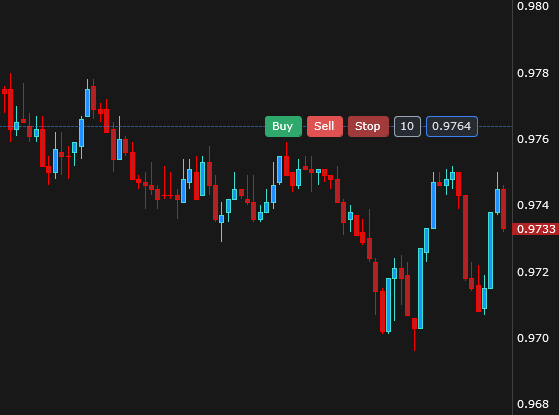
Click Mouse trading on the main panel. When the cursor is over the price chart, instead of the crosshair a dashed line with the price and quantity and buttons appear at its level:
- Buy and Sell — a limit order at the cursor price. If the price crosses the spread, the order fills at once — the terminal asks for confirmation;
- Stop — a stop order at the cursor price: above the market a buy stop, below a sell stop. There is no such button at the last price.
Buy and Sell use the buy and sell order colors of the chart theme, Stop a darker color of its side.
The order quantity comes from the Qty field of the trading panel. There are no buttons over the trading layer lines and labels — there you move the lines.
Price from the chart
Click the price chart with the left mouse button without moving the mouse — the price under the cursor (rounded to the symbol’s price step) appears in the Price field of the trading panel. If the panel has the Market type selected, it switches to Limit. This works without the mouse trading mode too.
Hedge mode
On a Binance Futures account in Hedge Mode, a symbol can have two positions at once — a long and a short leg. How this mode works is described in Hedge mode on the order book position page.
On such an account, a leg button appears on the chart’s main panel; other accounts do not have it. Its icon and tooltip show the active leg, for example “Position leg: LONG — the window trades the long leg. Click — SHORT”. A click switches the leg. The window’s orders are placed for the active leg, and the trading panel and the trading layer show it as the window’s position.
The other leg is shown on the chart too:
- its position line is dashed, in the Second leg color (hedge mode) of the chart theme (dark gray in the built-in dark theme); the other leg’s stop loss, take profit and liquidation are drawn as usual;
- when both legs are open, the stop loss, take profit and liquidation labels start with “L: ” (long leg) or “S: ” (short leg);
- the trading panel, collapsed or not, shows the other leg as a line with its side, quantity and PnL, for example “LONG 0.2 · +3.10 USDT”.
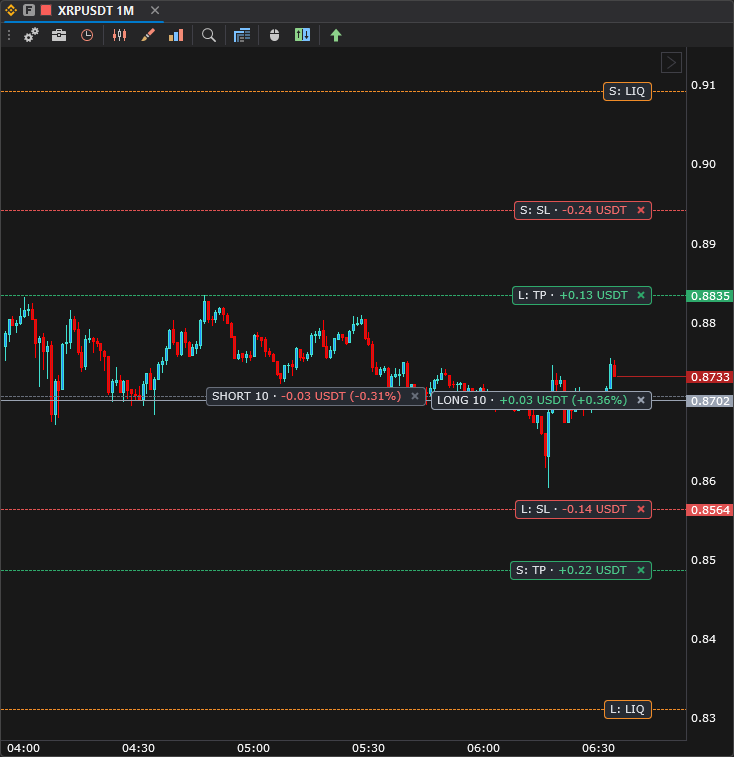
The other leg’s lines work like the lines of the window’s position: its stop loss and take profit can be moved or removed, and × on its position label closes that leg at market — the terminal asks “Close the other position leg at market?”.
Confirmations
Before risky actions, the terminal asks a question in the Chart trading window — click Yes to continue:
- a market order from the panel — “Buy N at market?” or “Sell N at market?”;
- closing the whole position or part of it — “Close the position at market?”, “Close 25% of the position at market?”;
- closing the other leg in hedge mode — “Close the other position leg at market?”;
- reversing the position — “Reverse the position at market?”;
- canceling all orders — “Cancel all orders of the symbol?”;
- a limit order or its move across the spread — for example, “Buy 0.5 at 65 000 crosses the spread and fills at once. Place it?”.
Limit and stop orders that do not fill at once are placed without a question, and so are moves of orders, stop losses and take profits.