App settings
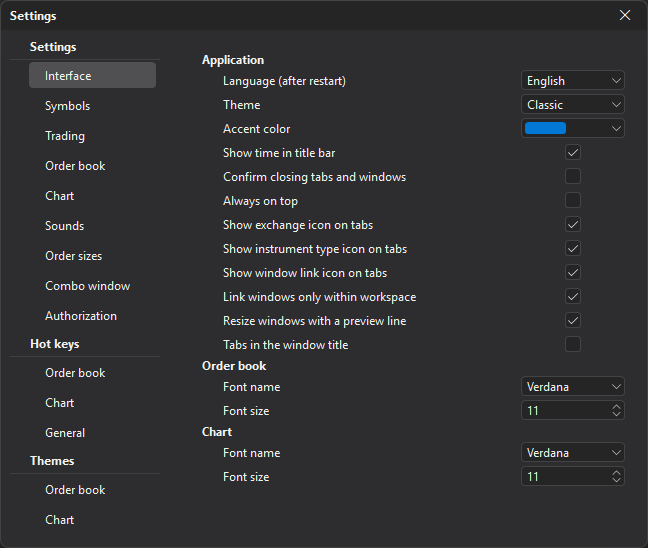
The App settings window (its title bar reads Settings) controls how JetScalp behaves: the interface, symbol display, trading parameters, the global appearance of the order book and chart, sounds, order sizes, the combo window, authorization, hotkeys and color themes.
Open Settings → App settings. The list of sections is on the left, and the parameters of the selected section are on the right.
The window has no OK and Cancel buttons: a section saves itself when you go to another section or close the window. Changes cannot be undone — except in the theme sections, which have the Discard changes button.
Important: Some settings directly affect trading actions: order sizes, hotkeys, mouse trading, auto stop loss and auto take profit. Check these parameters especially carefully before live trading.
Global and local settings
Some parameters are set globally in the App settings window and apply to all windows of their type. For example, global order book settings apply to all order books unless overriding the global settings is enabled for a specific order book.
In the settings of a specific order book or chart, you can turn on Override global settings — the parameters then apply only to that window.
| Setting type | Description |
|---|---|
| Global | Set in the App settings window and applied by default. |
| Local | Set in a specific order book or chart window and applied only to it. |
| Template | Saves a set of parameters so you can quickly apply them to other windows. |
Managing settings
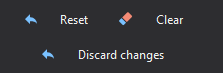
Some settings sections have the Reset, Clear and Discard changes buttons.
| Button | Description |
|---|---|
| Reset | Restores the default values. |
| Clear | Removes the assigned values. |
| Discard changes | Restores the values the section had when you opened it. |
The Working volumes section also has the Apply button — it applies the volumes in the open order books right away.