Themes
Themes set the colors of the order book and chart. You can pick a built-in theme, adjust it to your taste, and save it to the list or to a file.
The theme of the terminal itself — dark, light or classic — and the accent color are selected separately, in the Interface section. The order book and chart colors do not depend on it.
Open Settings → App settings, and on the left, in the Themes section, select the window whose theme you want to configure: Order book or Chart.
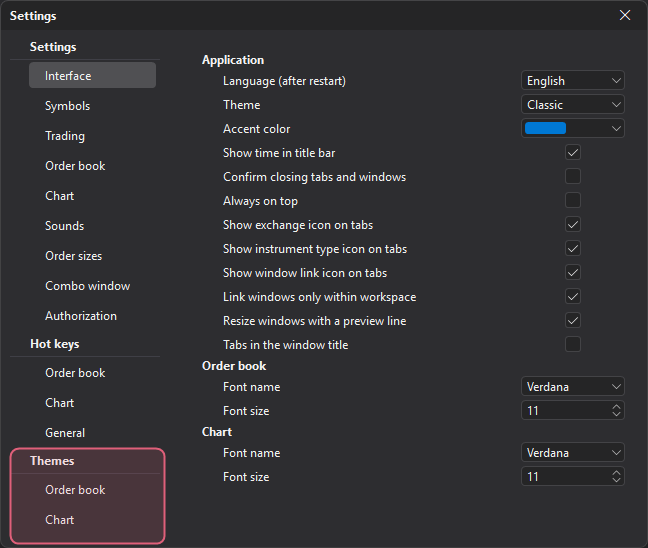
Theme templates
The top of the theme section contains the list of themes and buttons that apply the selected theme, delete a theme from the list and save your own theme to the list.

| Element | Description |
|---|---|
| Themes list | The terminal’s built-in themes, your saved themes and the Load from file… item. |
| Apply selected theme | Applies the theme selected in the list to the current colors. |
| Delete selected theme | Deletes your theme from the list. Built-in themes cannot be deleted. |
| Save current theme as template | Opens the Save theme window: save the current colors to the list of themes or to a file. |
| Discard changes | Restores the colors that were set when you opened this settings section. |
Sharing themes as files
You can save a theme to a file and pass it to another trader or move it to another computer without moving the whole configuration.
To save a theme to a file:
- Click Save current theme as template.
- In the Save theme window, enter the Theme name.
- Click Save to file, choose a folder and save the file. The theme is saved in the .json format; by default, the file name matches the theme name.
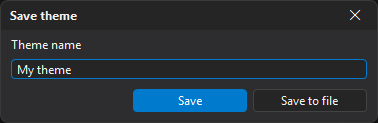
The Save button in the same window adds the theme to the terminal’s list of themes, not to a file. If a theme with this name already exists, the terminal asks whether to overwrite it.
To load a theme from a file, open the Themes list, select Load from file… and choose a .json file. The colors from the file are applied to the current theme right away; the theme is not added to the list — to keep it there, click Save current theme as template, then Save.
Order book and chart themes are stored separately: load a theme saved in the Chart section in the Chart section, and an order book theme in the Order book section.
Color picker
To change a color, click the color field and pick a color from the palette. For an exact color, click … in the field — the Select color window opens:
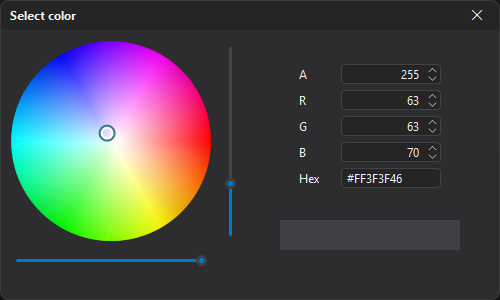
- the color wheel and the Brightness slider — pick a color with the mouse;
- the Opacity slider and the A field — color transparency from 0 (fully transparent) to 255 (opaque);
- the R, G, B fields — red, green and blue components from 0 to 255;
- the Hex field — the color in hexadecimal form
#AARRGGBB: eight characters, the first two are transparency. For example,#FF26A69Ais an opaque teal.
The color is applied as soon as you change it; close the window when the color is right. If an element does not support transparency, the window has no Opacity slider and A field.
The Select color window works the same way in all settings where a color is set.