Watchlist
The Watchlist window shows your list of symbols: the last prices, the percentage and absolute price change, trading volume, and turnover.
To open the window, select Windows → Watchlist.
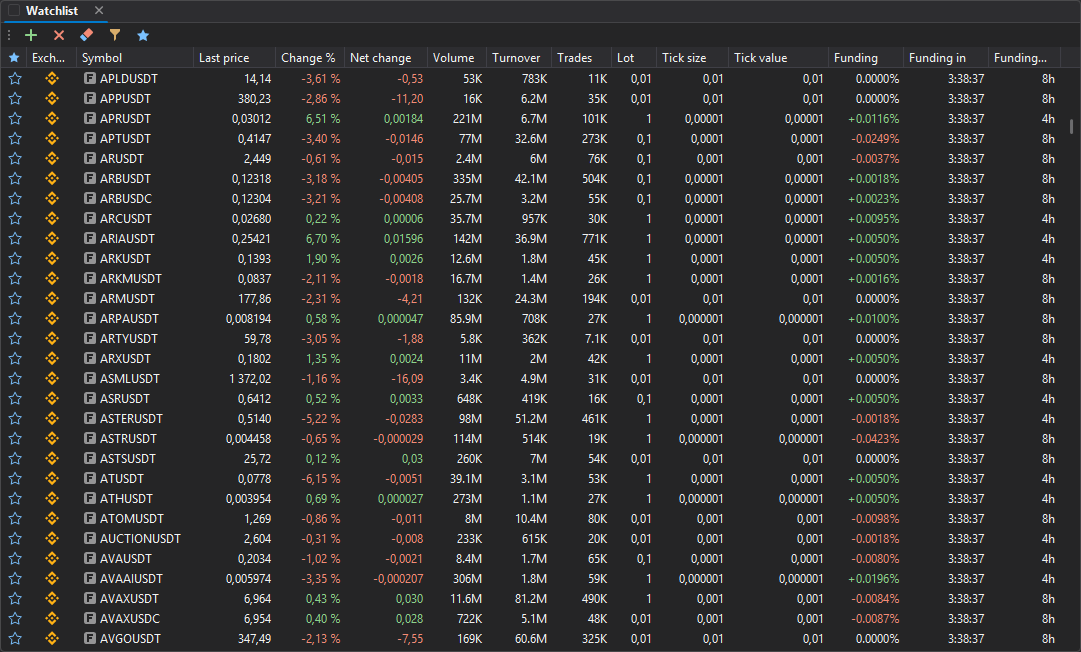
You can add the symbols you need, mark favorites, enable a filter, configure columns, and sort the table.
The Watchlist works well as a central list of symbols from which you select markets for further work in the order book and on the chart.
For crypto markets, market data is displayed even without a trading connection. A trading connection is required for orders, positions, assets, and other account data.
Watchlist table structure
The watchlist table consists of symbol rows and a set of columns. Each row corresponds to a single symbol on a specific exchange or market.
| Column | Description |
|---|---|
| Fav. | Marks the symbol as a favorite. |
| Exchange | Icon of the exchange where the symbol is available. |
| Symbol | Symbol type and name. |
| Last price | Last known price of the symbol. |
| Change % | Percentage price change. |
| Net change | Absolute price change. |
| Volume | Trading volume of the symbol. |
| Turnover | Turnover of the symbol. |
| Trades | Number of trades in the symbol. |
| Lot | Lot size. |
| Tick size | Minimum price increment. |
| Tick value | Value of the minimum price increment. |
| Buy margin | Initial margin to buy one MOEX futures contract. |
| Sell margin | Initial margin to sell one MOEX futures contract. |
| Expiration | Expiration date of a dated symbol. |
| Short | Marks that short selling is available for the symbol. |
| Funding | The current funding rate of a perpetual future, in percent. |
| Funding in | Time left until the next funding payment. |
| Funding period | The interval between funding payments. |
| Class | The symbol class as the exchange defines it: TradFi (tokenized stocks and other traditional assets), Perpetual (perpetual future), Delivery (dated future), Pre-market (a symbol before regular trading starts). A symbol can have several classes. |
Which columns are shown is chosen in the Choose columns menu.
Watchlist window toolbar
The top of the Watchlist window contains a toolbar for managing the symbol list.

| Button | Description |
|---|---|
| Adds symbols to the watchlist table. | |
| Removes the selected symbol from the table. | |
| Removes all symbols from the table. | |
| Opens the watchlist filter settings. | |
| Shows only favorite symbols. |
Adding symbols
To add a symbol to the watchlist table, click on the window toolbar. The symbol selection window opens.
The symbol selection window has the All, Spot, Futures, Currencies and Indices tabs, a search bar, exchange, class and currency filters, and the list of found symbols. How the window searches and in what order it shows the symbols is described in Symbol search.
The list may contain several variants of the same symbol on different exchanges. For example, the same symbol may be available on Binance, Bybit, Bitget, Gate, MEXC, and other venues.
Important: Before adding a symbol, and especially before trading, check not only the symbol name but also the exchange, market type, and quote currency. Symbols with similar names on different exchanges may refer to different markets.
Adding all symbols from the list
The symbol selection window has the Add all symbols from the list command. It adds to the Watchlist all symbols that are displayed after the current search and filtering.
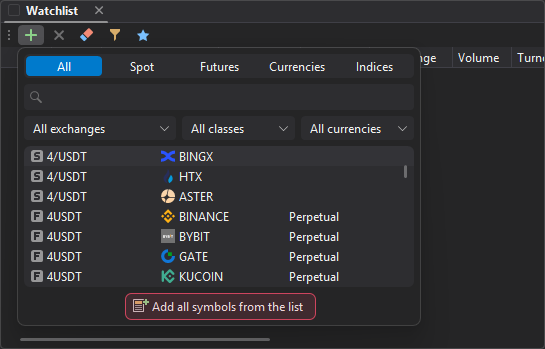
This is useful when you need to quickly build a list by exchange, currency, or market type. For example, you can filter symbols by USDT and add all found symbols in a single action.
Removing symbols
To remove a single symbol, select its row in the table and click Delete on the Watchlist toolbar. Only the selected symbol is removed.
To clear the entire list, click Clear. This command removes all current rows from the table. Before clearing, make sure you no longer need the list.
Favorite symbols
You can mark any symbol as a favorite with the star in the table. Favorite symbols give you quick access to your main markets.
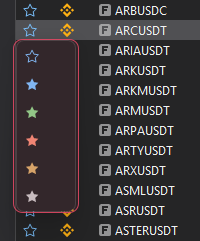
The Favorites button on the toolbar turns on the favorites-only mode. When this mode is on, the table shows only the rows marked as favorites.
The favorites mode is useful when the Watchlist contains many symbols but you regularly work with only a small part of the list.
Watchlist filter
The watchlist filter limits the symbol list by specified conditions. This is useful when you want to keep only active symbols with sufficient price movement or turnover.
To open the filter settings, click Watchlist filter on the toolbar. The Watchlist filter window opens.
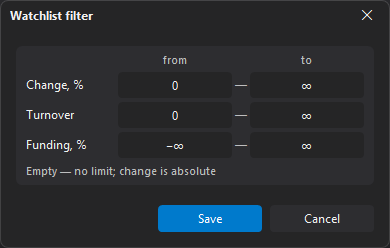
The Watchlist filter window has three rows, each with two fields: from and to. An empty field means no limit.
| Parameter | Description |
|---|---|
| Change, % | Price change in percent, absolute: rise or fall. Up to 100,000%. |
| Turnover | Turnover of the symbol. Up to 10 billion. |
| Funding, % | Funding rate, signed: from −100 to 100%. |
If at least one funding bound is set, the table keeps only symbols with funding — perpetual futures. For example, Funding, % to = −0.01 keeps symbols with a negative rate of −0.01% or lower.
After setting the conditions, click Save (or press Enter) to apply the filter to the table. Cancel or Esc closes the window without changes. If from is greater than to in a row, you cannot save: a message appears under the fields, for example “Turnover: «from» is greater than «to»”.
For example, if you set from to 2 in the Change, % row and from to 10,000 in the Turnover row, the table shows only symbols that have changed by at least 2% and have a turnover of at least 10,000.
Configuring columns
You can choose which columns are displayed in the watchlist table. To do this, open the context menu of the table header and select Choose columns.
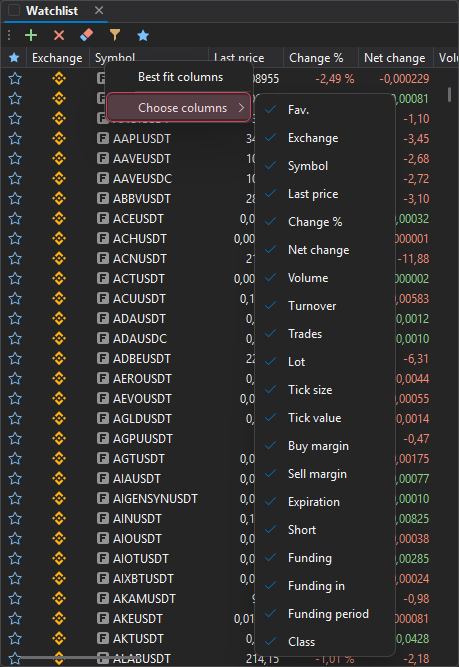
In the column selection menu, you can show or hide individual fields: favorites, exchange, symbol, last price, percentage change, and others.
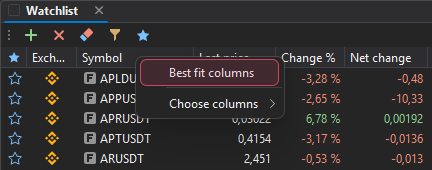
If column values are truncated, select Best fit columns. The command automatically fits the column widths to the table contents.
Sorting symbols
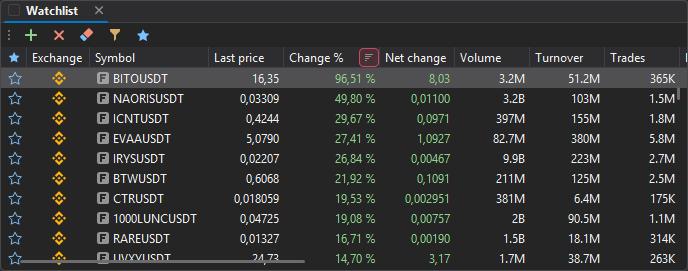
You can sort the watchlist table by columns. For example, sort symbols by percentage change, volume, or turnover to quickly find the most active markets.
To sort, click a column name. The first click sorts in ascending order, the second in descending order. To clear sorting, hold Ctrl and click the name of the column the table is sorted by.
When sorting by a column is on, an icon showing the sort direction appears next to the column name.
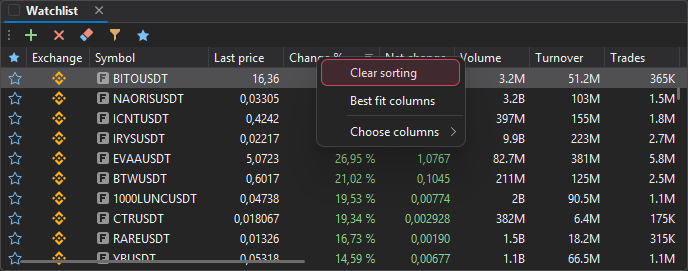
When sorting is on, the table header menu shows the Clear sorting item, which turns sorting off.
Sorting symbols manually
You can move symbols in the table manually by dragging rows with the mouse. This lets you arrange symbols in a convenient order: the most important ones at the top, related groups next to each other, favorite symbols at the beginning of the list.
To move a row, drag it to a new position with the mouse and release the mouse button.
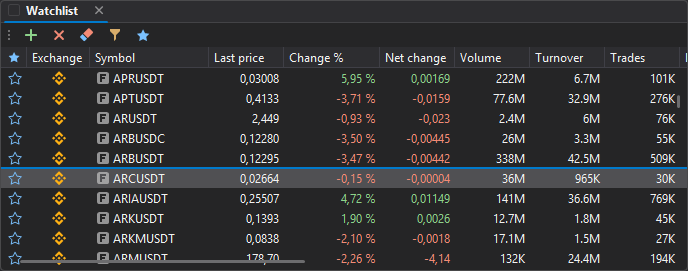
Moving rows manually turns off automatic sorting.
Open on all exchanges
Right-click a symbol row and select Open on all exchanges — the Combo window opens with this symbol: its order books on all exchanges from the combo window settings.
Linking the Watchlist with other windows
The Watchlist can be linked with an order book and a chart using a shared link color. For how to assign a color, turn linking off and which windows support it, see Window linking.
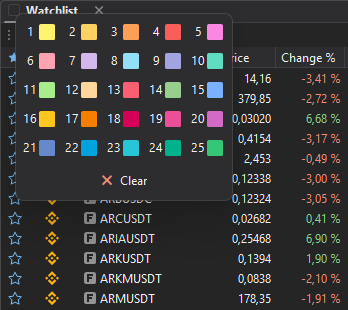
Linked order books and charts switch to a symbol when you click a row in the table and when you move between rows with the arrow keys. This makes it convenient to browse symbols quickly: select a row in the Watchlist, and the linked chart and order book immediately show the selected symbol.
The Watchlist only sends a symbol to linked windows and does not receive one from them. The Watchlist has no Active window mode.