Order book settings
The order book settings define how one particular window looks and behaves: volume filters, highlighting of large orders, sound alerts, automatic stop loss and take profit. For example, you can keep one order book with high thresholds for a liquid symbol and another with low thresholds for an illiquid one.
You can open the settings in two ways:
- click the Order book settings icon on the window’s main panel;
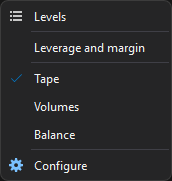
- right-click in the tape or clusters area and select Configure.
The parameters are grouped into tabs:
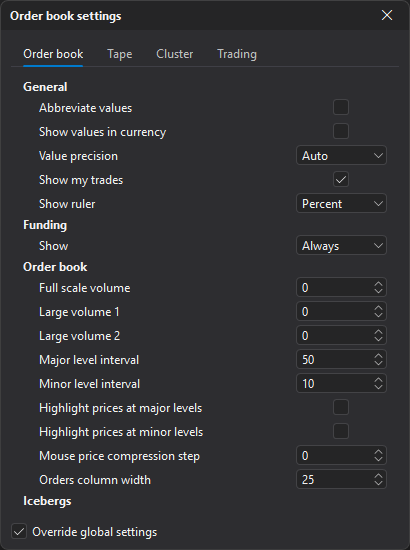
- Order book — volume display, highlighting of large orders, icebergs and the sound alert.
- Tape — trade filter and aggregation, the sound alert.
- Cluster — cluster scale and highlighting.
- Trading — automatic SL and TP, slippage, position result display.
To save the settings and apply them to other windows, use templates.
Override global settings
Some order book parameters are shared by all windows and are set in the global order book settings. To change them for this window only, enable the Override global settings checkbox at the bottom of the settings window — additional parameters then appear on the tabs:
- Order book — Show my trades, Show ruler, Highlight prices at major levels, Highlight prices at minor levels, the Funding group (Show, By thresholds: rate from, %, By thresholds: minutes to funding);
- Tape — Trade aggregation, Aggregation period, ms, Show trades line;
- Cluster — Highlight max, Color volume by delta, Show bar body, Show total bar volume, Show total bar delta.
While the checkbox is off, the global values apply to these parameters.