Combo window
The Combo window opens one symbol on several exchanges at once: a column per exchange, each with an order book. It is a convenient way to compare prices, liquidity and the tape of one coin across venues and to trade where it suits you best.
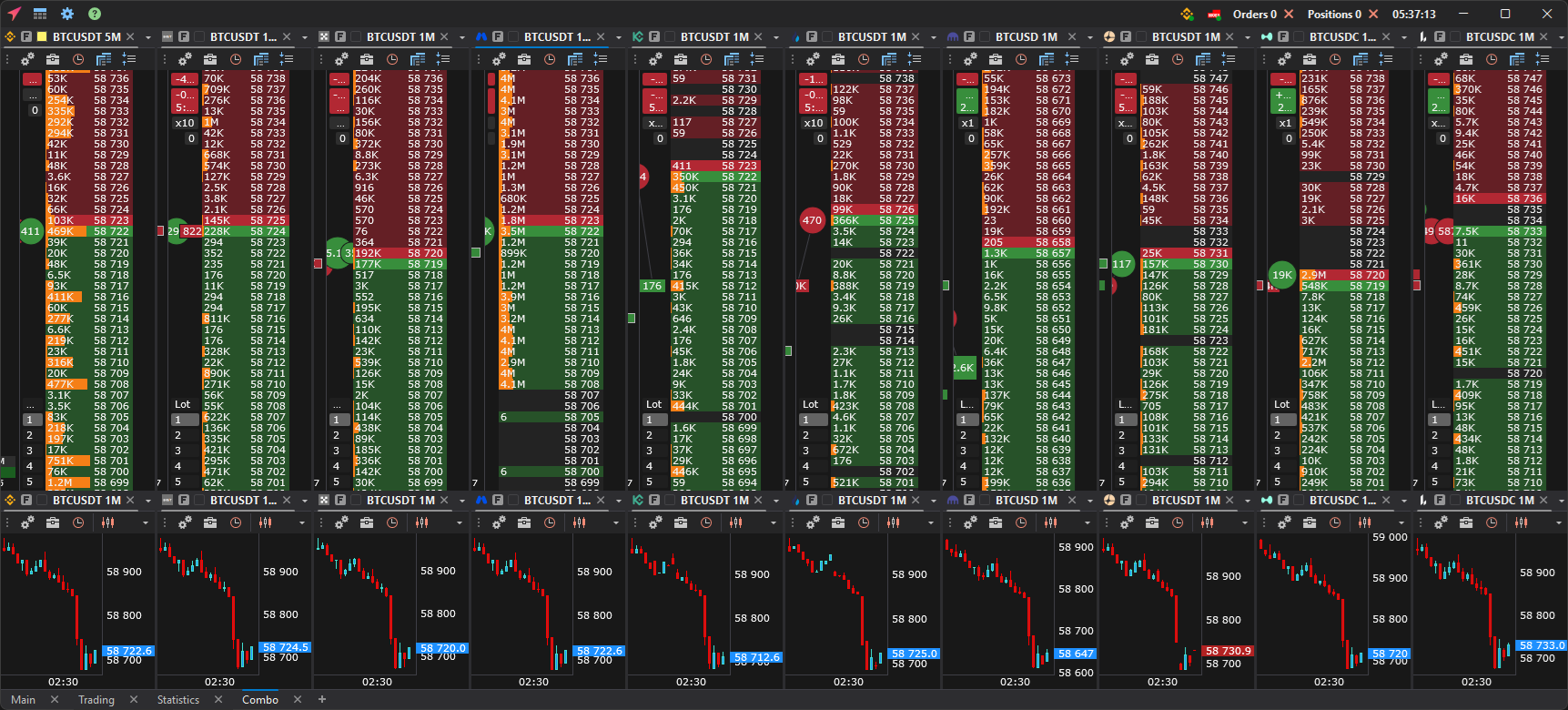
How the Combo window works
The Combo window is a tab of the main window (or a separate workspace window) with ordinary order books and charts. The tab is named after the coin, for example “BTC”; a Combo window without a symbol from the Windows menu is named “Combo”.
- Columns — one for each exchange and market selected in the combo window settings, in the order set there. For one exchange, futures come first, then spot.
- Charts — depend on the layout: its own chart under each order book, one common chart under all order books (the symbol of the first column), or no charts. Charts open with the trading panel hidden; show it with the Trading panel button.
- One symbol for the whole group — select a symbol in any order book or chart of the Combo window, and the other windows switch to the same coin on their exchanges right away. This is the Combo window’s own synchronization; it does not depend on link colors.
You can move, resize and transfer the windows of the Combo window like any other workspace windows (Free window layout).
MOEX is not included in the Combo window.
Which symbols get into the Combo window
On each exchange the terminal looks for the same coin:
- a “thousands” prefix in the name does not matter: 1000PEPE, kPEPE (on Hyperliquid) and PEPE are the same coin;
- the quote asset is the same one or, if there is none, another dollar one (USDT, USDC, USD, FDUSD, USDE, USD1); symbols quoted in other currencies (for example, EUR or KRW) are not matched;
- of futures, only perpetual ones are taken: dated futures have a different price;
- delisted symbols are not taken.
If an exchange has no such symbol, its column is not added.
How to open the Combo window
- Windows → Combo window — opens a Combo window without a symbol: order books of all exchanges from the settings. Select a symbol in any of them — the others switch to it. If Order books at most (0 — all) is set, the first order books of the list open (turnover is not considered here). If no exchange is selected in the settings, the terminal shows the message “No exchanges are selected in the combo window settings”.
- Open on all exchanges in the exchange list — click the exchange icon on an order book or chart tab (Exchange icon on a window tab).
- Open on all exchanges in the row menu of the Watchlist or Screener — right-click the row.
- The Open on all exchanges hotkey (General hotkeys) — opens the Combo window with the symbol of the active window: an order book, a chart, or the selected Watchlist or Screener row. No key is assigned by default. If the active window has no symbol, the terminal shows the message “Select a symbol: an order book, a chart or a quotes row”.
If the symbol is not on any exchange from the settings, the terminal shows the message “The symbol is not on the combo window exchanges (Settings → Combo window)”. Check the exchange list in the Combo window settings.
Settings
Which exchanges and markets to open, the layout, the chart share, the order book width, the order book template, compression and timeframe on open, the maximum number of order books, and whether to open the Combo window as a tab or as a window are set in Settings → App settings → Combo window — see Combo window.