Tape
The Tape window shows the trades of one symbol as a table: the time with milliseconds, the price, the volume and the value. Unlike the order book’s tape area, it shows the exact values of every trade, and a volume filter can leave only the large ones.
To open the window, select Windows → Tape.
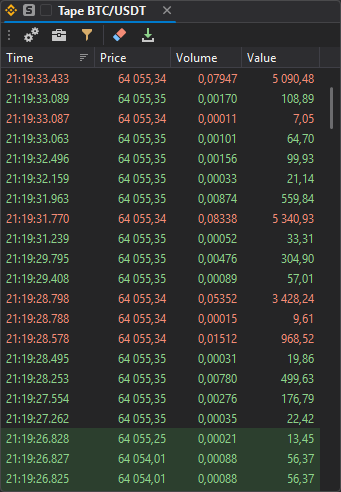
Columns
| Column | Description |
|---|---|
| Time | The trade time with milliseconds (HH:mm:ss.fff) — the exchange’s time: UTC on crypto exchanges, Moscow time on MOEX. For an aggregated row — the time of its first trade. |
| Price | The trade price with the symbol’s price precision. For an aggregated row — the price of the last trade. |
| Volume | The trade volume with the symbol’s volume precision. For an aggregated row — the sum of the volumes. |
| Value | The trade value in the quote currency: price × volume. On MOEX the lot and the price step value are taken into account: for futures — in rubles. From 1 — with two decimals, below 1 — up to 8 decimals. |
Buys and sells differ in color — see Colors.
By default new trades come on top. A click on the Time header switches the order: newest on top or newest at the bottom. The tape is not sorted by other columns.
While the edge with new trades is visible, the tape shows them right away. If you scroll the tape back to past trades, the visible rows stay in place and new ones gather beyond the edge.
The table header menu (right-click the header) has Best fit columns and Choose columns, as in the Watchlist.
Window toolbar
| Button | Description |
|---|---|
| Tape settings — colors, volume abbreviation and aggregation: see Tape settings. | |
| Symbols — symbol search, as in the order book. The selected symbol opens in the tape and is sent to linked windows. | |
| Tape filter — a filter by trade volume: see Tape filter. | |
| Clear the tape — removes all rows and trades of the window. New trades keep coming. | |
| Load today’s trades history — see Today’s trades history. |
The Hide window toolbars command in the settings menu hides the toolbar.
The window’s symbol is saved: after a restart of the terminal the tape subscribes to it again. The tab title is “Tape” and the symbol name.
How many trades the tape keeps
The window shows the last 2,000 rows that pass the filter and remembers the last 20,000 trades. When the aggregation or the filter changes, the tape is rebuilt from these trades — the new conditions apply to past trades too.
With a filter for large trades, rows stay longer: small trades hidden by the filter do not push them out of the 2,000 rows.
When the symbol changes, the tape starts from scratch.
Today’s trades history
The Load today’s trades history button loads the symbol’s trades of the current day from the JetScalp server and puts them before the trades the window has already received. Trades that arrive during the load are not lost. The current aggregation and filter apply to the loaded trades.
While the history is loading, the button is unavailable. Changing the symbol, Clear the tape and closing the window cancel the load.
If there is no connection to the server, the terminal shows “No connection to the server: the trades history is not loaded.”. If the load fails — “The trades history of … is not loaded: …” with the symbol name and the reason.
Tape filter
The filter leaves in the tape the trades whose volume is within a given range. Click Tape filter on the window toolbar.
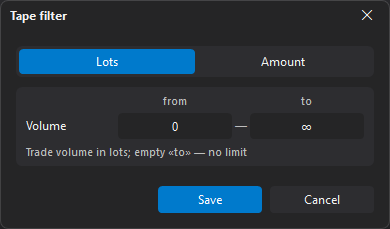
| Parameter | Description |
|---|---|
| Volume: Lots / Amount | What the range is set in: the trade volume in the symbol’s lots or its value in the quote currency (as in the Value column). Default — Lots. |
| from | The lower bound, inclusive. 0 — no lower limit (default). |
| to | The upper bound, inclusive. An empty field (∞) — no upper limit (default). |
The fields take 0 to 10,000,000,000. In lots the wheel and arrow step is the symbol’s volume step, in currency — 1,000, with up to two decimals. Under the fields there is a hint: “Trade volume in lots; empty «to» — no limit” or “Trade value in USDT; empty «to» — no limit” (with the symbol’s quote currency).
The filter checks a tape row — after aggregation. An aggregated row keeps growing while trades are added to it: once it reaches from, it appears in the tape; once it exceeds to, it disappears.
Click Save (or press Enter) to apply the filter. Cancel or Esc closes the window without changes. If from is greater than to, you cannot save: “«From» is greater than «to»” appears under the fields.
Tape settings
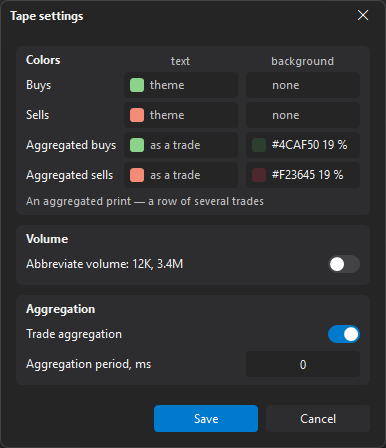
Click Tape settings on the window toolbar. Each tape window has its own settings. Save (or Enter) applies the changes, Cancel (or Esc) closes the window without changes.
Colors
The Colors card has four rows — Buys, Sells, Aggregated buys, Aggregated sells — each with two cells: text and background. An aggregated print is a row of several trades.
| Cell | Default |
|---|---|
| Buys, Sells — text | “theme” — the theme color by the trade side: buys as a rise, sells as a fall in the Watchlist. |
| Buys, Sells — background | “none” — the table background. |
| Aggregated buys, sells — text | “as a trade” — the text color of buys or sells. |
| Aggregated buys, sells — background | A light semi-transparent tint of green for buys and red for sells. |
Click a cell to open the palette:
- a palette color: for text — as is, for a background — semi-transparent (19%), so the row stays readable in any theme;
- the reset button at the bottom left of the palette — Theme color (trade text), No background (trade background) or As a trade (aggregated rows);
- Other… — the color picker window; for a background — with transparency.
A cell shows a sample and a label: a custom color — as #RRGGBB (a semi-transparent one with its share in percent), no custom color — “theme”, “none” or “as a trade”.
Volume
| Parameter | Description |
|---|---|
| Abbreviate volume: 12K, 3.4M | Volumes from 1,000 in the Volume and Value columns are abbreviated: 12K, 3.4M, 1.2B. Off by default. |
Aggregation
| Parameter | Description |
|---|---|
| Trade aggregation | Combines consecutive trades of the same side into one row: the time of the first trade, the price of the last, the volumes summed. On by default. |
| Aggregation period, ms | 0 to 60,000, step 10, default 0. At 0, trades with the same time are combined; at a larger value — trades no farther than the period from the row’s first trade. Unavailable without aggregation. |
Aggregation works the same way as Trade aggregation in the order book tape (Tape tab), but is set in each tape window separately.
Window linking
The Tape takes part in window linking like the order book and the chart: it has a link color and the Active window mode. It receives the symbol from linked windows — Watchlist, Screener, order book, chart — and sends them the symbol selected via Symbols. The market type cannot be pinned for the Tape.
Hotkeys
These common hotkeys work in the Tape (see Common hotkeys):
- Select instrument — opens the symbol search under the Symbols button; if the toolbar is hidden — at the top left corner of the window;
- Open active window settings — opens the tape settings;
- Maximize/restore window.
The Tape has no hotkeys of its own.