General hotkeys
The Hot keys → General group contains commands that apply to the entire application rather than only to an individual order book or chart. By default, no general command has a key. Keys of this group cannot match keys of the Order book and Chart groups.
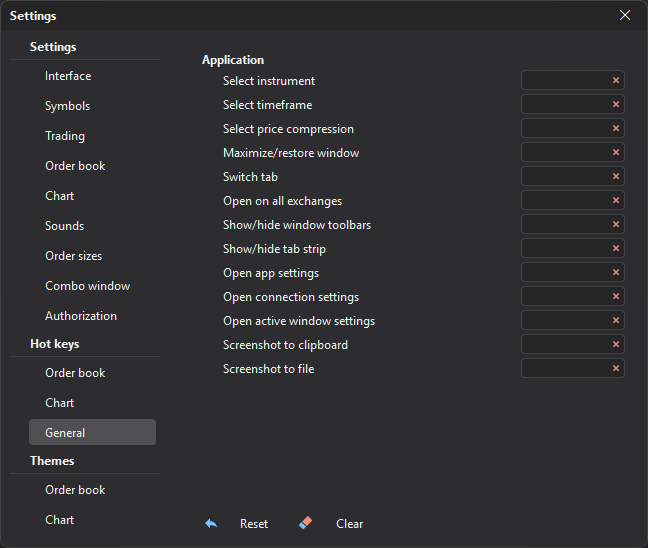
Application
| Command | Default | What it does |
|---|---|---|
| Select instrument | — | Opens the symbol selection window in the Order book, Chart, Watchlist and Tape windows. |
| Select timeframe | — | Opens the timeframe menu in the Order book and Chart windows. |
| Select price compression | — | Opens the price compression menu in the Order book window. |
| Maximize/restore window | — | Maximizes the window to full screen and returns it to its tab when pressed again. Works in the Order book, Chart, Tape, Statistics, Watchlist, Orders, Trades, Positions, Assets, Alerts and Notifications windows. |
| Switch tab | — | Switches to the next tab; after the last one — to the first. |
| Open on all exchanges | — | Opens the Combo window with the symbol of the active window: an order book, a chart, or the selected Watchlist or Screener row. |
| Show/hide window toolbars | — | Hides the panels inside windows; pressing it again shows them. |
| Show/hide tab strip | — | Hides the tab bar; pressing it again shows it. |
| Open app settings | — | Opens the App settings window. |
| Open connection settings | — | Opens the Connections window. |
| Open active window settings | — | Opens the settings of the active Order book, Chart or Tape window. |
| Screenshot to clipboard | — | Takes a screenshot of the window and saves it to the clipboard. Works in the Order book, Chart and Statistics (equity chart) windows. |
| Screenshot to file | — | Takes a screenshot of the window and opens a dialog for saving it to a file. Works in the Order book, Chart and Statistics (equity chart) windows. |
The Switch tab, Show/hide window toolbars, Show/hide tab strip, Open app settings and Open connection settings commands act across the whole terminal; the others act in the active window.
Last updated on