Trading tables
Trading tables show trading account data: active and filled orders, actual trades, positions, asset balances, and statistics on closed operations.
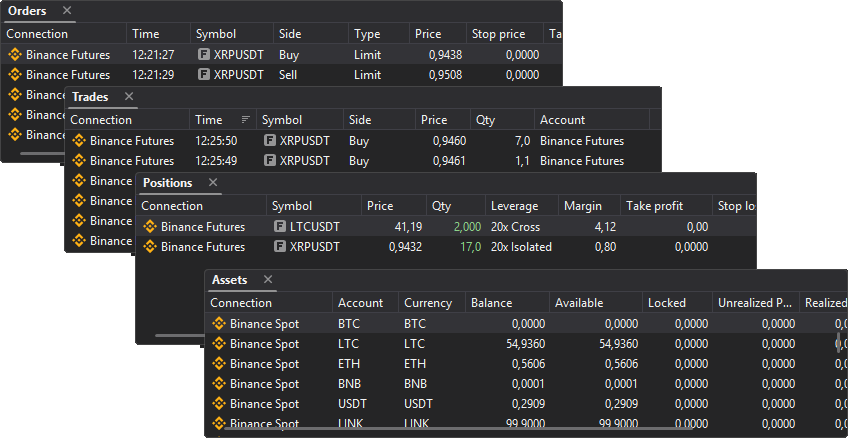
These windows are especially important when trading from the order book: after placing, modifying, or canceling an order, check in them that the command was actually processed.
- Orders — active, filled, and other orders;
- Trades — actual order executions;
- Positions — open or tracked positions, PnL, SL, and TP;
- Assets — the balance, free funds, and locked funds;
- Statistics — closed operations and a financial result chart.
Column settings
Right-click the header of any table to open the column settings menu. In the Choose columns submenu, select the columns you want to show.
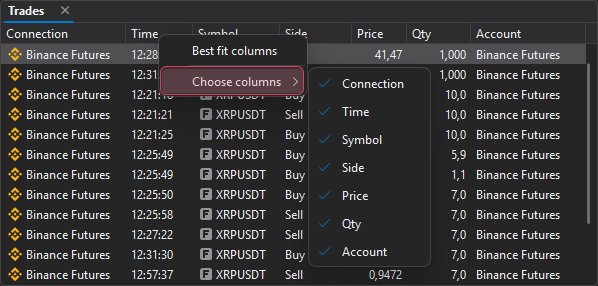
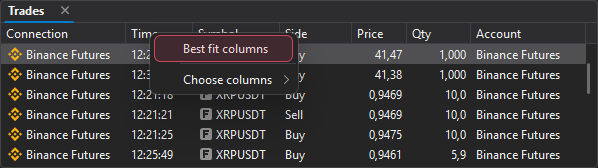
If column values are not displayed in full, choose the separate Best fit columns item in the same menu — the column widths will fit the table contents.
Column sorting
Tables can be sorted by column, for example by connection, time, or symbol.
To sort a table, click a column name. The first click sorts in ascending order; each further click on the same column reverses the direction.
When sorting is on, a sort direction icon appears next to the column name.
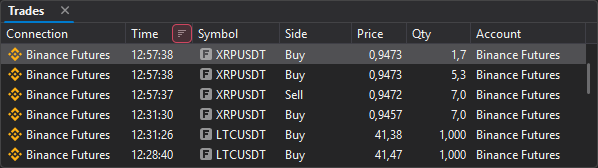
There are two ways to turn sorting off:
- choose Clear sorting in the table header menu — this item appears only when sorting is on;
- hold Ctrl and click the header of the column the table is sorted by.
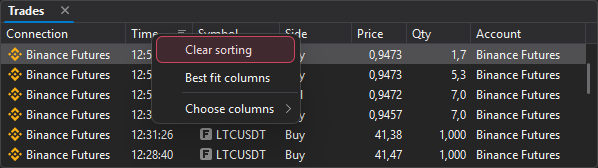
Not all columns support sorting.