Templates
A chart template saves the chart window settings, its timeframe and indicators. Set up a chart once, save a template and apply it to new charts instead of adding indicators and choosing options all over again.
Opening the window
Click the Templates icon on the chart’s main panel — the Chart templates window opens.
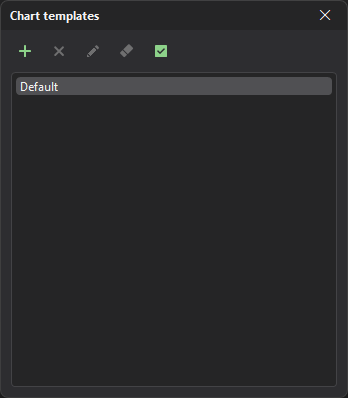
In the window you can create, rename and delete templates, and apply a template to all charts of the terminal.
Creating a template
A template is created from the current state of the chart the window was opened from. Click the button — the Save chart template window opens.
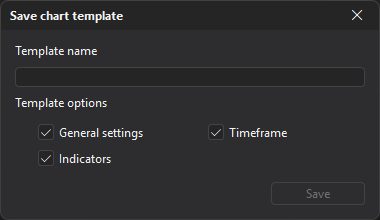
Enter the Template name and in the Template options group check what goes into it:
| Parameter | Description |
|---|---|
| General settings | The options of the Chart settings window, plus the chart type and Magnet mode. |
| Timeframe | The chart timeframe. |
| Indicators | Indicators and their areas. |
Click Save. If a template with this name already exists, the terminal asks “A template with this name already exists. Overwrite it?”.
Applying a template
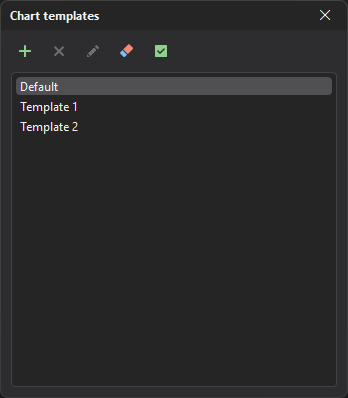
To apply a template to the current chart, double-click it in the list.
To apply a template to all charts, select it in the list and click the Apply to all charts button.
The first template in the list is Default: it restores the standard chart settings and timeframe. It cannot be renamed or deleted.
Managing templates
Buttons on the window toolbar (their names are shown in tooltips):
- Delete — deletes the selected template;
- Rename — changes the name of the selected template;
- Clear — deletes all saved templates;
- Apply to all charts — applies the selected template to all charts.