Order book hotkeys
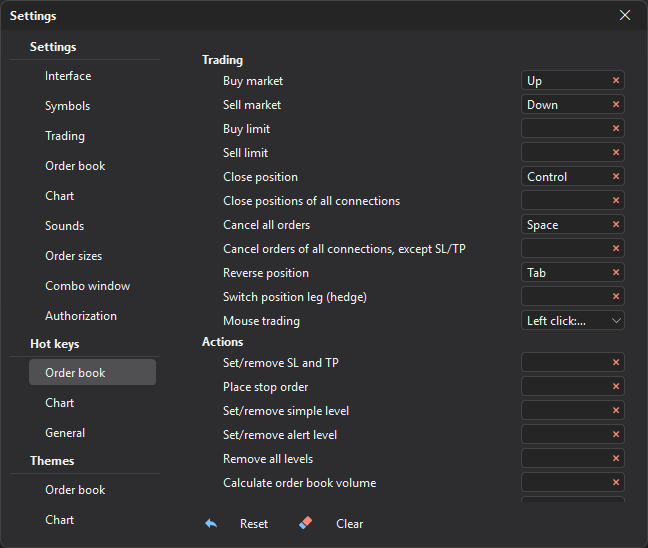
The Hot keys → Order book group contains commands for trading, order book actions, price compression, timeframe, scrolling, centering and selecting the order size. The keys work in the active Order book window; “all connections” and “in all windows” commands work across the whole terminal.
Important: Trading keys are assigned by default and act immediately, without confirmation.
In the active Order book window, ↑ places a market buy order and ↓ a market sell order for the current order size, Ctrl closes the position at market, Tab reverses the position, Space cancels all orders of the window. Ctrl on its own closes the position when you release it, if no other keys or mouse buttons were pressed and the wheel was not turned between pressing and releasing it: combinations such as Ctrl+C and Ctrl+click do not close the position.
To remove a key, click × in the command field; to change it, click the field and press the new key. The Clear button removes all order book keys and disables mouse trading, Reset restores the default keys. See Hotkeys for details.
Trading
| Command | Default | What it does |
|---|---|---|
| Buy market | ↑ | Places a market buy order for the current order size. |
| Sell market | ↓ | Places a market sell order for the current order size. |
| Buy limit | — | Places a limit buy order at the best bid, taking the slippage for limit orders into account. |
| Sell limit | — | Places a limit sell order at the best ask, taking the slippage for limit orders into account. |
| Close position | Ctrl | Closes the window’s position with a market order; the position’s SL and TP are removed. |
| Close positions of all connections | — | Closes all positions on all connections without confirmation. Works across the whole terminal. |
| Cancel all orders | Space | Cancels all orders of the window. |
| Cancel orders of all connections, except SL/TP | — | Cancels all orders on all connections; SL and TP on the exchange remain. Works across the whole terminal. |
| Reverse position | Tab | Closes the position and opens a position of the same size in the opposite direction. |
| Switch position leg (hedge) | — | In hedge mode switches the window to the other position leg: LONG or SHORT. |
| Mouse trading | Left click: buy, right click: sell | Not a key but the choice of mouse button actions on order book prices (see below). |
Mouse trading
The Mouse trading option sets what left (LMB) and right (RMB) mouse clicks on order book prices do:
| Option | Description |
|---|---|
| Off | Clicks on the order book do not place orders. |
| Auto-detect order type | LMB — limit order (below the spread — buy, above — sell), RMB — stop order. |
| Left click: buy, right click: sell | LMB — limit buy, RMB — limit sell at the clicked price. The default option. |
| Left click: sell, right click: buy | LMB — limit sell, RMB — limit buy. |
| Left click: buy, right click: sell (stop orders) | LMB — buy (below the spread with a limit order, above — with a stop order), RMB — sell (above the spread with a limit order, below — with a stop order). |
| Left click: market order, right click: limit order | LMB — market order, RMB — limit order; the side depends on whether the click is above or below the middle of the spread. |
| Left click: limit order, right click: market order | The reverse: LMB — limit order, RMB — market order. |
| Left click: place order, right click: cancel order | LMB — limit order (above the middle of the spread — sell, below — buy), RMB cancels the window’s orders at the clicked price. |
During an auction the modes in which the side depends on where you click work as Left click: buy, right click: sell.
Actions
The commands of this group, except Remove all levels, work like this: hold the key and click a price in the order book (or turn the mouse wheel).
| Command | Default | What it does |
|---|---|---|
| Set/remove SL and TP | — | With the key held, a click on a price on the profit side sets TP, on the loss side — SL; a second click on the same price removes it. Requires an open position. |
| Place stop order | — | With the key held, a click below the spread places a sell stop order, above — a buy stop order. Does not work when mouse trading is disabled. |
| Set/remove simple level | — | With the key held, a click on a price sets or removes a simple level. |
| Set/remove alert level | — | With the key held, a click on a price sets or removes an alert level. |
| Remove all levels | — | Removes all levels in the order book. |
| Calculate order book volume | — | While the key is held, shows the quote volume up to the price under the cursor. |
| Close position mode | — | With the key held, the order is placed for the size of the open position (CLOSE label). |
| Reduce position mode | — | With the key held, the order is placed as reduce-only (REDUCE label). |
| Fit cluster and order book scale | — | With the key held, the mouse wheel changes the volume scale: over the cluster — the cluster scale, over the order book — the order book scale. |
Price compression
| Command | Default | What it does |
|---|---|---|
| Mouse adjust | — | With the key held, the mouse wheel changes the price compression. |
| Compress prices | — | Increases the price compression. |
| Expand prices | — | Decreases the price compression. |
Timeframe
| Command | Default | What it does |
|---|---|---|
| Increase | — | Switches to the next, larger timeframe. |
| Decrease | — | Switches to the previous, smaller timeframe. |
Order book scrolling
| Command | Default | What it does |
|---|---|---|
| Scroll order book up | — | Scrolls the order book up. |
| Scroll order book down | — | Scrolls the order book down. |
| Center order book | — | Returns the spread to the center of the order book. |
| Center order book in all windows | — | Centers all open order books. Works across the whole terminal. |
Order size
| Command | Default | What it does |
|---|---|---|
| Set order size 1 | 1 | Makes preset 1 the order size of the window. |
| Set order size 2 | 2 | Makes preset 2 the order size of the window. |
| Set order size 3 | 3 | Makes preset 3 the order size of the window. |
| Set order size 4 | 4 | Makes preset 4 the order size of the window. |
| Set order size 5 | 5 | Makes preset 5 the order size of the window. |
The default digits are the keys of the top row of the keyboard, not the numeric keypad.