Hotkeys
Hotkeys run order book, chart and terminal-wide commands without the mouse. The keys are split into three groups: Order book, Chart and General.
Open Settings → App settings, and on the left, in the Hot keys section, select a group.
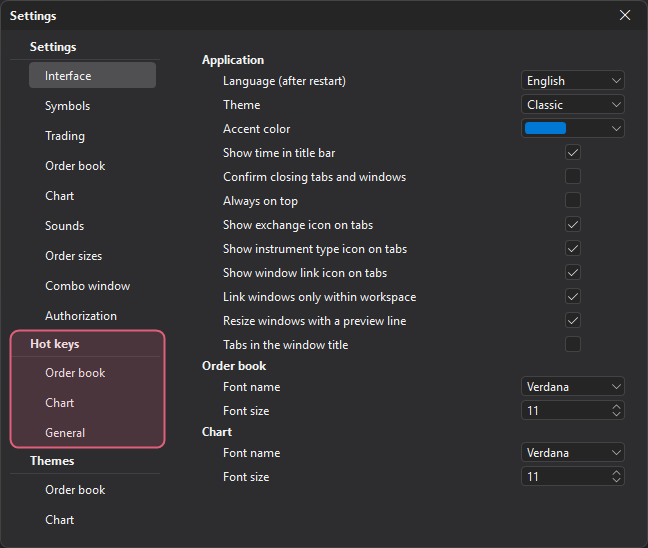
Full command lists with the default keys:
- Order book hotkeys — trading, order book actions, price compression, timeframe, scrolling and order sizes;
- Chart hotkeys — timeframe, scrolling, zoom, objects, view and drawing;
- General hotkeys — application commands: symbol selection, tabs, the Combo window, panels, settings, screenshots.
Important: Some order book trading keys are assigned by default and act immediately, without confirmation: ↑ buys at market, ↓ sells at market, Ctrl closes the position, Tab reverses the position, Space cancels all orders. If you do not use these commands, remove or change the keys before live trading — see Order book hotkeys.
How to assign, change or remove a key
- Select a group (Order book, Chart or General) and click the field of the command.
- Press a key or a combination with Ctrl, Shift, Alt. Ctrl, Shift or Alt pressed on its own can also be assigned as a standalone key.
- To remove the key from a command, click × on the right of its field — the command is left without a key.
The buttons below the list apply to the whole open group:
- Reset — restores the default keys;
- Clear — removes all keys of the group (in the Order book group this also turns off mouse trading).
One key cannot be assigned to two commands of the same group. Keys of the General group cannot match keys of the Order book and Chart groups; order book and chart keys may match each other because they act in different windows. If a key is already taken, the hint “Key is already in use” appears, and the field stays empty.
Order book and chart keys work only in the active Order book or Chart window. Commands marked “in all windows” and some general commands act across the whole terminal, regardless of which window is active.
How keys fire
- A combination or an ordinary key fires when pressed.
- Ctrl, Shift or Alt on its own fires when you release it, and only if no other keys or mouse buttons were pressed and the wheel was not turned between pressing and releasing it. So Ctrl+Q, Ctrl+click or Ctrl+wheel do not run the command assigned to Ctrl alone. Commands that work while the key is held (for example, placing a level with a click in the order book) turn on already when it is pressed.
- A held key does not repeat the order book trading commands and the commands that act across the whole terminal: the command fires again only after a new press.
- A command that acts across the whole terminal and is assigned to a key without modifiers also fires with Ctrl, Shift or Alt held — for example, while a mode key is held in the order book — unless that combination is assigned to another command.