Order book area
The order book area shows market participants’ limit orders at each price: sell orders on top, buy orders below, the spread between them. The order book shows where large orders stand and how the price approaches them. This is also where you place your own orders with the mouse — see Mouse trading.
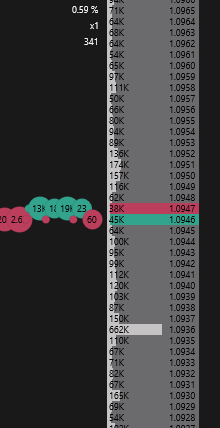
Order volume is shown as a histogram: the longer the bar, the larger the volume placed at that price. Rows with large volume are highlighted in color — the thresholds are set on the Order book settings tab.
Your orders column
To the right of the prices is your orders column: it shows the volume of the orders you have placed. In this column you move and cancel orders with the mouse — see Limit orders.
The column width is set by the Orders column width parameter on the Order book tab.
Info panel
At the top of the window, next to the left border of the order book, a panel with additional information is displayed:
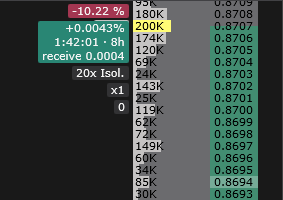
- Symbol price change in percent.
- Price compression step, for example
x1. - Ping of the last placed or modified order — the time from sending the order to the exchange response, in milliseconds.
Depending on the symbol and connection, the panel also shows:
- the account’s leverage and margin mode, for example
10x Cross— for futures on exchanges where the connection provides this data; - the price step value taking compression into account — for MOEX symbols;
- the funding chip — for crypto perpetual futures, see Funding.
Funding
For a perpetual futures contract, the info panel shows a funding chip:
- the first line is the current rate with its sign, for example
+0.0100%. The chip is green for a positive rate and red for a negative one; - the second line is the time to funding and the funding period, for example
1:23:45 · 8h.
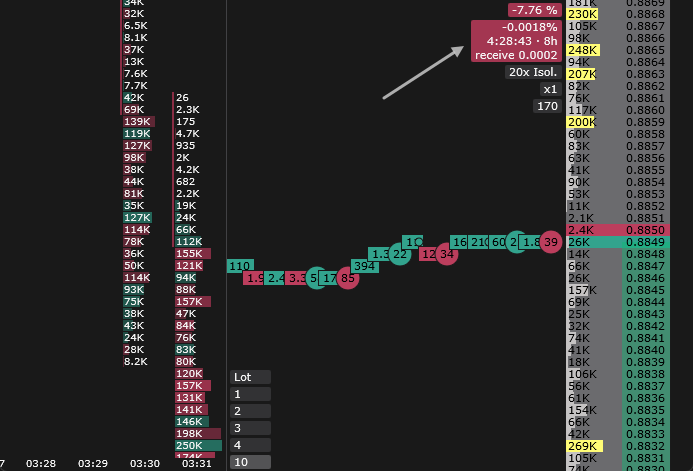
If a position in the symbol is open, the chip can have two more lines — each when its amount is not zero:
- the expected payment at the current rate — “pay 0.40” or “receive 0.40”;
- the amount accrued since the position was opened — for example “accrued -1.23”. The line appears after the first funding payment.
When the chip is shown is set by the Show parameter in the Funding group: Always, By thresholds or None. It is available in the global order book settings and in the window settings.
Order book is stale
If the connection to the exchange drops or a gap is detected in the order book stream, the terminal does not show the old orders as current: the order book is cleared and Order book is stale appears in the middle. It disappears by itself as soon as the exchange sends a new order book snapshot.
Width and scrolling
Resizing
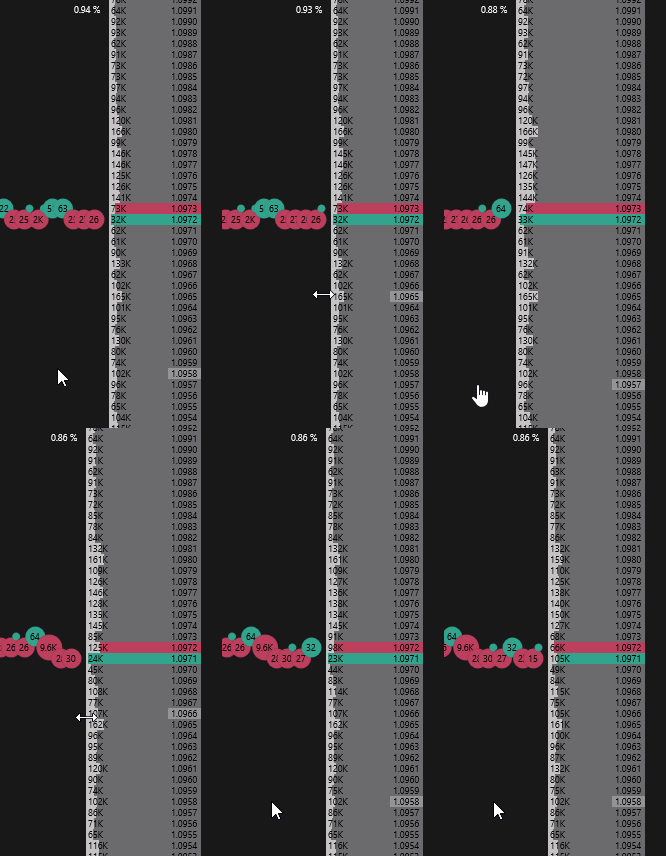
Hover over the left border of the order book, hold down the left mouse button and drag the border left or right.
Scrolling and centering
Scroll the order book up and down with the mouse wheel. Pressing the mouse wheel centers the order book — returns the spread to the middle of the window.
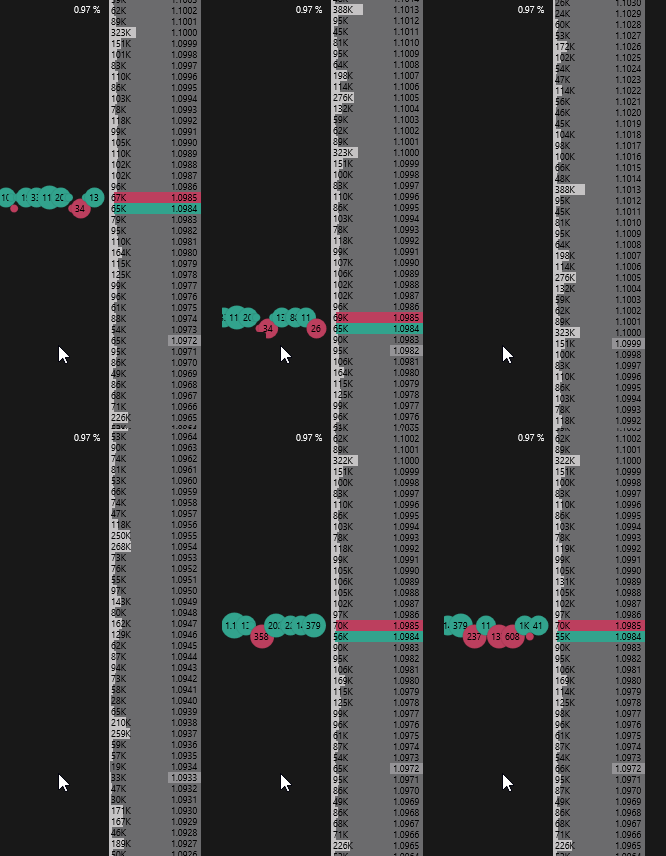
Scrolling and centering also have hotkeys: Scroll order book up, Scroll order book down, Center order book and Center order book in all windows.
Volume calculation
Volume calculation shows how much volume stands in the order book from the best price to the selected one: for example, to judge whether there is enough liquidity for your order or how much has to be eaten for the price to reach a level.
Hold down the Calculate order book volume hotkey and hover over the desired price. The volume is calculated on the side of the order book the cursor points to: above the spread — sell orders, below — buy orders.
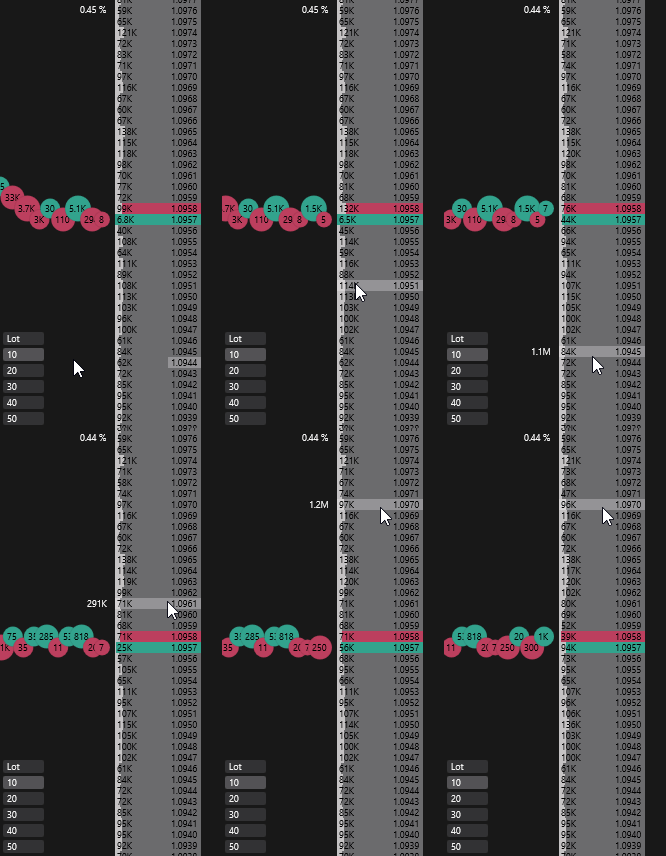
While the key is held down, a marker with the calculated volume is displayed next to the cursor at the left border of the order book. When you release the key, the marker disappears.
If Show values in currency is enabled, the volume is calculated in the quote currency.
To show the total volume every time the cursor is over the order book, without a key, enable Show total order volume in the global order book settings.
The scrolling, centering and volume calculation keys are not assigned by default — assign them in Order book hotkeys.