Order book
The Order book window is a scalper’s main workspace in JetScalp. In one window you see the order book with market participants’ orders, the trade tape and clusters, and you place, move and cancel orders right here — with a mouse click or a hotkey.
A scalper needs this to read the market and act without delay: you see at which prices large orders stand, how fast they are being eaten and who is more active right now — buyers or sellers, and you can enter and exit a trade in a fraction of a second.
To open the window, select Windows → Order book — the order book opens as a tab in the terminal’s main window.
Window layout
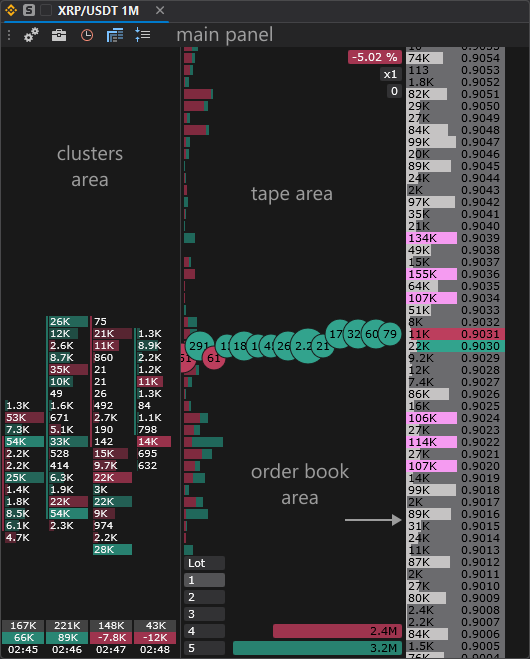
- Main panel — symbol, cluster timeframe, price compression, templates and window settings.
- Order book area — participants’ orders at each price and your own orders; this is where you place orders with the mouse.
- Tape area — the trade stream, horizontal volumes, levels, SL and TP markers and the order size panel.
- Clusters area — the volume traded at each price in bars of the selected timeframe.
Where to start
- Before your first trade, read Mouse trading: by default a click on a price in the order book places an order immediately.
- How to place different order types and manage a position — Trading from the order book.
- Mark important prices with lines and sound alerts — Levels.
- Configure how the window looks — Order book settings.
Last updated on