Position in the order book
When a position is open, the order book shows it right next to the prices: where you entered, whether you are in profit or at a loss, and by how much. This way the trade result is always in view, and you don’t need to switch to the positions table.
Result highlighting
When a position is in profit, the range from the entry price to the current price is highlighted in green.
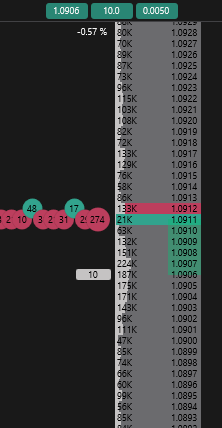
When a position is at a loss — in red.
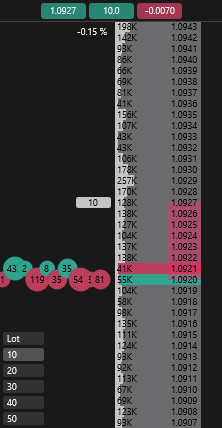
The colors are given for the built-in dark order book theme and can be changed in the order book theme.
The entry price is marked in the order book with a marker showing the volume of the open position.
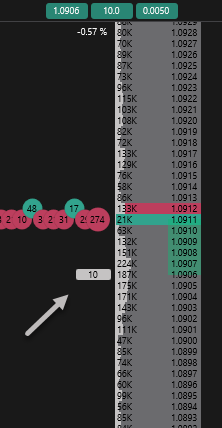
Average price and breakeven
If you add volume to a position at different prices, the order book automatically calculates the average entry price:
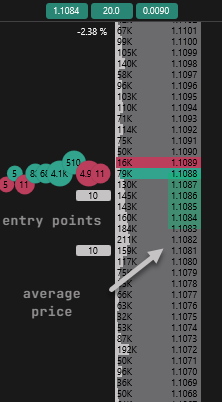
When you partially close a position, the result range is recalculated automatically, so the breakeven price for the remaining volume shifts.
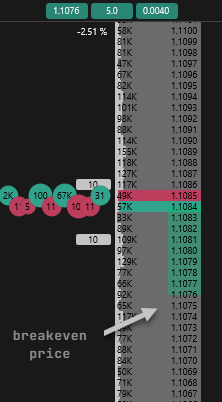
The position’s stop loss and take profit behave as follows:
- when you add volume, they move with the average price and keep their distance from it;
- when you partially close the position, they stay in place — otherwise, after a part is closed at a loss, the stop loss could end up beyond the market;
- when a new position opens or the position is reversed, the previous stop loss and take profit are cleared.
Position panel
When a position is open, a panel with information about it appears at the top of the order book window:
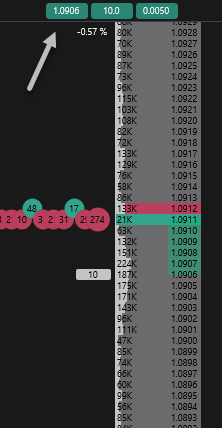
Cells from left to right:
- Entry price.
- Position volume.
- Current position result — in money or in percent.
In the Amount mode the result is shown in money: for MOEX symbols — in rubles, based on the price step value, for others — in the symbol’s quote currency. This is the unrealized result of the open position, excluding commission.
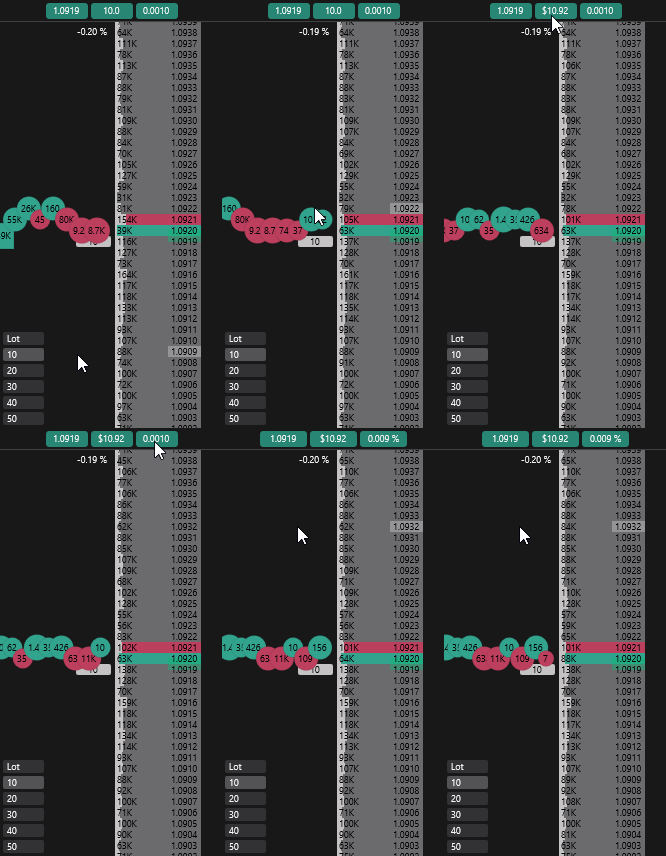
Changing the display
Double-click the volume cell to switch it between symbol quantity and value in currency.
Double-click the result cell the same way to switch it between the amount and percent. The same choice is set by the PnL display parameter on the Trading tab.
Hedge mode
In hedge mode (Hedge Mode) two positions in one symbol can be open at once — a long one and a short one, called legs (LONG and SHORT). JetScalp supports this mode on Binance Futures: if it is enabled on the account, the terminal works with legs. On other exchanges futures work in single position mode (One-way Mode) — see the connection pages.
An order book window trades one leg — the active one:
- a leg button appears on the window’s main panel; its tooltip shows the active leg, for example “Position leg: LONG — the window trades the long leg. Click — SHORT”; a click switches the window to the other leg. The button is visible only for an account in hedge mode;
- you can also switch the leg with the Switch position leg (hedge) hotkey — it is not assigned by default, see Order book hotkeys;
- the window’s orders and the close and reduce position modes apply to the active leg.
If both legs are open, the position panel shows two rows: first the window’s position (the active leg), below it — the other leg. The stop loss and take profit labels then start with the leg letter: L:SL, S:TP.
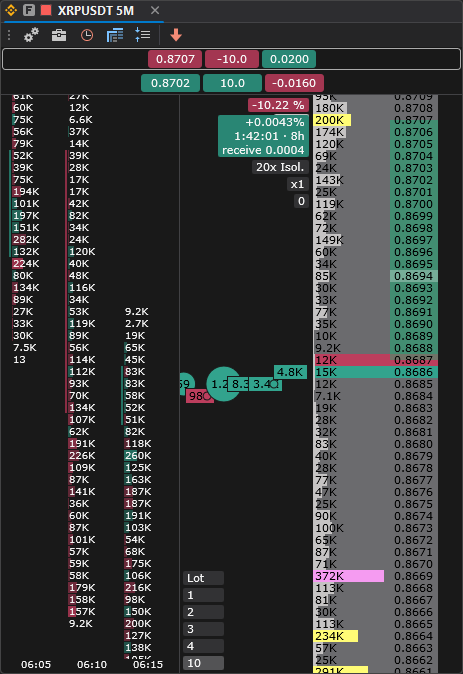
- Close position closes both legs, each with its own market order.
- Reverse position reverses the only open leg: it is closed, and an opposite leg of the same volume is opened; the new leg becomes active. If both legs are open, the position is not reversed — the terminal shows: “Both position legs (LONG and SHORT) are open — the position is not reversed. Close one of the legs.”
Legs are also shown in the Positions window — in the Leg column.
Leverage and margin
For crypto exchange futures, the leverage and margin mode are set on the exchange for each symbol. They apply even without an open position — to the next orders for that symbol. In JetScalp you can view and change them without going to the exchange website.
The current leverage and mode are shown on the order book info panel (for example, 10x Cross) and in the Leverage column of the Positions window.
How to open
- In the order book: right-click the tape area and choose Leverage and margin. The setting applies to the account the window trades through.
- In the Positions window: right-click a position row and choose Leverage and margin.
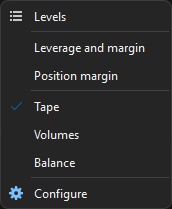
The item is available only for futures on connections that can change the leverage: Binance Futures, Bybit Unified (linear contracts), OKX Unified, Bitget Futures, Gate Futures, KuCoin Futures, BingX Perpetual, HTX USDT-M, Hyperliquid, Aster Futures and Lighter. Spot, MOEX, Mexc Futures and Kraken Futures do not have it.
The Leverage and margin window
The window title shows the symbol, and below it — the connection through which the leverage and mode are changed. When it opens, the window requests the current values from the exchange — while the request is running, Loading… is shown at the bottom. If the exchange does not return the current values, the window says “The exchange did not report the symbol leverage.”.
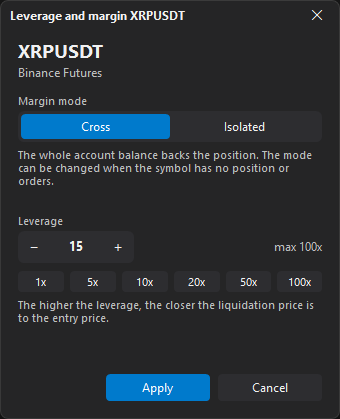
| Field | Description |
|---|---|
| Margin mode | Cross — the whole account balance backs the position; Isolated — the position has its own margin, and only that margin is lost on liquidation. A hint below the switch explains the chosen mode and when it can be changed. |
| Leverage | An integer from 1 to the symbol’s maximum leverage: type it, change it with the − and + buttons, or pick one of the quick values (1x, 5x, 10x, 20x, 50x and the maximum). The maximum is shown on the right, for example max 100x. If the exchange did not report it, you can enter up to 125 — the exchange rejects anything above its limit. Below the quick values is a reminder: “The higher the leverage, the closer the liquidation price is to the entry price.” |
To change the values:
- Choose the margin mode.
- Set the leverage.
- Click Apply.
JetScalp changes the mode first, then the leverage; while the request is running, Applying… is shown at the bottom and the window cannot be closed. If the exchange accepts the changes, the window closes. If it rejects them, the window stays open and the reason is shown in red at the bottom. Cancel closes the window without changes.
Important: The higher the leverage, the closer the liquidation price is to the entry price: a small move against the position can force it to close. Switching from isolated to cross margin puts the whole account balance at risk, not just the position margin. The new leverage applies to orders for this symbol from any window of this account.
Exchange restrictions
The margin mode can usually be changed only when the symbol has no position and no active orders; most exchanges allow changing the leverage with an open position too. If the condition is not met, the exchange rejects the request and its response is shown in the window.
| Connection | Specifics |
|---|---|
| Bybit Unified | The margin mode is one for the whole unified trading account: changing it affects all symbols. If the account uses portfolio margin, the mode can only be changed on the Bybit website — the window shows “The Bybit account uses portfolio margin: margin mode is changed on the Bybit website.” |
| OKX Unified | The margin mode is set in each order. JetScalp does not let you change it while the symbol has a position or orders: “Margin mode can be changed only when the symbol has no position or orders.” |
| HTX USDT-M | JetScalp places orders in cross margin only: you cannot choose Isolated, the window shows the reason. The leverage can be changed. |
| Hyperliquid | Some coins allow isolated margin only — then the mode switch is unavailable. |
| Gate Futures | JetScalp does not connect an account in hedge mode (dual mode) — the leverage and mode can be changed only for an account in one-way mode. |
If there is no connection to the exchange, the window shows “No connection to the exchange.”
Position margin
An isolated position risks only its own margin. Add margin to move the liquidation price away, or remove the free part if the buffer is larger than you need.
Important: Removing margin brings the liquidation price closer. Before removing it, check how far from the current price the liquidation will be.
How to open
Open the Position margin window in one of these ways:
- in the Positions window, right-click the position row and select Position margin;
- in the order book, right-click the tape area and select Position margin.
The item is available only when the symbol has an open position in Isolated mode and the connection can change its margin: Binance Futures, Bybit Unified, OKX Unified, Bitget Futures, Gate Futures, BingX Perpetual, Aster DEX Futures and Hyperliquid.
The Position margin window
The window shows the symbol, the connection, the position side, quantity and leverage (for example, LONG 5 · 17x), the current margin and the liquidation price.
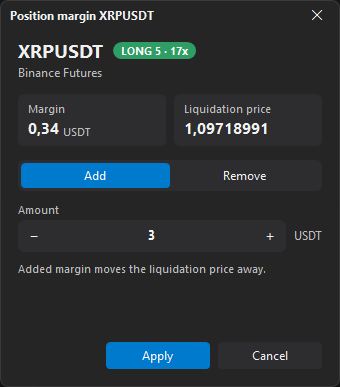
- Select Add or Remove.
- Enter the Amount in the margin currency (USDT, USDC), to the cent; the − and + buttons change it.
- Click Apply.
Only the free part of the margin can be removed: the exchange rejects the rest, and its response appears as a line in the window. After a successful change the window closes, and the new margin and liquidation price appear in the Margin and Liquidation columns of the Positions window.