Object manager
The object manager is a window listing all drawing objects on the chart. In it you change an object’s color, width, price and other options, delete objects and save a style you like as a template.
Opening the window
Right-click anywhere in the chart area and select Object manager — the Objects window opens.
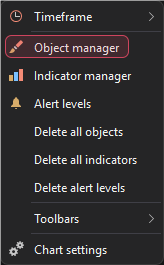
The manager also opens when you double-click a drawing object on the chart.
Configuring an object
The left part of the window lists the drawing objects, grouped by chart area. Click an object in the list to open its settings in the right part of the window. Changes are shown on the chart right away.
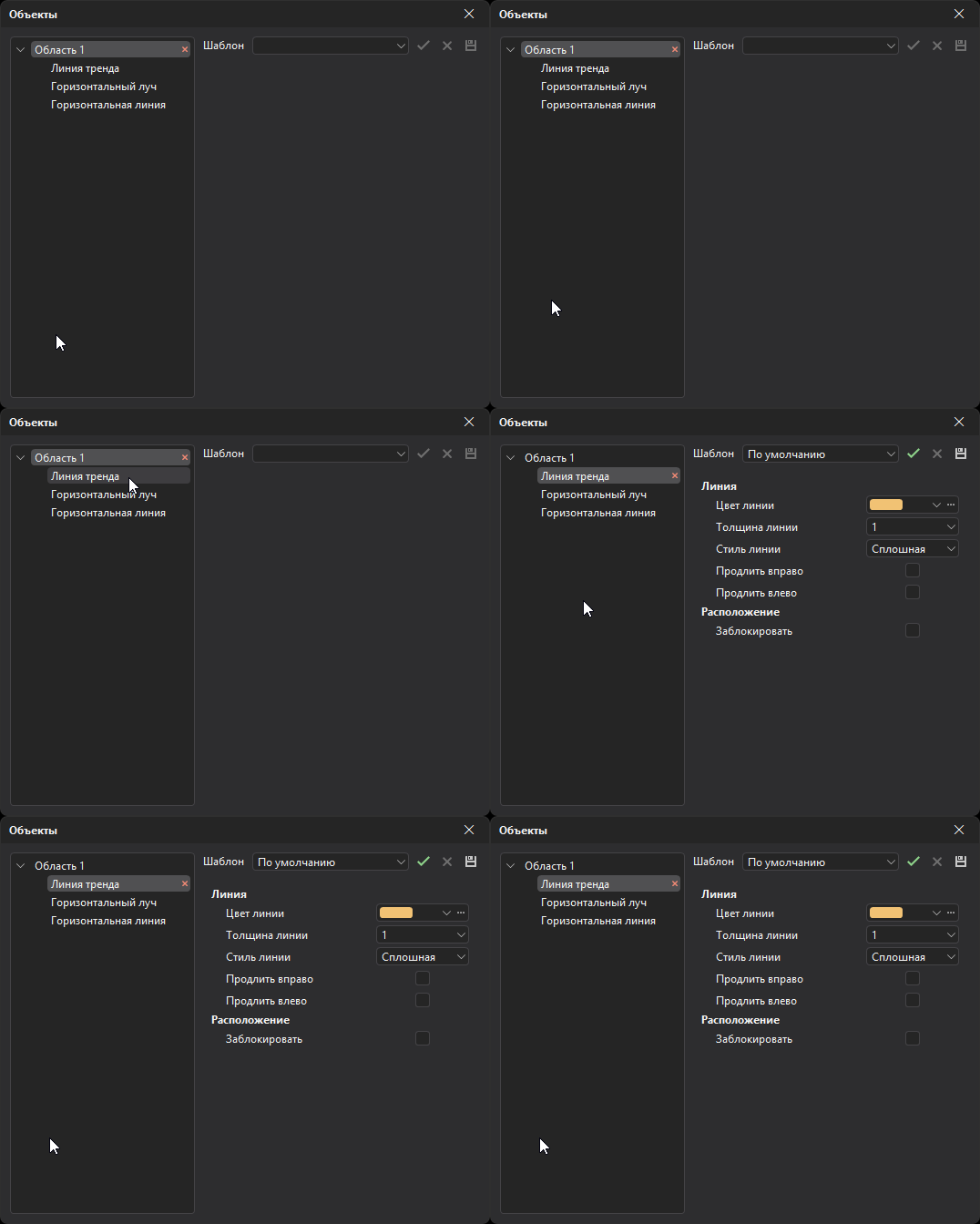
Depending on the object, the settings groups are Line, Border, Background, Text, Price, Profile and Levels (of a volume profile), Parameters (Value and Sound of an alert line in an indicator area) and Placement. The Lock option in the Placement group prevents the object from being moved with the mouse — so you don’t shift an important level by accident.
There is no cancel button: all changes apply to the chart right away.
The terminal remembers the changed style as the style of objects of this kind: new objects of the same kind are drawn the same way. The same happens when you apply a template.
Deleting objects
To delete an object, select it in the list and click the cross to the right of its name.
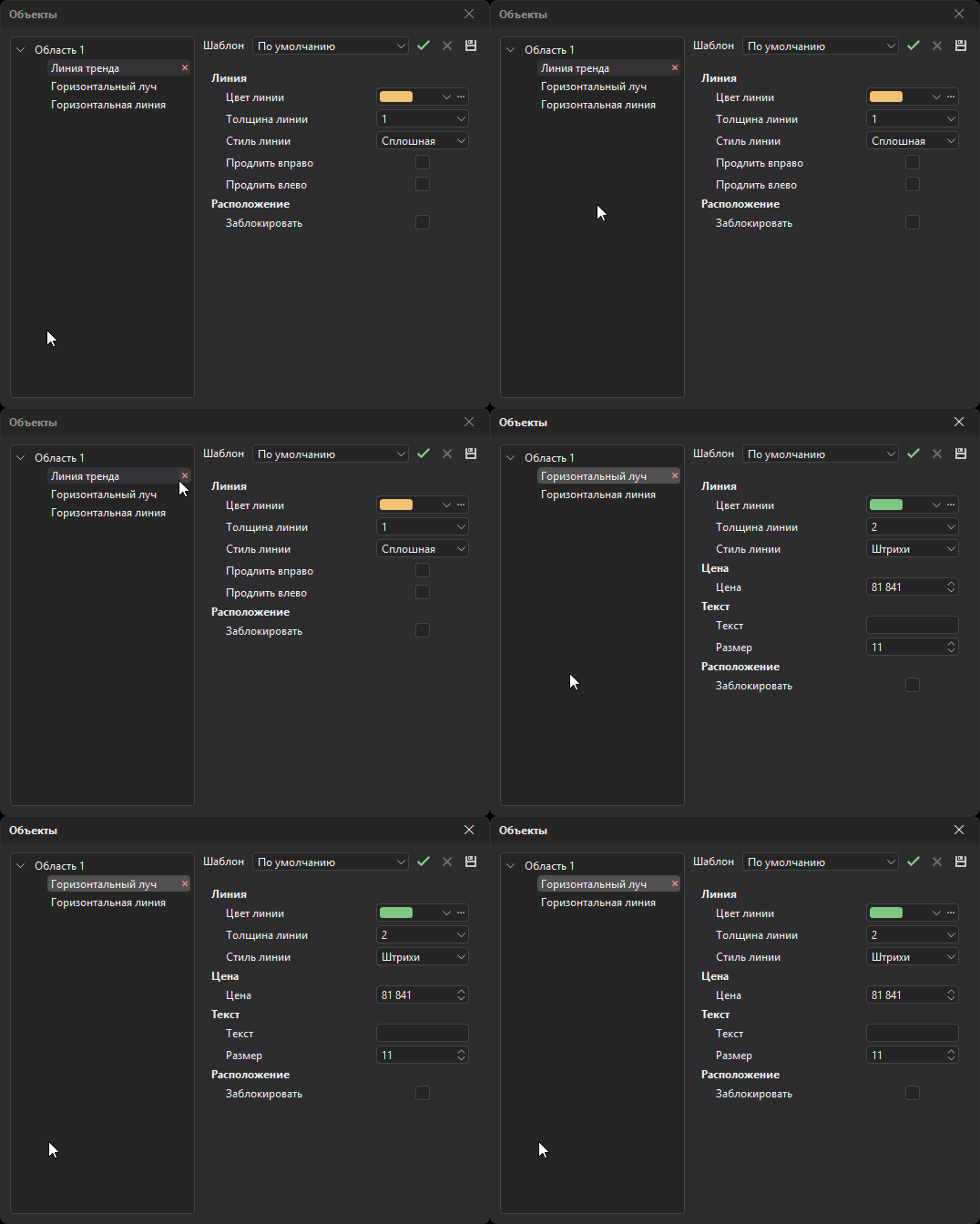
To delete all objects of one area, click the cross to the right of the area name.
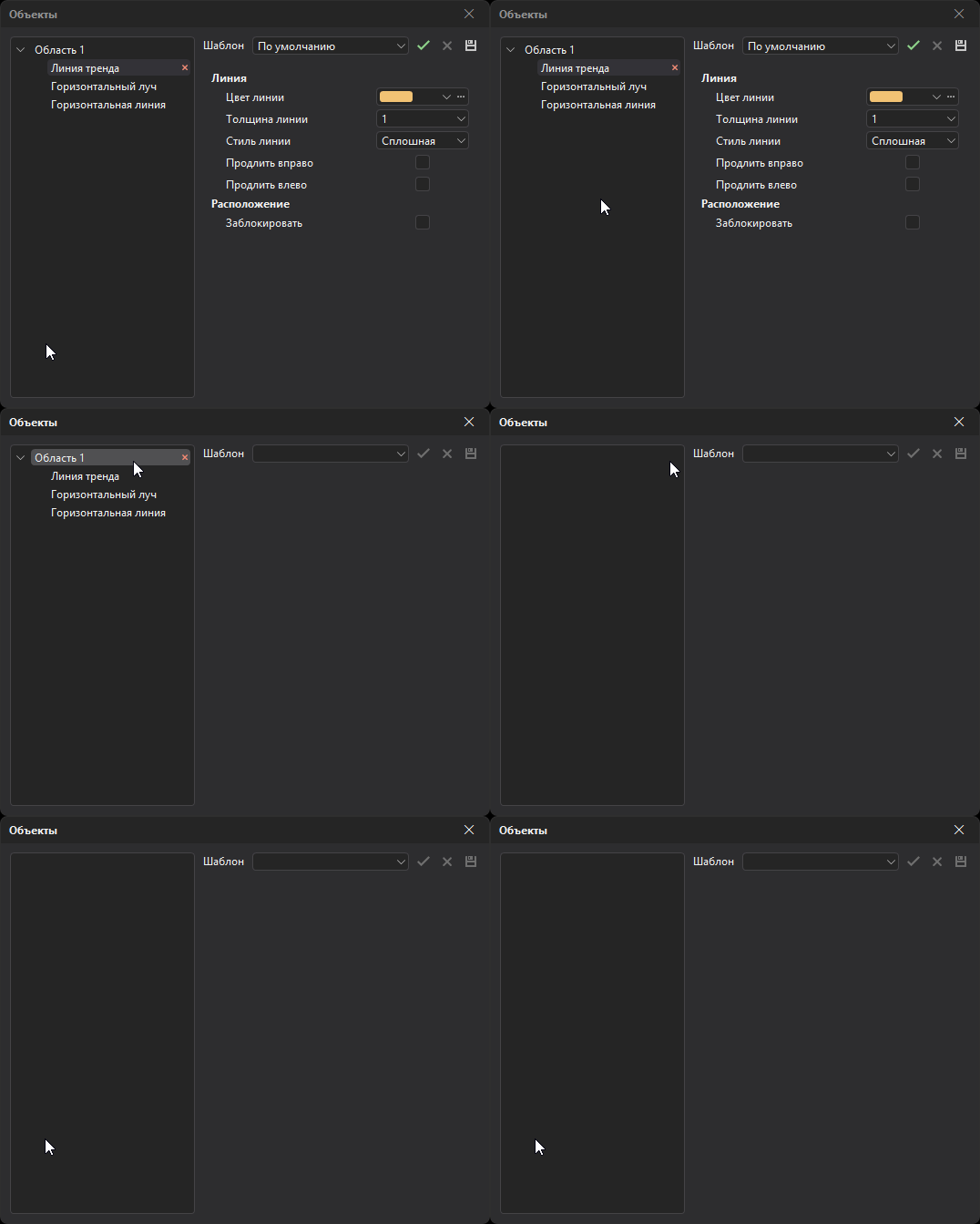
You can also delete all objects from the chart with the Delete all objects item of the chart context menu.
Settings templates
A settings template saves an object’s style so you can quickly apply it to other objects of the same kind. The templates area is in the upper right corner of the window.
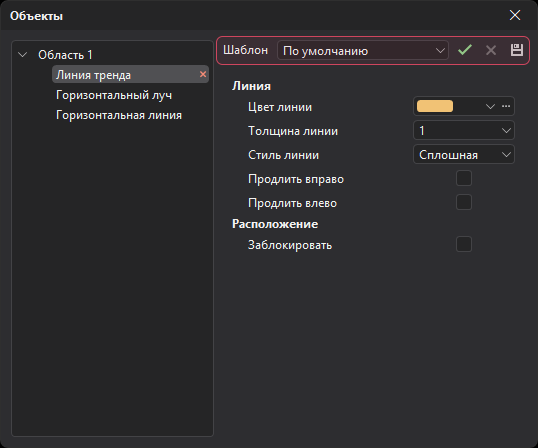
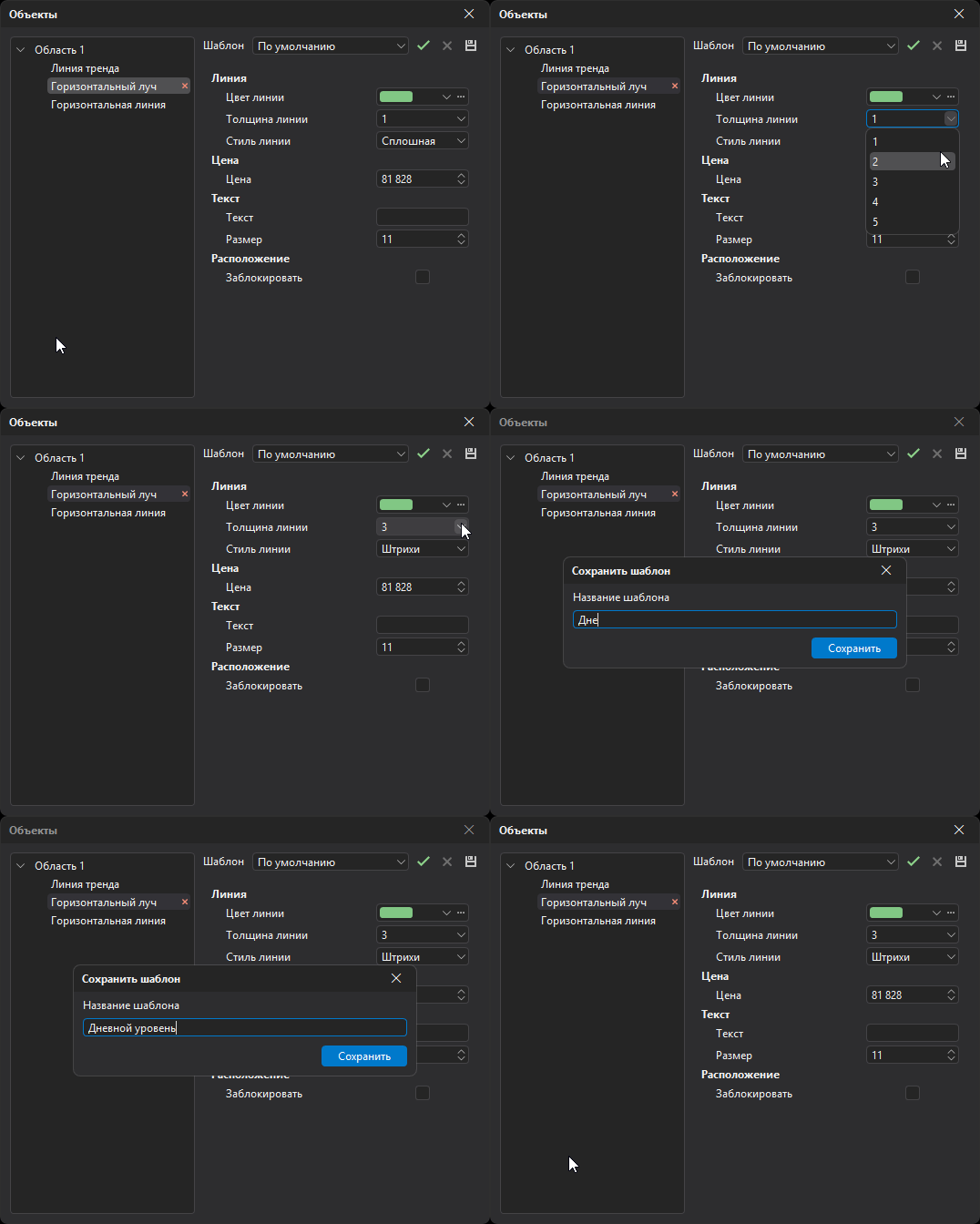
To save the current settings of the selected object as a template, click the button, enter a template name and click Save.
The Template field opens the list of templates for objects of this kind. To apply a template, select it in the list and click the button.
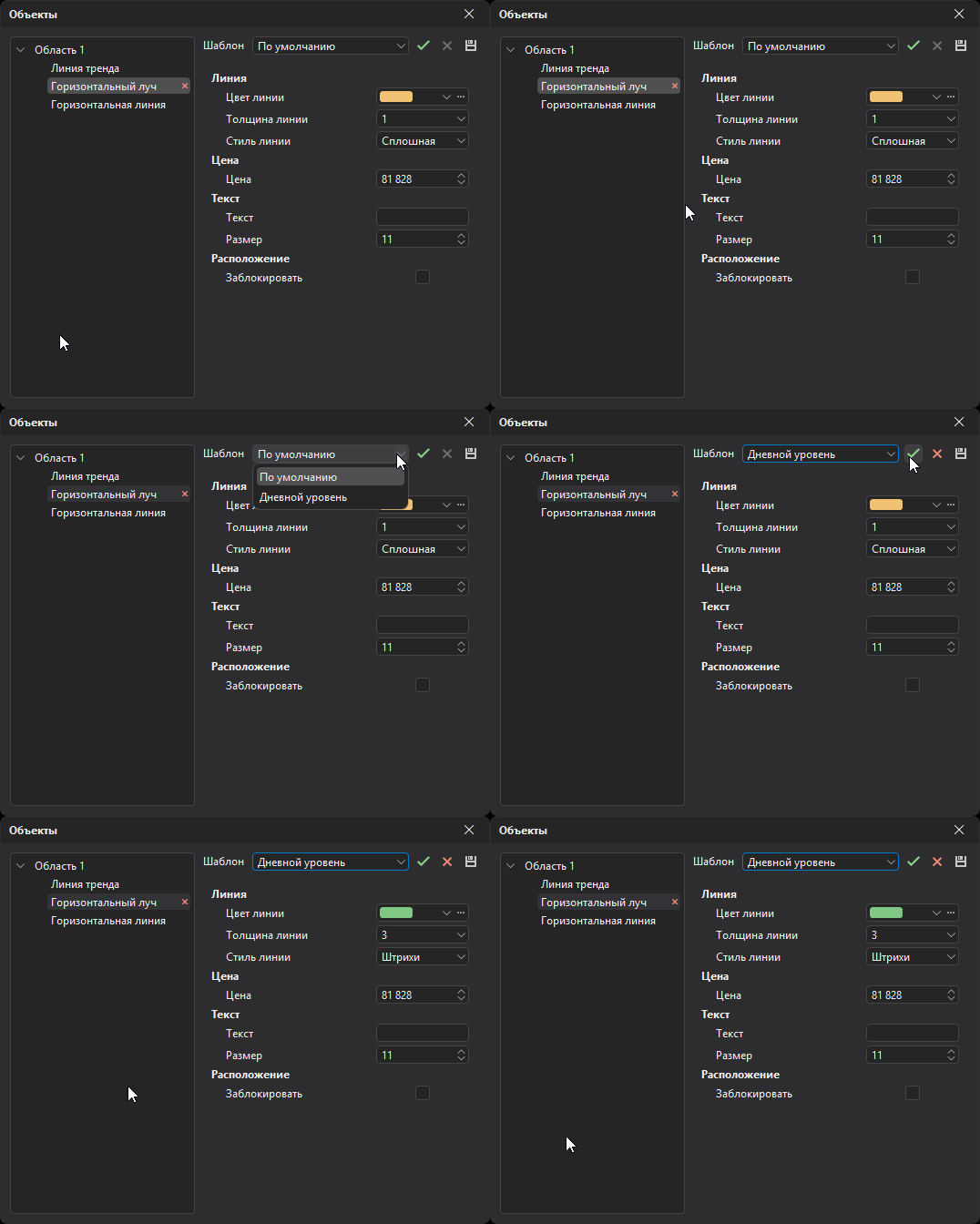
To delete the selected template, click the button.
To restore the object’s default settings, apply the Default template.