Stop orders
A stop order waits until the price reaches the stop price and only then triggers. You place it to join a breakout: buy when the price rises above a level, or sell when it falls below. That is why a buy stop order is placed above the spread and a sell stop order below it.
If the Slippage → Stop orders parameter is greater than 0, a stop-limit order is placed instead of a stop order.
Placing orders
With a hotkey
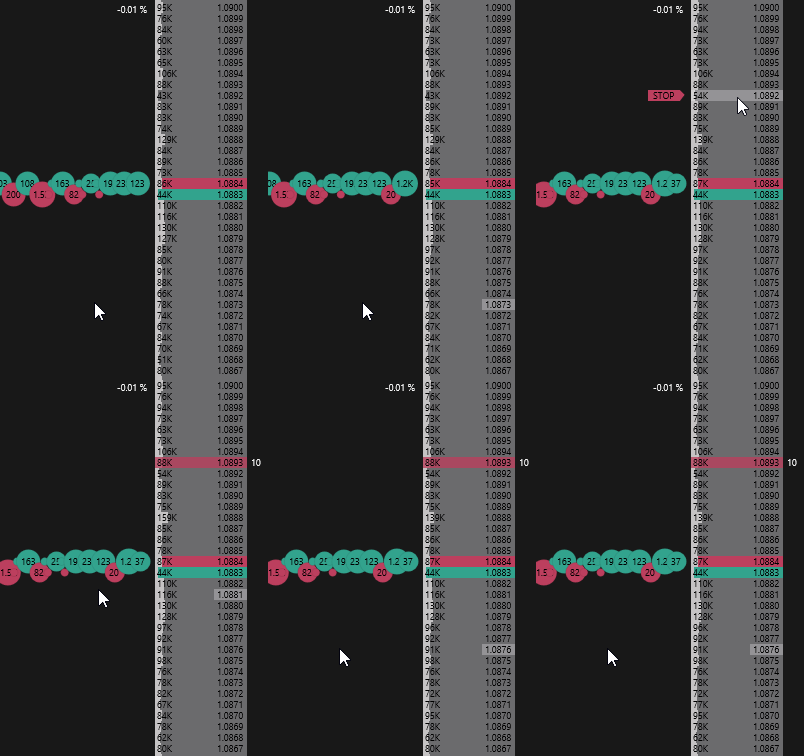
Hold down the Place stop order hotkey and left- or right-click the desired price:
- above the spread (in the sell area) — buy stop order;
- below the spread (in the buy area) — sell stop order.
While the key is held, a STOP label is shown at the cursor next to the order book. The key is not assigned by default — assign it in Order book hotkeys. If mouse trading is set to Off, the stop order key places nothing.
With the mouse, without a key
Without a key, stop orders are placed with the mouse in the Auto-detect order type mode (RMB) and the Left click: buy, right click: sell (stop orders) mode. See Mouse trading for details.
Moving orders
Hover over the stop order volume in the orders column, hold down the left mouse button and drag the order to a new price.
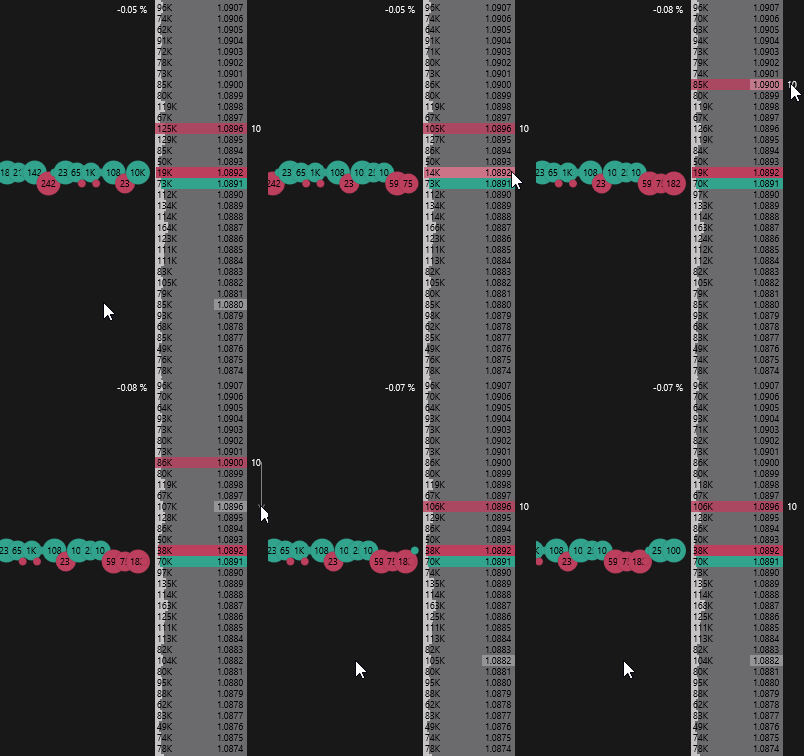
With the right mouse button, a group is moved — all your window’s stop orders on the same side are shifted by the same distance.
Canceling orders
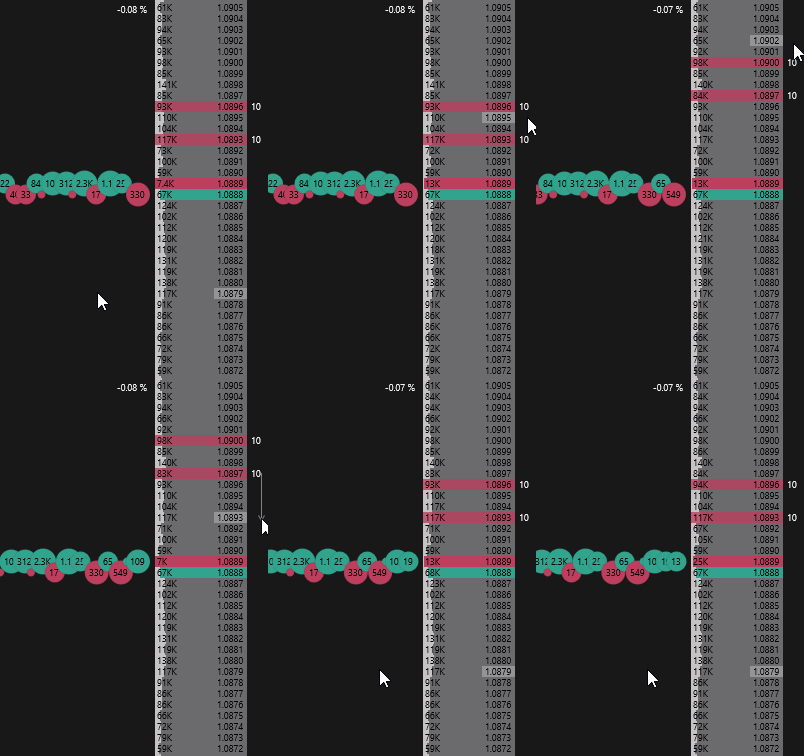
You can cancel a stop order in one of the following ways:
- double-click the order volume in the orders column — all your window’s orders at this price are canceled;
- with the Cancel all orders hotkey — cancels all orders of the active order book window;
- with the Cancel orders of all connections, except SL/TP hotkey — cancels all orders on all connections, except SL/TP placed on the exchange;
- with the Orders button on the terminal’s main panel — cancels all orders on all connections, except SL/TP placed on the exchange.
Displaying orders
The number of active orders is shown on the Orders button of the terminal’s main panel: