Alerts and notifications
An alert tells you that a symbol’s price has reached a set level. The JetScalp server checks the levels, so the notification arrives even when the app is closed.
This page also covers alert notifications and the open position on the iPhone Lock Screen and in Android notifications.
What alerts need
Alerts work only when you are signed in to the JetScalp server (More → Sign-in, see Account and sign-in). Without sign-in, Alert here in the order book and on the chart opens the “Alerts need the JetScalp server sign-in” window with a Sign in button.
Alerts are shared by all your JetScalp devices: a level set on the phone appears in the terminal and on another phone, and vice versa. In the terminal these are cloud alerts — see Alerts in the terminal documentation.
An alert doesn’t trade: you can set it on either side of the market and without a trading account.
Setting an alert
In the order book
- Press and hold the order book row with the price you need.
- In the menu, choose Alert here.
An alert level is marked in the order book with a purple ”!”. To remove an alert, press and hold its row and choose Remove alert with the level price.
You can also set an alert after tapping a price in the order book: the bar with the order button has a bell. It sets an alert at the row price, and if an alert is already there, the crossed-out bell removes it. Without sign-in, there is no bell.
On the chart
- Press and hold on the chart — the crosshair appears. Move it to the price you need and lift your finger.
- On the Chart tab, tap the bell at the price scale — the alert is set right away. On the chart next to the order book there’s a ”+” at the scale: tap it and choose Alert here.
On the chart, an alert is an “ALERT” line. You can drag it to another price. Tap the line to remove the alert: Remove alert. For more about the chart, see Chart.
Alerts screen
More → Alerts lists all alerts, newest first: both active and triggered.
An alert row shows:
- the exchange logo and the symbol;
- an “Active” (green) or “Triggered” badge;
- on the right, in large type, the level price;
- where the alert was set and the exchange, for example “Book · Binance Futures”;
- when it was set or triggered: today’s alerts show the time only, earlier ones the date and time.
Tap a row to choose an action:
| Command | Description |
|---|---|
| Open book | Opens the order book of the alert’s symbol. Missing if the symbol’s exchange is turned off in the app settings. |
| Turn on again | Makes a triggered alert active again. |
| Delete alert | Deletes an active alert. For a triggered alert the item is called Delete. |
The Clear button at the top right deletes all triggered alerts after confirmation. Active alerts are deleted only one by one.
If there are no alerts, the screen tells you how to set a level. Without sign-in, it tells you where to sign in.
Alert notifications
When the price reaches the level, you get a notification with the symbol and the alert price:
- the app is open — a system notification with sound and vibration;
- the app is in the background or closed — a push notification from the JetScalp server.
One trigger means one notification: if a push arrives while the app is open, there is no second notification. Tapping the notification opens the symbol’s order book.
The Alert notifications switch at the top of the Alerts screen turns push notifications to this phone on and off. It is on by default and is shown only when you are signed in.
Notification permission
The app asks for notification permission when notifications are first needed: when the first active alert appears, when you open Alerts or turn on Alert notifications. If you denied notifications, allow them for JetScalp in the phone settings.
On Android, alert notifications arrive in the “Trading & alerts” category. Push notifications on Android are delivered through Google Play services.
Telegram notifications
Telegram is set up in the terminal: link a chat with the JetScalp bot in Settings → App settings → Sign-in. See Telegram notifications in the terminal documentation.
Position on the Lock Screen (iPhone)
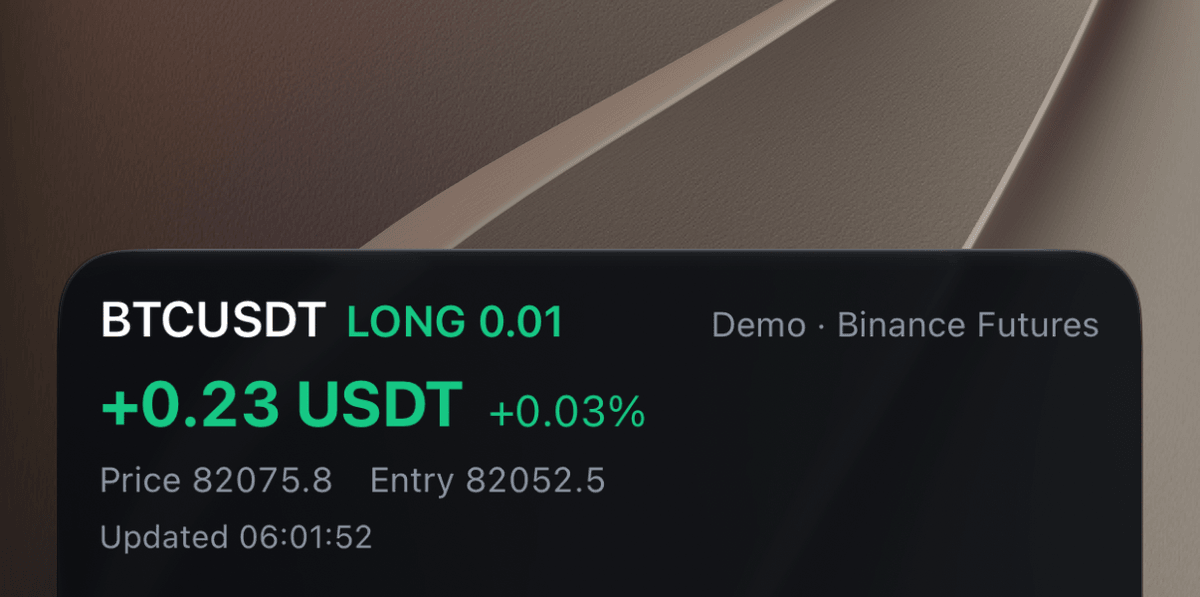
On iPhone, an open position with its profit or loss is shown as a Live Activity card on the Lock Screen and in the Dynamic Island.
| Where | What you see |
|---|---|
| Lock Screen | Symbol, side and quantity (“BTCUSDT LONG 0.001”), account (“Demo · Binance Futures”), the result in currency and percent — in green or red, the last and entry prices, the update time. |
| Dynamic Island, compact | Symbol and result. |
| Dynamic Island, expanded | Symbol with side, result with percent, price and entry. |
The figures update while the app is open. While JetScalp is in the background there is no new data: after a minute the result turns gray, and the time of the last data stays next to it.
If you have more than three positions, cards are shown for the three largest. When a position closes, its card shows “Position closed” with the last result for two more minutes. A card you dismissed is not brought back while the position stays open.
The cards are on by default. You can turn them off in More → Settings → Lock Screen → Open position. iOS itself also has to allow Live Activities: if the cards don’t appear, check JetScalp in the iPhone settings.
There is no Lock Screen position card on iPad.
Position in notifications (Android)
On Android, an open position is shown as a silent notification in the “Open positions” category:
- the first line — symbol, side and quantity, the result in currency and percent: “BTCUSDT LONG 0.001 · +0.21 USDT (+0.25%)”;
- the second line — the last price, the entry price and the account: “Price 85206.8 · Entry 85000.0 · Demo · Binance Futures”.
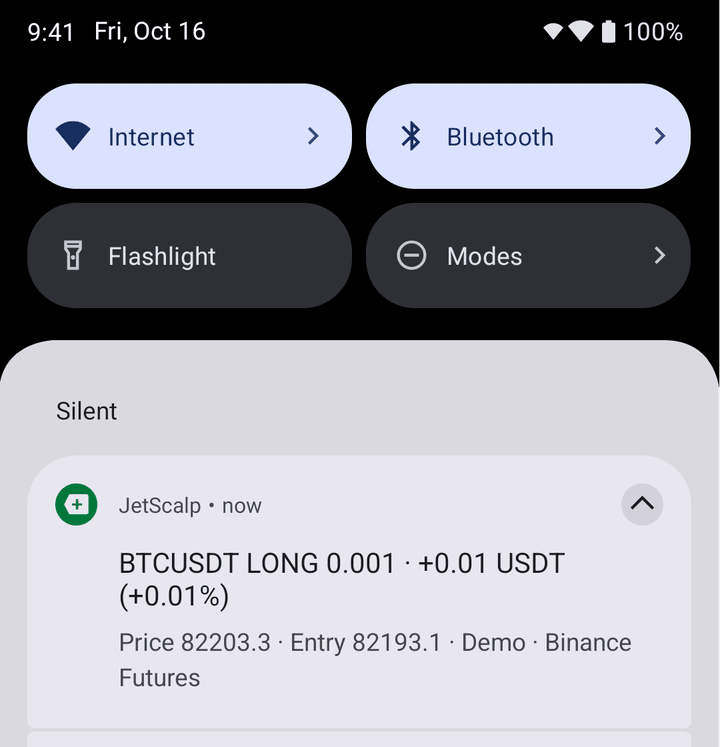
The figures update while the app is open. As on iPhone, notifications are shown for at most the three largest positions, and after a position closes its notification shows “Position closed” for two more minutes. Tapping the notification opens the app.
The notification is on by default: More → Settings → Open positions → Position in notifications. It appears only if notifications are allowed for JetScalp.
Levels not on the exchange
If the app, not the exchange, executes the stop loss or take profit of a real account position, you get a “Stops are not on the exchange” notification when you leave JetScalp: while the app is in the background, these levels won’t trigger. Tapping the notification opens the positions. Which accounts this applies to is described in Where stop loss and take profit are executed.