Limit orders
A limit order is executed only at the specified price or better. You place it to enter or exit at a chosen price: for example, to buy off a large order in the order book or to place a sell at a level in advance. Until the price reaches the order, it stands in the order book and waits.
Placing orders
With the mouse
In the default mode, a left click on a price in the order book places a buy limit order at that price, a right click — a sell limit order. How to configure the mouse buttons and what the other modes do is described in Mouse trading.
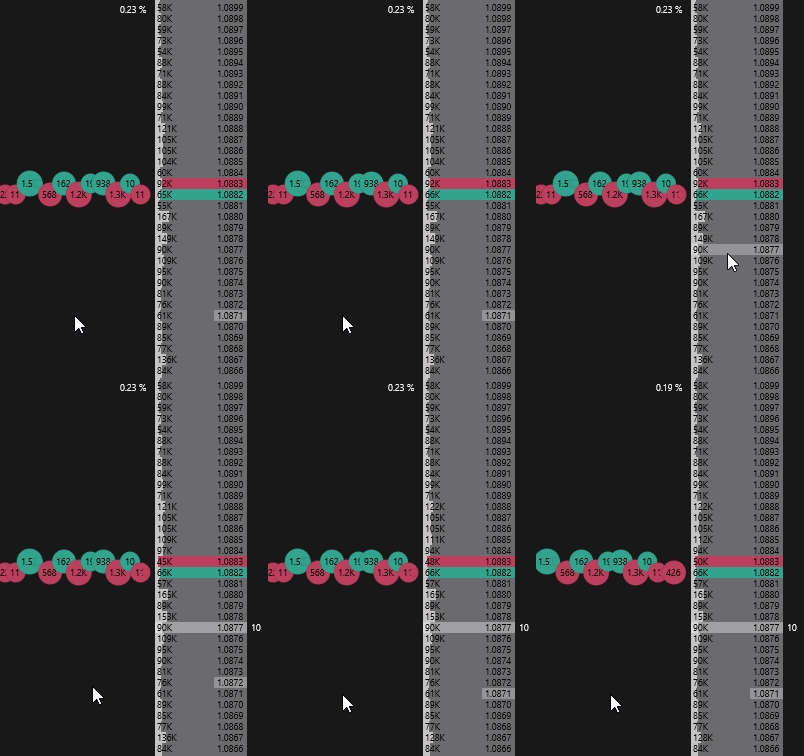
With hotkeys
- Buy limit — a buy order at the best bid;
- Sell limit — a sell order at the best ask.
You can offset the price from the best one with the Slippage → Limit orders parameter.
Close mode orders
Close mode places an order with the volume of the open position — so you close the position with one order without changing the order size.
With a position open, hold down the Close position mode hotkey and place the order with the mouse. While the key is held, a CLOSE label is shown at the cursor next to the order book.
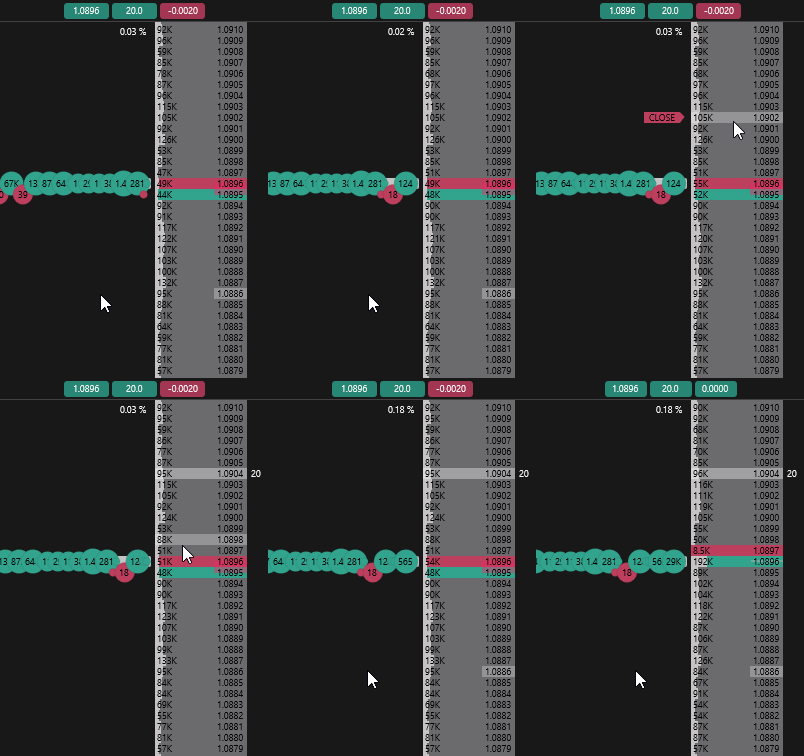
If Cancel all orders: When placing an order in close mode is enabled in the Trading settings section, your window’s orders on the same side are canceled before such an order is placed.
With the Reduce position mode hotkey, the order is placed as reduce-only (REDUCE label): it cannot open a position in the opposite direction.
The placing, canceling and mode keys are listed in Order book hotkeys; of these, only Cancel all orders is assigned by default.
Moving orders
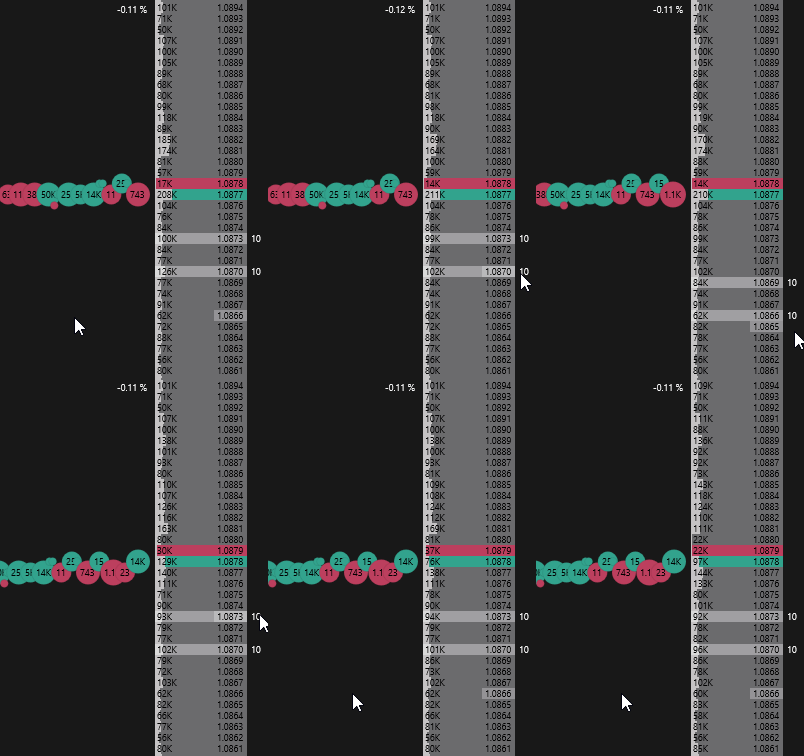
To move an order after the market without canceling it manually, hover over the order volume in the orders column, hold down the left mouse button and drag the order to a new price — your window’s orders at this price are moved.
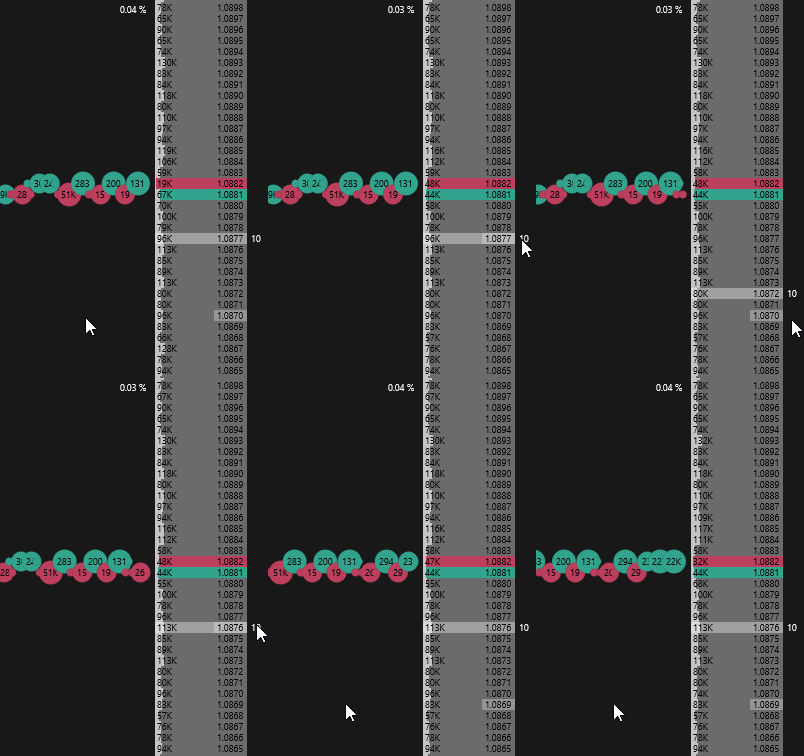
With the right mouse button, a group is moved — all your window’s orders on the same side (buy or sell) are shifted by the same distance.
Canceling orders
You can cancel a limit order in one of the following ways:
- double-click the order volume in the orders column — all your window’s orders at this price are canceled, including stop orders;
- with the Cancel all orders hotkey — cancels all orders of the active order book window;
- with the Cancel orders of all connections, except SL/TP hotkey — cancels all orders on all connections, except SL/TP placed on the exchange;
- with the Orders button on the terminal’s main panel — cancels all orders on all connections, except SL/TP placed on the exchange.
Displaying orders
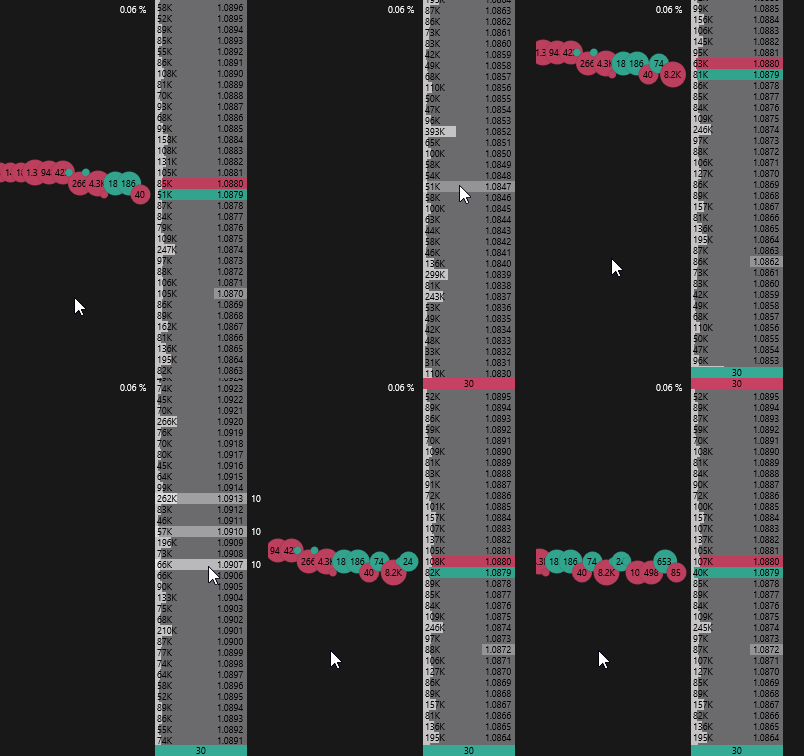
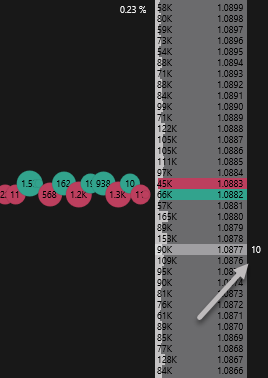
The volume of a placed order is shown in the orders column to the right of the price.
The number of active orders is shown on the Orders button of the terminal’s main panel:
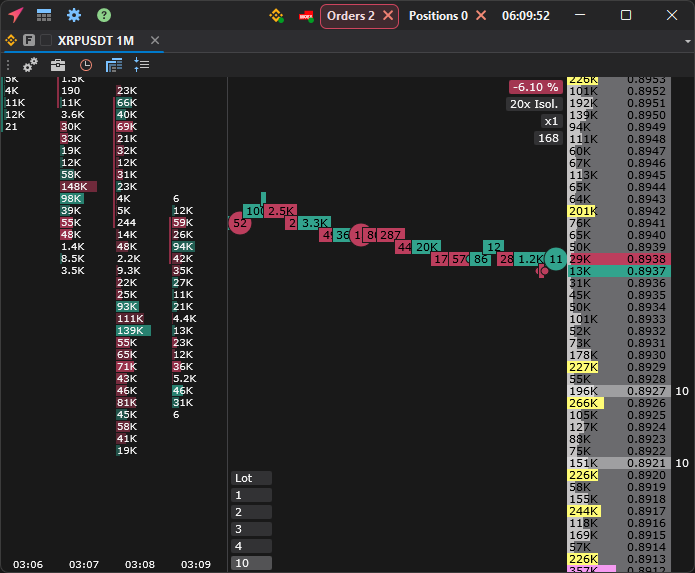
If orders are placed far from the spread, outside the visible part of the order book, a row with their total volume is shown at the upper or lower edge of the area.