AI assistant
JetScalp can work with an AI assistant — Claude, Cursor and other programs that support the MCP protocol. The assistant gets access to the terminal’s market data, windows, alerts and account and, if you allow it, to trading: you can ask it to read the order book, find levels, check your positions or sum up the day.
The terminal’s built-in MCP server is off until you turn it on. It accepts requests only from your computer and only with the token from the settings. The assistant works in the terminal for both Windows and macOS.
Turn on the MCP server
- Open Settings → App settings, the Authorization section.
- In the MCP server for AI assistants: block, turn on Enable.
- Check the status line under the block: it should read “Running: http://127.0.0.1:5187/mcp ”.
- Click Set up in the Access row and choose what the assistant can use — see What the assistant can use.
- Click Copy next to the Token field — you need the token to connect the assistant.
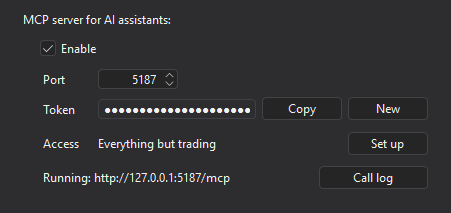
| Parameter | Description |
|---|---|
| Enable | Starts the MCP server. Off by default. |
| Port | The server port, 5187 by default (1024 to 65535). A new port applies when the settings window closes. |
| Token | The key the assistant sends with every request. It is created automatically. |
| Copy | Copies the token to the clipboard. |
| New | Creates a new token in place of the current one, after a confirmation. Connected assistants stop working until they are given the new token. |
| Access | A short summary of what the assistant can use: “Everything but trading”, “Everything, with trading”, the list of groups that are on, or “Only the symbol search”. The Set up button opens the AI assistant access window. |
| Call log | Opens the call log. |
If you change the groups, reconnect the server in the assistant or start a new conversation: the assistant gets the list of tools when it connects.
The status line shows:
- “Off” — the server is not running because Enable is off;
- “Running: http://127.0.0.1:5187/mcp ” — the server accepts requests at this address;
- “The new port applies when the settings window closes” — you changed the port, and it is not applied yet;
- “Not running: port 5187 is busy or unavailable (…)” — another program uses the port, see Troubleshooting.
Connect the assistant
The assistant needs two values from the settings:
- the address —
http://127.0.0.1:5187/mcp(the port is the one in the Port field); - the header
Authorization: Bearer <token>, where<token>is the value of the Token field.
The server uses the MCP Streamable HTTP transport. Use the address with 127.0.0.1 exactly: the server does not accept requests sent to localhost.
If you clicked New or changed the port, update the settings in every connected assistant.
Claude Code
Run in a terminal (command prompt), with your token:
claude mcp add --transport http jetscalp http://127.0.0.1:5187/mcp --header "Authorization: Bearer <token>"To make the server available in all projects, add --scope user. You can check the connection with the /mcp command inside Claude Code.
Claude Desktop
Claude Desktop connects a local HTTP server with a header through the mcp-remote bridge. It needs Node.js installed.
- In Claude Desktop, open Settings → Developer and click Edit Config. The
claude_desktop_config.jsonfile opens. - Add the JetScalp server to it, with your token:
{
  "mcpServers": {
    "jetscalp": {
      "command": "npx",
      "args": ["-y", "mcp-remote", "http://127.0.0.1:5187/mcp", "--header", "Authorization:${AUTH}"],
      "env": { "AUTH": "Bearer <token>" }
    }
  }
}- Save the file, quit Claude Desktop completely and start it again.
The token is moved to env on purpose: on Windows a space inside args is passed incorrectly, so Authorization:${AUTH} is written without a space.
Cursor
Add the server to ~/.cursor/mcp.json (for all projects) or to .cursor/mcp.json in the project folder:
{
  "mcpServers": {
    "jetscalp": {
      "url": "http://127.0.0.1:5187/mcp",
      "headers": { "Authorization": "Bearer <token>" }
    }
  }
}
VS Code
Add the server to the project’s .vscode/mcp.json file:
{
  "servers": {
    "jetscalp": {
      "type": "http",
      "url": "http://127.0.0.1:5187/mcp",
      "headers": { "Authorization": "Bearer <token>" }
    }
  }
}
Other assistants
Any MCP client that supports Streamable HTTP and custom request headers works: give it the server address and the Authorization: Bearer <token> header.
What the assistant can use
Which tool groups the assistant gets is set in the AI assistant access window — open it with the Set up button in the Access row of the Authorization section. Each group has its own switch; the assistant does not see a group that is off at all. The symbol search (get_symbols) is always available: the other tools take the symbol it finds.
A group is turned on or off at once, and the MCP server restarts. The trading limits are saved when the window closes. The top of the window shows the server status; if the server is off, the window reminds you that the access applies once the server is turned on in the Authorization section.
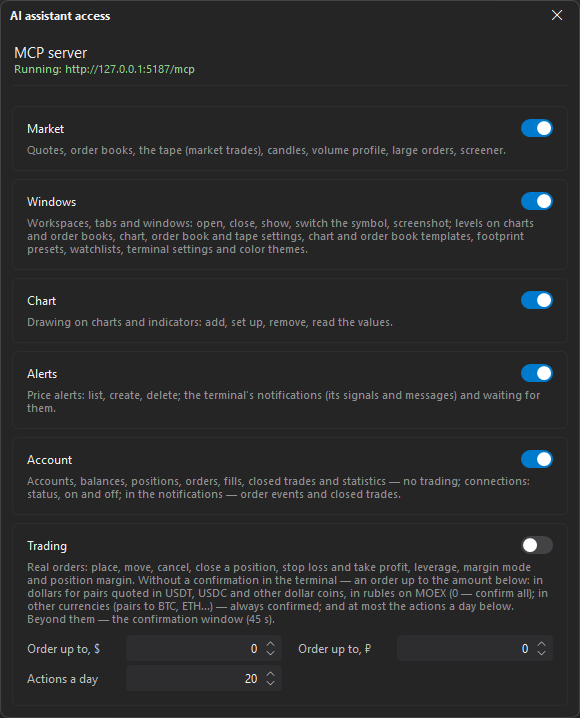
| Group | Description |
|---|---|
| Market | Quotes, order books, the tape, candles, volume profile, large orders, the screener. On by default. |
| Windows | Workspaces, tabs and windows: open, close, show, switch the symbol, take a screenshot of a window; levels on charts and in order books, chart, order book and tape settings, chart and order book templates, footprint presets, the Watchlist, terminal settings and color themes. On by default. |
| Chart | Drawing on charts and indicators: add, set up, remove, read the values. On by default. |
| Alerts | Price alerts: list, create, delete; the terminal’s notifications (its alerts and messages) and waiting for them. On by default. |
| Account | Accounts, balances, positions, orders, fills, closed trades and statistics — no trading; connections: status, on and off; in the notifications — order events and closed trades. On by default. |
| Trading | Real orders: place, modify, cancel, close a position, stop loss and take profit, leverage, margin mode and position margin. The limits Order up to, $, Order up to, ₽ and Actions a day are here too. Off by default. |
The Alerts group works with the same alert levels you set on the chart and in the order book: they are shown in the Alerts window and on the charts and order books of the symbol. A level created by the assistant triggers once when the price crosses it in either direction: a sound, an entry in the alerts log and, when the terminal is linked to the cloud, a Telegram and phone notification. The assistant can also delete an alert you set yourself — after your confirmation.
The terminal gets candles, the volume profile and the screener from the JetScalp server, so they need you to be signed in to your JetScalp account.
Trading and limits
The Trading group lets the assistant place orders through your trading connections — the same way you trade from the terminal’s windows.
Important: The assistant’s orders are real orders with real money, on any connected account. There is no “demo only” restriction. Start with trading off and the Order up to limits set to 0 — then you confirm every action of the assistant yourself.
The limits are set in the Trading group of the AI assistant access window:
| Parameter | Description |
|---|---|
| Order up to, $ | The order amount in dollars up to which an action runs without your confirmation — for pairs quoted in USDT, USDC and other dollar coins (0 to 1,000,000). 0 means every action is confirmed. 0 by default. |
| Order up to, ₽ | The same in rubles — for MOEX symbols (0 to 100,000,000). 0 by default. |
| Actions a day | How many trading actions a day the assistant can perform without a confirmation (1 to 1000), 20 by default. The next ones need a confirmation. |
Orders in other currencies (pairs quoted in BTC, ETH and so on) always need a confirmation.
How the terminal decides whether a confirmation is needed:
- an order up to the Order up to limit runs at once if the Actions a day limit is not used up yet;
- a larger order, and any action after the daily limit is used up, runs only after a confirmation;
- actions that reduce the risk (closing a position, a reduce-only order, canceling an order, setting or moving the stop loss and take profit) are not limited by amount but count toward the daily counter;
- removing the stop loss of a position always needs a confirmation: the position is left without protection;
- with the limit at 0, every action is confirmed, including closing a position and canceling an order.
Moving the stop loss farther from the price does not need a confirmation: it is a stop change like any other. If you do not want the assistant to move stops without you, keep the limits at 0.
The daily counter of actions without a confirmation resets at midnight by the computer’s clock and when the terminal restarts: the terminal does not keep it between launches.
Before sending an order, the terminal checks it:
- a price more than 15% away from the last price — the order is rejected as a likely typo;
- an amount below the exchange’s minimum order amount — the order is rejected;
- a stop order that would trigger at once — rejected;
- the price is rounded to the price step, the size is rounded down to the size step;
- if several accounts can trade the symbol, the assistant has to specify the account — otherwise the order is not sent.
Every trading action of the assistant is written to the terminal log as “MCP trade: …” — you can see it in the Diagnostics window.
Confirmation window
If an action needs a confirmation, the terminal shows the AI assistant: confirm the action window on top of all windows — even if you are working in another program. The window says what the assistant asks for (for example, “Buy … limit at …, about … USDT”) and why a confirmation is needed.
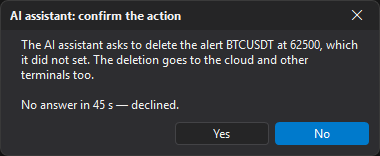
- Click Yes — the action runs.
- Click No or close the window — the action does not run, and the assistant gets a refusal.
- If you do not answer within 45 seconds, the window closes, and this counts as a refusal.
Besides trading, the same window appears when the assistant asks to:
- delete an alert level it did not set;
- close a tab — always;
- close a window — if closing windows needs a confirmation;
- turn off a connection that has positions or orders.
Tools
The assistant picks the tools it needs for your request. The names help you read the call log or ask the assistant for something specific.
| Group | Tools |
|---|---|
| Always | get_symbols — symbol search. |
| Market | get_quote — quote, 24h change, funding; get_orderbook — order book snapshot; get_large_orders — large orders near the price; record_trades — records the symbol’s trade tape for the given time (1 to 60 seconds, 10 by default) and returns a summary: the trade count, buy and sell volumes, delta, VWAP, high, low, the largest and the latest trades; get_candles — candles; get_volume_profile — volume profile; get_trade_history — the market’s past trades from the JetScalp server for the current day and up to 31 past trading days: totals of the range and of each day (the trade count, buy and sell volumes, delta, VWAP, open, high, low and close), the largest and the latest trades; needs the server connection; screen_market — screener. |
| Windows | get_workspaces, open_workspace — workspace windows; get_tabs, open_tab, select_tab, rename_tab, copy_tab, move_tab, close_tab — tabs; get_windows, open_window, open_orderbook, open_chart, activate_window, rename_window, close_window, set_window_symbol — windows and switching their symbol; screenshot_window — window screenshot (the window must be visible on the screen); get_window_settings, set_window_settings, set_window_period, set_orderbook_scale — settings of a chart, an order book or a tape window, period and compression (the order book’s trading settings — only with the Trading group); get_templates, apply_template, save_template — chart and order book templates; get_footprint_presets, apply_footprint_preset, save_footprint_preset — footprint presets: list the built-in and own ones, apply one to a chart, save a chart’s footprint settings as an own preset; get_chart_levels, add_chart_level, remove_chart_level — horizontal levels on a chart; get_price_lines, add_price_line, update_price_line, remove_price_line — levels in order books; get_watchlist, add_to_watchlist, remove_from_watchlist, set_watchlist_star — the Watchlist; get_terminal_settings, set_terminal_settings — terminal settings; get_color_themes, apply_color_theme — color themes. |
| Chart | get_drawing_types, get_chart_objects, draw_chart_object, update_chart_object, remove_chart_object — drawing objects; get_indicator_types, get_chart_indicators, add_indicator, update_indicator, remove_indicator, get_indicator_values — indicators and their values. |
| Alerts | get_alerts, create_alert, delete_alert — list, create and delete alert levels. |
| Alerts or Account | get_notifications — the terminal’s notifications since the MCP server started; wait_for_notification — wait for a notification. With the Alerts group — the terminal’s alerts, with Account — order events and closed trades. |
| Account | get_accounts — accounts and balances; get_positions — open positions; get_orders — active orders; get_fills — fills; get_closed_trades — closed trades; get_trading_stats — trading statistics; get_connections, set_connection, reconnect_connection, set_market_data — connections: status, on and off, reconnect, market data. |
| Trading | preview_order — order preview without sending; place_order — place an order; modify_order — modify an order; cancel_order — cancel an order; close_position — close a position or part of it at market; set_position_stops — stop loss and take profit of a position; get_margin, set_leverage, set_margin_mode, change_position_margin — leverage, margin mode and position margin. |
Ready-made prompts
The server offers the assistant ready-made prompts (MCP prompts) — requests that already know which tools to call. How to run them depends on the program: in Claude Code, for example, they appear among the / commands. A prompt is not shown if a group it needs is off.
| Prompt | Description |
|---|---|
Morning review of an instrument (morning_review) | Trend, levels, volume profile, large orders and funding of a symbol. The assistant adds levels to the chart and alerts only after you agree. |
Read the order book (orderbook_read) | Imbalance, walls near the price and who is aggressive in the tape — now. |
What moves now (market_scan) | The top gainers, losers and turnover of the screener and a look at the three most interesting. |
Check my positions (positions_check) | Open positions and orders: stops, liquidation, result. The assistant changes nothing. |
Review my trading (trading_review) | The result, mistakes and advice from the closed trades of a period. |
You do not have to use the prompts — just tell the assistant what you need: “What is in the BTCUSDT order book on Binance now?”, “Set an alert on ETH at 4000”, “Which of my positions have no stop loss?”.
Call log
Click Call log in the Authorization section to open the MCP call log window. It shows the last 500 calls since the terminal started, newest first: the time, the tool, the duration in milliseconds, the result (“ok” or “error: …”) and the call arguments. Long arguments and error texts are shortened to 300 characters; the responses to the assistant are not stored.
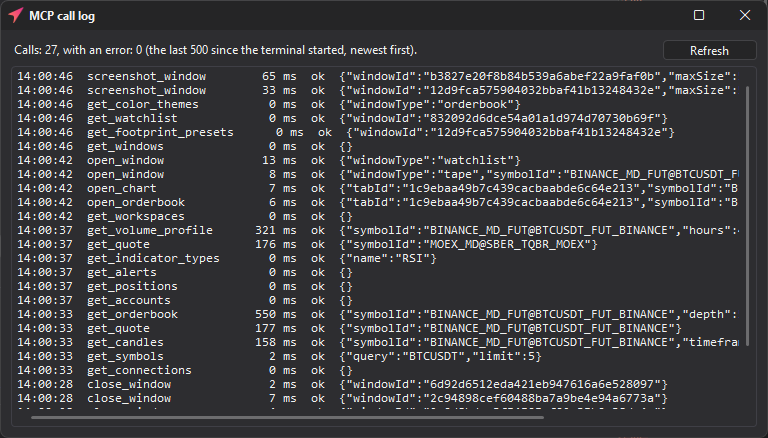
The line above the list shows how many calls there are and how many of them failed. To see new calls, click Refresh. The log also opens when the server is off — you can see what the assistant did before it was turned off.
Every call is also written to the terminal log as “MCP call: …”.
Security
- The server accepts connections only from this computer (
127.0.0.1). It cannot be reached from the network or from other devices. - Without the right token, the server answers with error 401 and does nothing. The server rejects requests from third-party web pages in a browser.
- The token gives full access to all groups that are on — including trading, if it is on. Do not publish the token or give it to other people.
- If the token may have leaked, click New: the old token stops working at once.
- The token is stored encrypted and tied to the computer’s user. A settings file copied from another computer does not carry the token — the terminal creates a new one, and you need to give it to the assistant.
Troubleshooting
| Problem | What to do |
|---|---|
| The status reads “Not running: port … is busy or unavailable” | Another program uses the port. Enter another port in the Port field, close the settings window and update the address in the assistant. |
| The assistant reports error 401 | The token in the assistant does not match the token in the settings. Click Copy and paste the token again. After New, the old token does not work. |
| The assistant does not connect | Check that Enable is on, the status reads “Running: …”, and the port in the address matches the Port field. The address must start with http://127.0.0.1, not http://localhost. The terminal must be running. |
| The assistant does not see the tools you need | The group is off in the AI assistant access window (Authorization → Access → Set up). Turn it on and reconnect the server in the assistant. |
| No candles, volume profile or screener | Sign in to your JetScalp account in the terminal. |
| An order does not go through | Check whether a confirmation window appeared, and look at the assistant’s answer and the call log: the reason for the refusal is there. |