Symbols
The Symbols section sets which symbols are shown in the symbol selection window, whether it remembers its filters and how zeros are shortened in prices in the order book and on the chart. It also describes how the selection window searches for symbols and orders them.
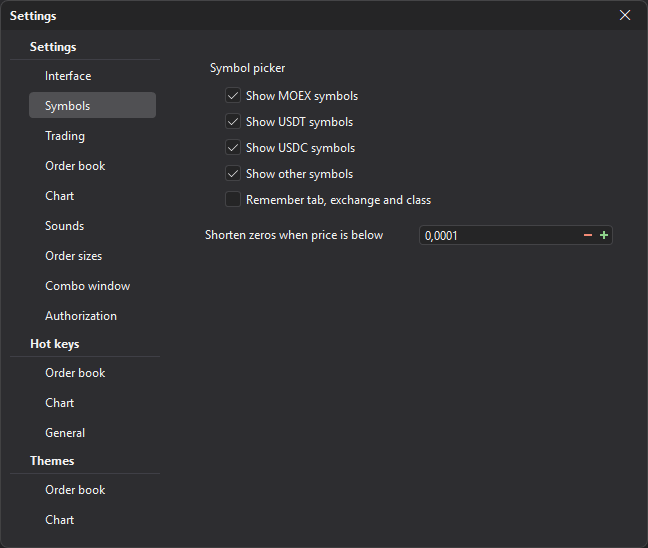
Symbol picker
The check boxes of the Symbol picker group define which symbols are in the list of the symbol selection window and what it remembers between openings.
| Parameter | Description |
|---|---|
| Show MOEX symbols | Shows Moscow Exchange symbols. When it is cleared, the selection window has no Currencies and Indices tabs either. On by default. |
| Show USDT symbols | Shows crypto symbols quoted in USDT. On by default. |
| Show USDC symbols | Shows crypto symbols quoted in USDC. On by default. |
| Show other symbols | Shows symbols that do not belong to the groups above. On by default. |
| Remember tab, exchange and class | The selection window opens with the tab, exchange and class chosen last time. When it is cleared, the window always opens with the All tab, All exchanges and All classes. The currency is not remembered. Off by default. |
If the remembered tab is hidden in this window (for example, the order book is pinned to futures and has no Spot tab) or the exchange is not connected now, All or All exchanges is chosen instead.
Symbol search
The selection window opens with the Symbols button in the order book and on the chart, with the add button in the Watchlist and with the Symbol field of the manual position entry window. The Indices tab is only there for the chart and the Watchlist. The tabs, filters and account choice are described in Symbols of the order book main panel; below is how the window searches and in what order it shows the results.
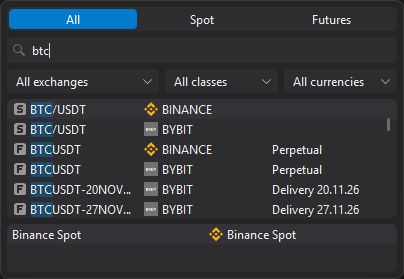
List columns
| Column | Description |
|---|---|
| Symbol | The symbol type icon and the name. The part of the name that matches the typed text is highlighted. |
| Exchange | The exchange icon and name. |
| Class | The symbol class as the exchange defines it: TradFi, Perpetual, Delivery, Pre-market (several are separated by commas). A delivery future (Delivery) also shows its expiration date, for example “Delivery 27.03.26”: the exchange gives it, and if it does not, the date is taken from the symbol code. |
The columns cannot be configured, and the list has no headers. Symbols delisted by the exchange are not in the list.
How the text is matched
A symbol is found if the typed text is the beginning of:
- its name — ignoring case and the ”/” sign: “btcu” finds both BTCUSDT and BTC/USDT;
- or its base asset without digits and the ”-” sign: “pepe” finds both PEPEUSDT and 1000PEPEUSDT.
If the keyboard is in the Russian layout, the letters are turned into Latin ones by their place on the keyboard: “ИЕС” becomes “BTC”.
Press Enter in the search field to choose the first symbol of the list — the best match. After each change of the text or a filter, the list scrolls back to the top.
Order of the results
The results are ordered as follows:
- First the symbols whose base asset matches the typed text in full: for “BTC”, “BTCUSDT” and “BTC/USDT”, the symbols with the base asset BTC come first, and BTCDOM after them.
- Then the symbols go in groups by base asset in alphabetical order; PEPE and 1000PEPE are one group.
- Within a group — by quote currency: USDT, USDC, BTC, ETH, BNB, then the others alphabetically, symbols without a quote currency last.
- Spot and perpetual futures come before delivery futures; delivery futures go by expiration date, the nearest first, those with an unknown date after all.
Currencies in the filter
The currency filter only lists the quote currencies of the symbols visible with the chosen tab, exchange and class: for example, with an exchange chosen — only that exchange’s currencies. USDT, USDC, BTC, ETH and BNB come first, the others alphabetically. If the chosen currency is in the new list too, it stays chosen; otherwise the filter goes back to All currencies.
The exchange list has the exchanges whose market data is connected now.
Accounts
Below the symbol list are the accounts through which the chosen symbol can be traded: the account name and the connection with its icon. If there is only one account, it is chosen by itself. The Watchlist has no accounts — it has the Add all symbols from the list button instead (Watchlist).
Shortening zeros
| Parameter | Description |
|---|---|
| Shorten zeros when price is below | Simplifies the display of prices with many zeros after the decimal point: if the price is below the set value, the zeros are shortened. The value is changed with the − and + buttons from 0.01 to 10⁻²⁵, 0.0001 by default. |