Screener
The Screener helps you quickly find markets that currently show price movement, increased turnover, a large number of trades, or high volatility.
To open the Screener window, select Windows → Screener.
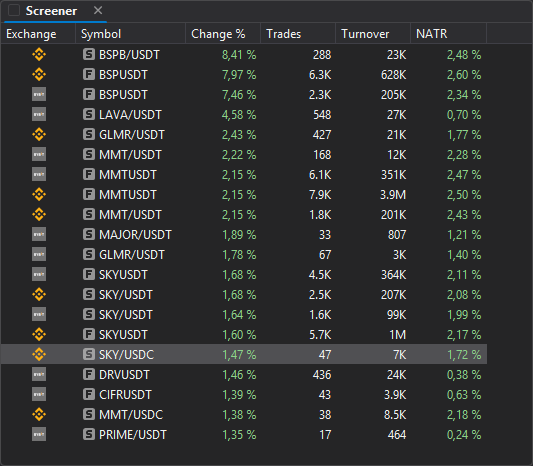
It is convenient to keep the Screener open at all times if you look for active symbols during the trading session.
Screener table structure
The Screener displays a table of symbols. Each row corresponds to a single symbol on a specific exchange or market.
| Column | Description |
|---|---|
| Exchange | Icon of the exchange where the symbol is available. |
| Symbol | Symbol type and name. |
| Change % | Price change in percent. |
| Trades | Number of trades. |
| Turnover | Turnover of the symbol. |
| NATR | Normalized ATR, a measure of relative volatility. |
The values are calculated over the periods selected in the Screener filters.
Configuring Screener filters
To configure the Screener, right-click the table area and select Configure filters.
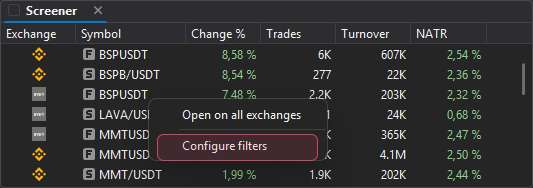
The Screener filters window opens: in it, you select exchanges, sorting, the number of results and the ranges of the metrics.
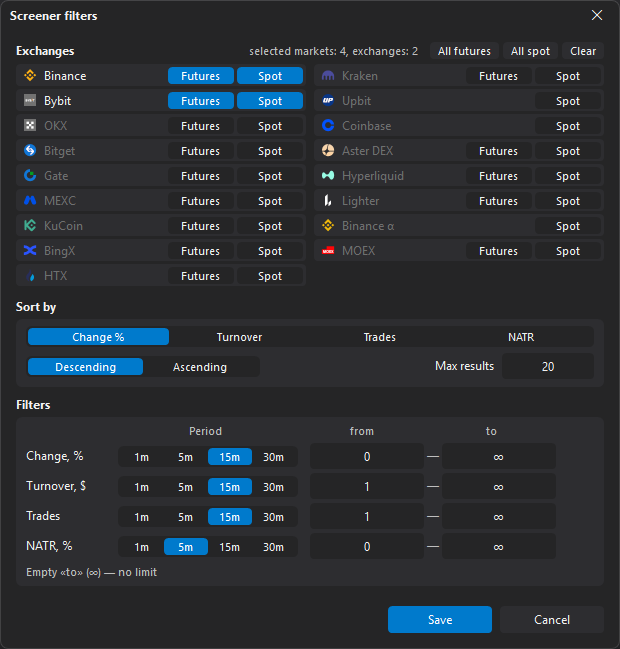
Exchanges
The Exchanges block has a row for each exchange with the Futures and Spot switches: select the markets included in the Screener calculation. Binance spot and futures are selected by default.
Exchanges: Binance, Bybit, OKX, Bitget, Gate, MEXC, KuCoin, BingX, HTX, Kraken, Upbit, Coinbase, Aster DEX, Hyperliquid, Lighter, Binance α and MOEX. Upbit, Coinbase and Binance α have spot only. For MOEX, futures are the derivatives market, and spot is shares (the TQBR and TQPI boards) and currency (CETS).
A click on an exchange name selects both of its markets, and if at least one is selected, deselects both. A line shows how many are selected: “selected markets: N, exchanges: M” (“nothing selected” if none).
The buttons above the list:
- All futures — selects the futures of all exchanges, or deselects them if they are all selected;
- All spot — selects the spot of all exchanges, or deselects it if it is all selected;
- Clear — deselects all exchanges.
If the Screener does not show the symbols you expect, check the selected exchanges: a symbol does not appear in the list if its market is not selected.
Sorting
In Sort by, select a metric — Change %, Turnover, Trades or NATR — and the direction: Descending or Ascending. Change % in descending order by default.
Sorting by percentage change in descending order quickly shows the top gainers. Sorting by turnover or trades helps you find the most active symbols.
Max results
The Max results parameter limits the number of rows in the Screener: from 1 to 500, 20 by default. For example, if you specify 20, the table shows only the first 20 symbols that match the filters and sorting.
Filters
The Filters block has four filters: Change, %, Turnover, $, Trades and NATR, %. Each filter has:
- its own Period — 1m, 5m, 15m or 30m: the time over which the metric is calculated (15 minutes by default, 5 minutes for NATR, %);
- the from and to fields — the value range. An empty to field (∞) means no upper limit.
| Filter | Description |
|---|---|
| Change, % | Price change in percent over the period, by absolute value — a rise or a fall. Helps you find symbols that have already started a noticeable move. |
| Turnover, $ | Turnover over the period in dollars. Helps exclude illiquid symbols: a symbol with a strong percentage move is inconvenient to trade if it has little liquidity. |
| Trades | Number of trades over the period. Helps you find symbols with real activity from market participants rather than just occasional trades. |
| NATR, % | Relative volatility over the period. NATR shows volatility in normalized form, so it is easy to compare across symbols with different prices. |
Applying filters
After configuring the parameters, click Save. The Screener updates the symbol list according to the selected conditions.
You cannot save if no exchange is selected (“Select at least one exchange”) or if from is greater than to in a filter (for example, “Turnover, $: «from» is greater than «to»”). The reason is shown above the buttons.
If the list is empty or too short after applying the filters, the selection criteria may be too strict. Lower the minimum turnover, widen the price change range, increase Max results, or add more exchanges.
Open on all exchanges
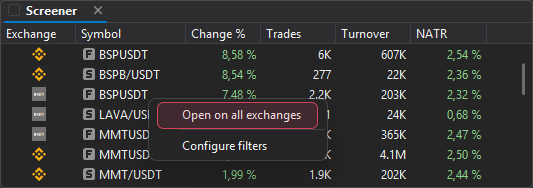
Right-click a symbol row and select Open on all exchanges — the Combo window opens with this symbol: its order books on all exchanges from the combo window settings.
Configuring columns
You can configure which columns the Screener displays. To do this, open the context menu of the table header and select Choose columns.
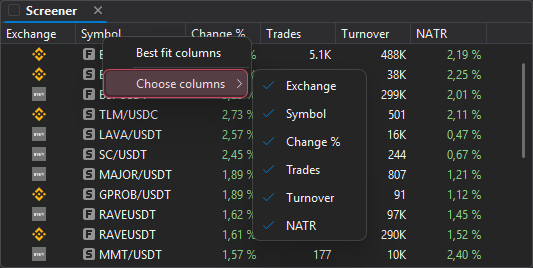
The column selection menu includes: exchange, symbol, percentage change, trades, turnover, and NATR.
If values in the table are truncated, select Best fit columns. The command automatically fits the column widths to the contents.
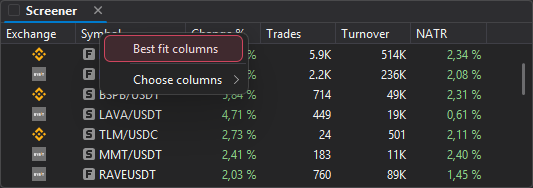
This command is especially useful if the Screener is open in a narrow area of the workspace or if it displays long symbol names.
Linking the Screener with other windows
The Screener can be linked with an order book and a chart using a shared link color. For how to assign a color, turn linking off and which windows support it, see Window linking.
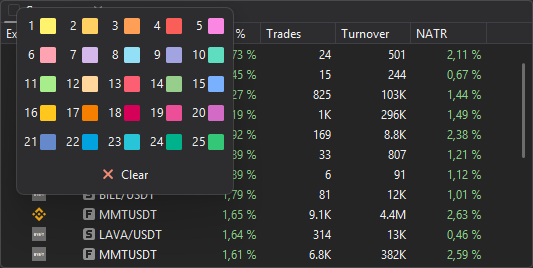
Linked order books and charts switch to a symbol when you click a Screener row. The Screener only sends a symbol to linked windows and does not receive one from them. The Screener has no Active window mode.
This turns the Screener into a window for quickly picking an active symbol: you select a row in the list, and the linked order book and chart immediately show the selected symbol.