Connections
A connection links JetScalp to your account at an exchange or broker: through it the terminal gets the balance, positions and orders and places new orders. Crypto exchange market data comes in without a connection too — from the exchanges selected on the Select exchanges page.
Open the Connections window: in the main window menu, select Settings → Connections.
The left side of the window has the connection list, the right side the settings of the selected connection. Below the list is the Add connection button; at the bottom right are Proxy, Market data proxy and Select exchanges.
Adding a connection
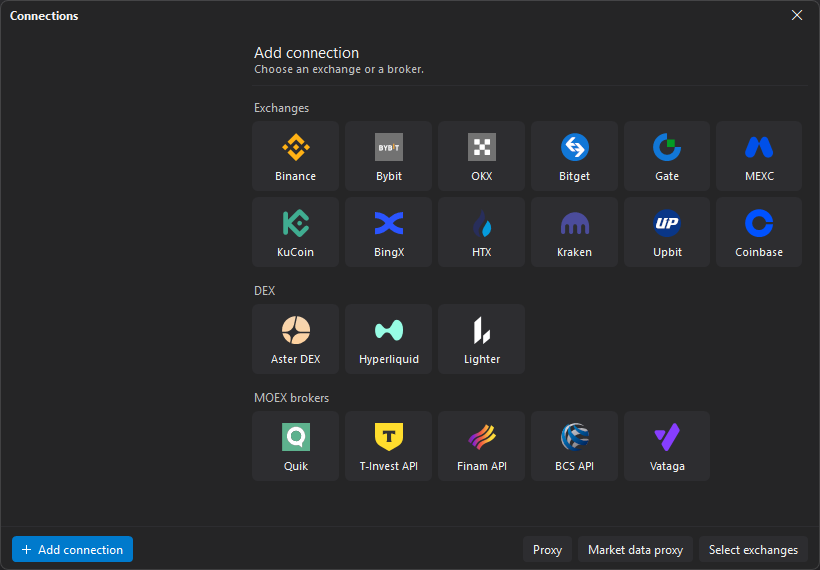
Click Add connection. The “Choose an exchange or a broker.” page opens on the right, with tiles in the Exchanges, DEX and MOEX brokers groups — click the one you need. While there are no connections, this page is open from the start; Back returns to the settings of the selected connection.
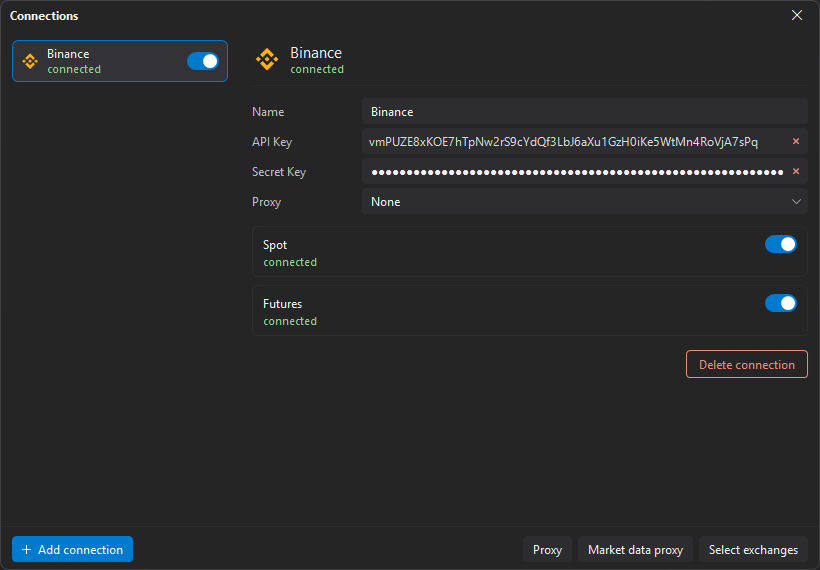
The connection appears in the list, and its settings appear on the right: the header shows the exchange icon and name and the connection state, the fields are below. The first field is Name: the connection is called so in the list. The other fields of each venue are described on its page.
One exchange has one connection, not split into spot and futures. If the exchange has two markets, its settings have the Spot and Futures sections, each with its own switch and state. Turn off the section of a market you do not trade: JetScalp will not connect to it, and the section’s fields are kept.
Turning a connection on and off
A connection is turned on and off with the switch on the right of its row in the list. An enabled connection keeps itself connected: after a drop JetScalp reconnects by itself, and after JetScalp restarts the connection is established again. To disconnect, turn the switch off.
The state is shown under the connection name in the list and in the header of its settings:
| State | Description |
|---|---|
| connected | The connection is established. |
| connecting… | Connecting. If JetScalp is waiting for something, it says what instead — for example, “waiting for the QUIK script”. |
| reconnecting… | The connection dropped, and JetScalp is connecting again; the reason may follow a colon. |
| error | The connection failed. Usually the error text is shown instead of the word “error”: the list row cuts it off, the full text is in the tooltip and in the settings header. |
| off | The connection is turned off. |
| sections are off | The connection is on, but both its sections are off. |
Each section has its own state — the same values or section is off.
Changed fields of an enabled connection apply by themselves: JetScalp reconnects it when you leave its settings: select another connection in the list, open another page of the window or close the window.
Order and deleting
Drag rows in the list to change the order of connections.
To delete a connection, select it, click Delete connection in its settings and confirm the deletion.
Select exchanges
The Select exchanges page sets which exchanges JetScalp receives market data from. Click Select exchanges at the bottom of the window: the exchanges are shown as tiles in the Exchanges, DEX and MOEX groups.
Click a tile to select an exchange or clear it: a selected one has a colored border, a cleared one is dimmed. All selects all exchanges, None clears them all, Back returns to the connection settings.
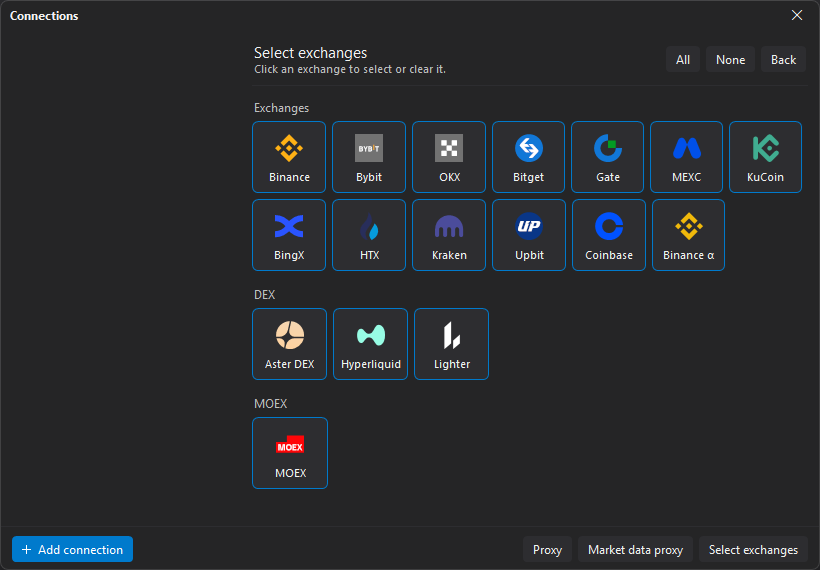
The market data of a selected exchange connects right away. For a cleared one it disconnects — except the feeds its trading connection needs for position prices.
The page also has Binance α — Binance Alpha spot market data. There is no trading connection for it.
Venues and connections
Below are all tiles of the Add connection page and what each one needs. Step-by-step instructions are on the venue’s page.
Centralized crypto exchanges (CEX)
| Venue | Sections | What to enter | Special requirements |
|---|---|---|---|
| Binance | Spot, Futures | API Key + Secret Key | USDⓈ-M futures: One-way or Hedge Mode; key created after opening the futures account |
| Bybit | — | API Key + Secret Key | Unified Trading Account; One-way Mode; System-generated key |
| OKX | — | API Key + Secret Key + Passphrase | One-way mode (net_mode) |
| Bitget | Spot, Futures | API Key + Secret Key + Passphrase | Futures: One-way Mode in USDT-M and USDC-M (Hedge by default); HMAC key only |
| Gate | Spot, Futures | API Key + Secret Key | API v4 key only; futures: One-way |
| MEXC | Spot, Futures | API Key + Secret Key | Futures: One-way Mode (Hedge by default), KYC |
| KuCoin | Spot, Futures | API Key + Secret Key + Passphrase | Unified account, Unified permission |
| BingX | Spot, Futures | API Key + Secret Key | Futures: One-way Mode |
| HTX | Spot, Futures | Access Key + Secret Key | Futures: One-way, Multi-Assets Collateral |
| Kraken | Spot, Futures | Spot: API Key + Private Key; Futures: Public Key + Private Key — each section has its own key | No 2FA on the key itself; futures: PF_ contracts only |
| Upbit | — (spot only) | Access Key + Secret Key | IP restriction required |
| Coinbase | — (spot only) | Key name + private key | ECDSA or Ed25519 key |
Decentralized exchanges (DEX)
| Venue | Sections | What to enter | Special requirements |
|---|---|---|---|
| Aster DEX | Spot, Futures | Nothing — the wallet is linked in each section and signs an approval in the browser | Futures: One-way Mode; approval valid for 1 year |
| Hyperliquid | — | Nothing — your wallet signs an approval in the browser | Two signatures: the trading key and the builder fee |
| Lighter | — | Account index, API key index, API private key | Plus/Premium: Approve fee |
Moscow Exchange (MOEX)
| Venue | Sections | What to enter | Special requirements |
|---|---|---|---|
| Quik | — | QUIK folder (or empty — any QUIK) | JetScalp.Quik.lua script running in QUIK |
| T-Invest API | — | T-Invest API token | Token with Full access |
| Finam API | — | Finam Trade API token (Secret Token) | — |
| BCS API | — | BCS Trade API token (refresh token) | Token for trading and reading data; one token — one account |
| Vataga | — | Server, login and password | Vataga account |
Good to know
- No withdrawal rights needed. Crypto exchange API keys never need withdrawal (Withdraw) or transfer permissions — do not enable them. DEX wallets sign an approval without withdrawal rights.
- One-way Mode. JetScalp supports crypto futures in one-way position mode. The exception is Binance, where Hedge Mode works too. On the other exchanges, in Hedge Mode the connection is aborted or orders are rejected with a message about it. JetScalp does not change the mode itself.
- IP restriction. Binding a crypto exchange API key to an IP is recommended, and on Upbit it is required. If JetScalp works through a proxy, specify the IP the exchange sees through that proxy.
- Proxy settings — a proxy for the trading connection: chosen in the connection’s Proxy field; an enabled connection reconnects with it by itself.
- Market data proxy — a separate proxy for each crypto exchange’s market data feeds, applied when the Market data proxy window is closed.