Combo window settings
The Combo window section sets which exchanges and markets the Combo window opens, how order books and charts are arranged in it and with which settings they open. The section has two tabs: Exchanges and Window.
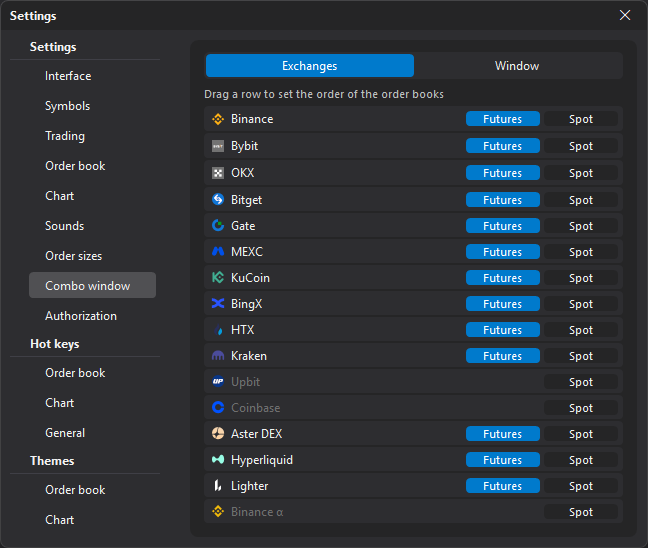
Changes are saved when you go to another section or close the settings window and apply to combo windows you open after that.
Exchanges
The Exchanges tab has a row for each exchange of the terminal except MOEX. Each row has two switches: Futures and Spot — whether to open this market of the exchange in the Combo window. If the exchange has no such market, there is no switch. An exchange with no market selected is grayed out.
The order of the rows is the order of the order books in the Combo window from left to right. To change it, drag a row to a new place. For one exchange, the futures order book comes first, then spot.
A new exchange that appears in the terminal is added to the end of the list with futures on by default.
Window
| Parameter | Description |
|---|---|
| Layout | Chart under book — its own chart under each order book; Common chart — one full-width chart under all order books, with the symbol of the first column; No charts — order books only. Chart under book by default. |
| Chart height, % | How much of the column height the chart takes: from 10 to 90, 30 by default. Only for the Chart under book layout. |
| Order book width, px (0 — as in template) | The width of the order book area in each order book window, up to 2000. 0 — the width from the order book settings. |
On open
These parameters are applied to the order books and charts of the Combo window when it opens.
| Parameter | Description |
|---|---|
| Order book template | The order book settings template loaded into each order book. None (default) — order books open with the default settings. |
| Compression: row, % of price (0 — off) | Price compression in the order books: one order book row is this percentage of the symbol price, from 0 to 10 in steps of 0.01. This makes order books of exchanges with different tick sizes look alike. 0 — compression is not changed. |
| Chart timeframe | The timeframe of the charts and of the order book clusters: As in template (default), 1, 3, 5, 15 minutes or 1 hour. |
| Order books at most (0 — all) | The maximum number of order books to open: from 0 to 50. 0 (default) — all selected on the Exchanges tab. |
| If more — which | Which order books to open if more exchanges have the symbol than this number: First in list (default) — the first ones in the order of the Exchanges tab; By turnover — those with the highest turnover. Turnover is known only for symbols already open in order books or the Watchlist; for the others it counts as zero. |
| Open | As a tab (default) — as a new tab of the main window; As a window — as a separate workspace window. |