Window linking
Window linking combines windows into groups. Each group has its own link color. If Watchlist, Screener, order book and chart are assigned the same link color, selecting a symbol in one window switches the linked windows to the same symbol.
Linking is especially convenient in the “Screener → Order book → Chart” or “Watchlist → Order book → Chart” combinations: you select a row in the list, and the linked order book and chart immediately show the selected symbol.
Linking synchronizes only the symbol. The chart timeframe, price step, templates and other settings stay individual for each window.
Which windows support linking
| Window | Link color | Active window mode | What it sends to linked windows | What it receives from linked windows |
|---|---|---|---|---|
| Order book | Yes | Yes | A symbol selected via symbol search or by switching the market type | Symbol |
| Chart | Yes | Yes | A symbol selected via symbol search or by switching the market type | Symbol |
| Tape | Yes | Yes | A symbol selected via symbol search | Symbol |
| Watchlist | Yes | No | The symbol of the row selected by a click or with the arrow keys | — |
| Screener | Yes | No | The symbol of the row selected by a click | — |
Watchlist and Screener act only as a symbol source: they switch linked windows but do not receive a symbol from them. Other terminal windows (Alerts, trading tables and others) do not take part in linking.
How to assign a link color
- Click the link icon on the window tab — a small square to the left of the window name. While no color is assigned, the square is empty.
- In the palette that opens, choose a link color. The palette has 25 numbered colors.
- Repeat this for the other windows you want to link, choosing the same color.
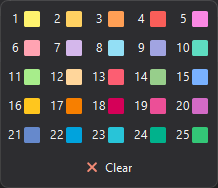
After you choose a color, the square on the tab is filled with it, so linked windows are easy to spot by the same icon color.
In the palette, the window’s current color is outlined, and colors already used by other windows have a gray background. This helps you pick a free color for a new group or, conversely, join the window to an existing one.
When an order book, chart or Tape is added to a group, the window immediately switches to the symbol already open in one of the group’s windows.
The link icon is shown only if the Show window link icon on tabs option is enabled in the settings (Interface). If the icon is hidden, the link palette cannot be opened.
How linked windows react
Linked order books, charts and Tape windows switch to a new symbol when, in any window of the group:
- a row is selected in the Watchlist by a mouse click or with the arrow keys;
- a row is selected in the Screener by a mouse click;
- a symbol is selected in an order book, chart or Tape via symbol search;
- an order book or chart is switched from spot to futures or back (see Pinning the market type).
If the group contains a chart with horizontal levels, the linked order book can show those levels. This is controlled by the Show levels in order book option in the chart settings.
Linking with the active window
For the order book, chart and Tape, the palette has an extra Active window button. In this mode the window is not bound to a specific color but follows the window you are currently working with:
- when you switch to another window, the window in Active window mode switches to that window’s symbol;
- when a symbol is selected in any window (Watchlist, Screener, order book, chart or Tape), the window in Active window mode switches to it as well — even if the source window has no link color.
This mode is useful, for example, for a single shared chart that always shows the symbol of the order book you are working with right now.
A window in this mode is marked on its tab with a separate icon instead of a colored square. To turn the mode off, open the palette and click Active window again, or click Clear.
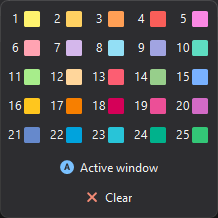
Watchlist and Screener do not have the Active window button.
Pinning the market type
An order book or chart can be pinned to one market type — spot or futures. To do this, right-click the window tab and enable Pin market type. The item is available when a spot or futures symbol is open in the window; the window is pinned to the market type of that symbol.
For a pinned window:
- the symbol type icon on the tab changes its look to show that the market type is pinned;
- only symbols of the pinned type are accepted from linked windows, symbols of the other type are ignored;
- symbol search shows only symbols of the pinned type;
- clicking the symbol type icon pins the window to the other market type and opens the paired symbol in it — if the same coin is on the other market of the same exchange. If there is no paired symbol, nothing changes.
For example, you can link a Watchlist with two order books of the same color and pin one order book to spot and the other to futures. Then selecting a spot symbol in the Watchlist switches only the spot order book, and selecting a futures symbol switches only the futures one.
To remove pinning, open the tab’s context menu again and disable Pin market type.
If the market type is not pinned, clicking the symbol type icon on an order book or chart tab switches the window to the paired symbol of the other market on the same exchange: from spot to futures and back (for MOEX — between a stock and the nearest futures contract on it). Linked windows switch along with it.
Turning linking off
To remove a window from its group, click the link icon on the window tab and click Clear in the palette that opens. The window stops exchanging symbols with its former group but keeps the symbol currently open in it. The other windows in the group keep working together.
Linking only within the workspace
By default, linking works only within a single workspace (a tab of the main window). Windows with the same link color in different workspaces do not affect each other, so you can reuse the same colors in each workspace independently.
If you turn off the Link windows only within workspace option (Interface), link colors become shared across the whole terminal: a window of one color switches windows of the same color in all workspaces.
Copy of a tab
The Copy tab command in the tab menu (Tabs) copies all windows of the tab together with their linking. The colors of the copies depend on the Link windows only within workspace option:
- the option is on — the windows of the copy get the same colors as the original: tabs do not affect each other, so the groups of the copy work separately;
- the option is off — for each group of the original the copy gets its own free color, so that the copy does not switch the original’s windows. If no free colors are left, the windows of the copy stay unlinked.
Linking in the workspace builder
The workspace builder (Windows → Layout builder) has a Link charts option. If you select With their books, each order book is linked with its own chart using a separate link color. More in Workspace builder.
Combo window
The Combo window has its own synchronization, separate from link colors: a symbol selected in any order book or chart of the combo window opens right away in its other windows — each on its own exchange. In addition, the first order book of the combo window gets a free link color: a Watchlist or Screener of this color switches the whole combo window.