Tape area
The tape shows every trade in the symbol the moment it happens. It shows who is more active right now — buyers or sellers — at what volumes trades go through and how fast. A scalper watches the tape to catch the moment to enter: a burst of large buys or sells often comes before a price move.
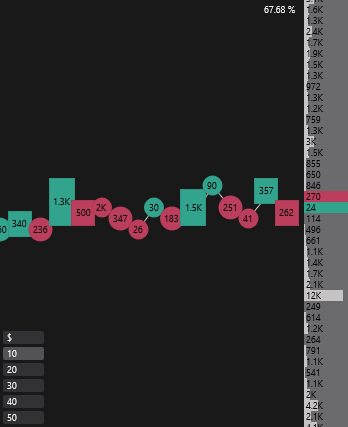
Trades are shown as circles with the trade volume; the circle color shows the trade direction. In this example buy trades are green and sell trades are red; the colors are set in the order book theme. Aggregated trades are shown as rectangles (see Trade aggregation on the Tape tab).
A table of trades — with the exact time, price, volume and a volume filter — is shown by the separate Tape window. Its settings and filter are its own and do not affect the order book’s tape area.
The tape area also shows:
- levels;
- the SL, TP and trailing markers of the open position — see Stop loss and Take profit;
- the order size panel in the lower-left corner — see Order size.
Tape menu
To open the tape menu, right-click anywhere in the tape area.
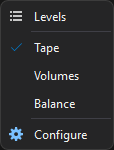
| Menu item | Description |
|---|---|
| Levels | Opens the level manager. |
| Leverage and margin | Opens the Leverage and margin window. Available only for futures on connections that can change the leverage. |
| Position margin | Opens the Position margin window. Available only when the window symbol has an open isolated position on a connection that can change its margin. |
| Tape | Shows or hides the trade tape. |
| Volumes | Shows or hides horizontal volumes. |
| Balance | Shows or hides the order book balance. |
| Configure | Opens the order book settings on the Order book tab. |
Horizontal volumes
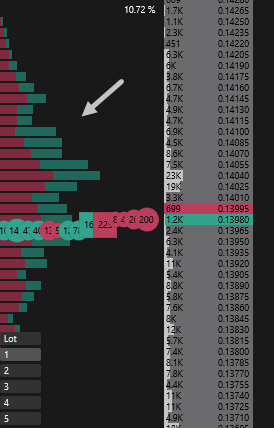
Horizontal volumes are a histogram where each bar corresponds to a price. The longer the bar, the more volume was traded at that price. They show at which prices most of the trading took place.
The ratio of buys to sells in a bar is shown in two colors (green and red).
Balance
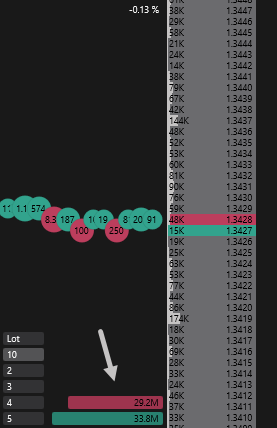
The balance shows the total volume of buy orders and sell orders in the order book — so you can see which side is denser right now.
Width and hiding the area
Hover over the border between the clusters area and the tape area, hold down the left mouse button and drag the border left or right — the tape width changes at the expense of the clusters area.
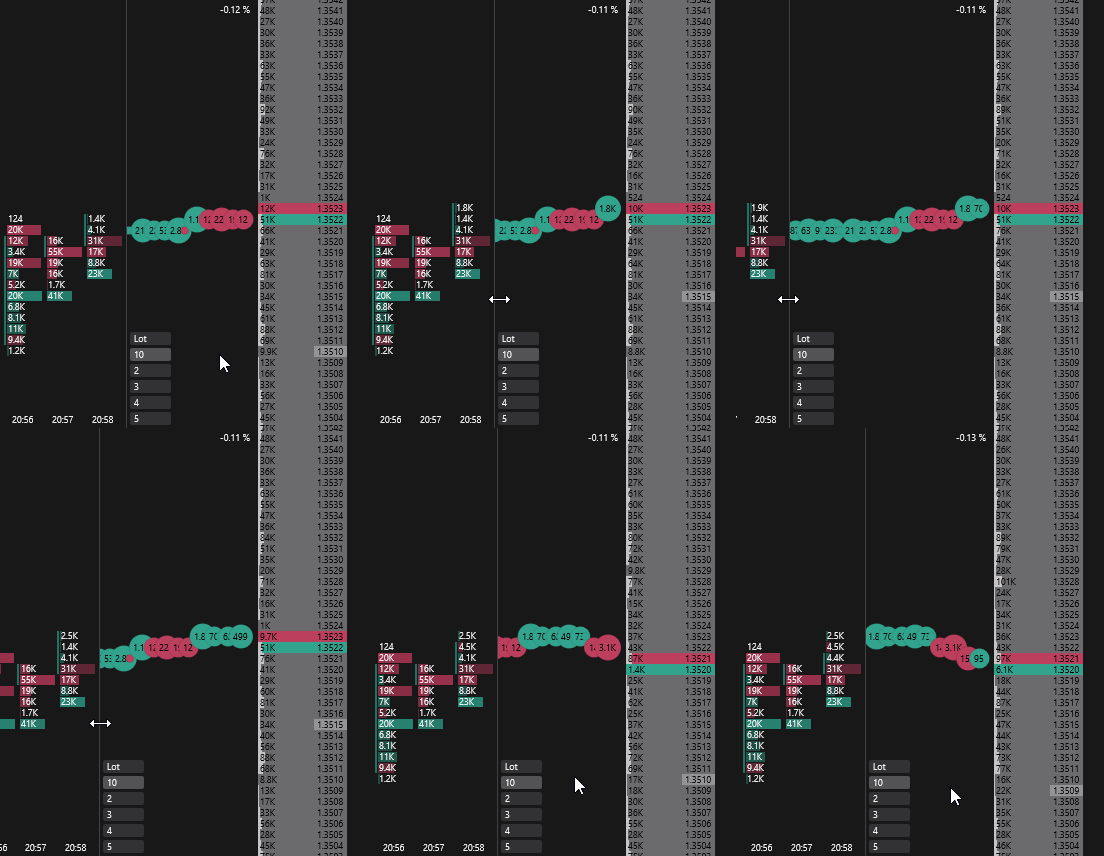
Double-clicking an empty spot in the tape area hides the clusters area; double-clicking the clusters area hides the tape. See Clusters area for details.