Account and sign-in
One JetScalp account works for the website, the terminal and the mobile app: sign in to the app with the same email and password. Signing in is optional — quotes, order books and trading work without an account.
Signing in, signing up, password reset and account deletion are under More → Sign-in. Signing up and passwords on the website are covered in Quick start, step 2.
What signing in gives you
- The symbol list and chart history come from the JetScalp server, or directly from exchanges when it’s unavailable.
- Alerts are shared by all your devices: the server checks them, so a notification arrives even while the app is closed (Alerts and notifications).
- You can connect Moscow Exchange brokers — the MOEX symbol list comes from the server.
- The Screener tab works on a tablet.
Without signing in, symbols and charts load directly from exchanges and there are no alerts.
Signing in
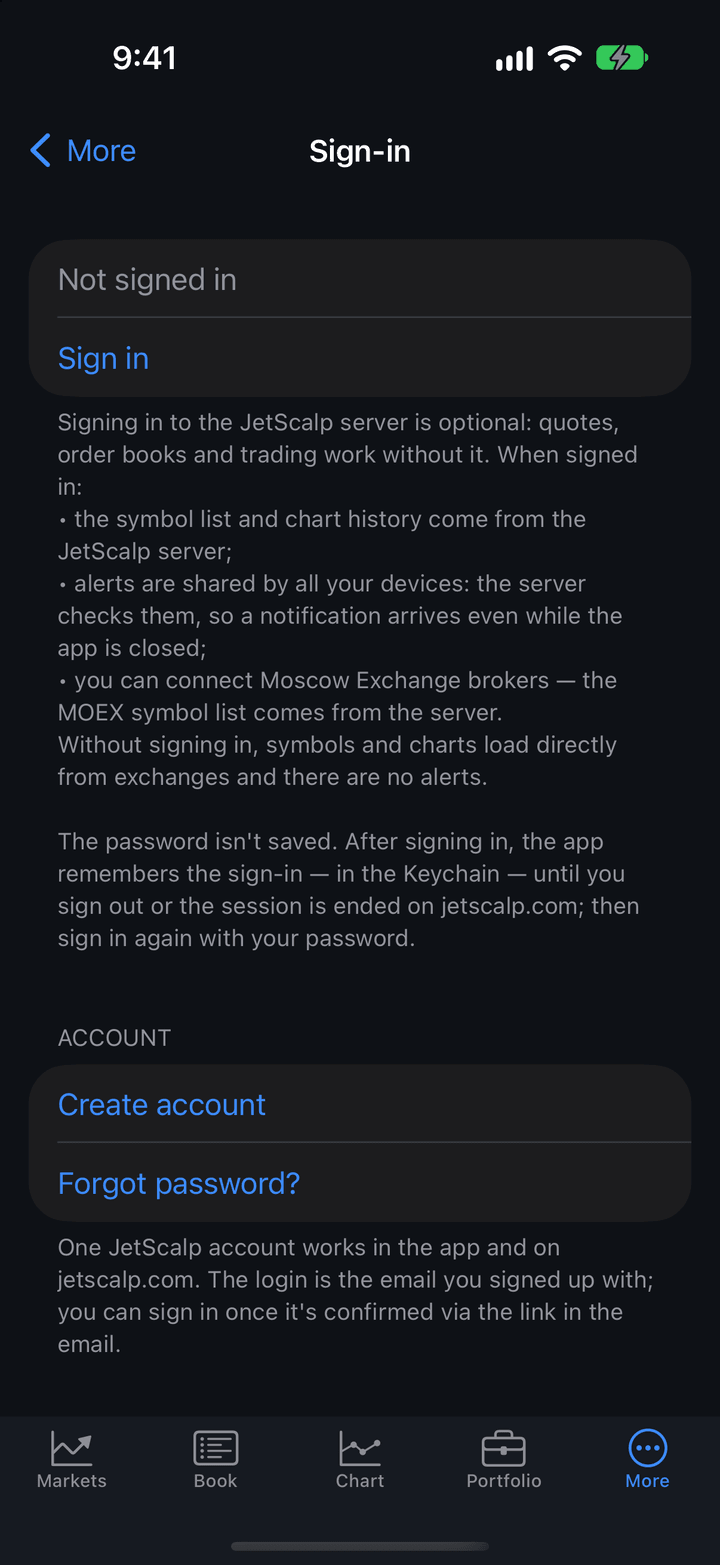
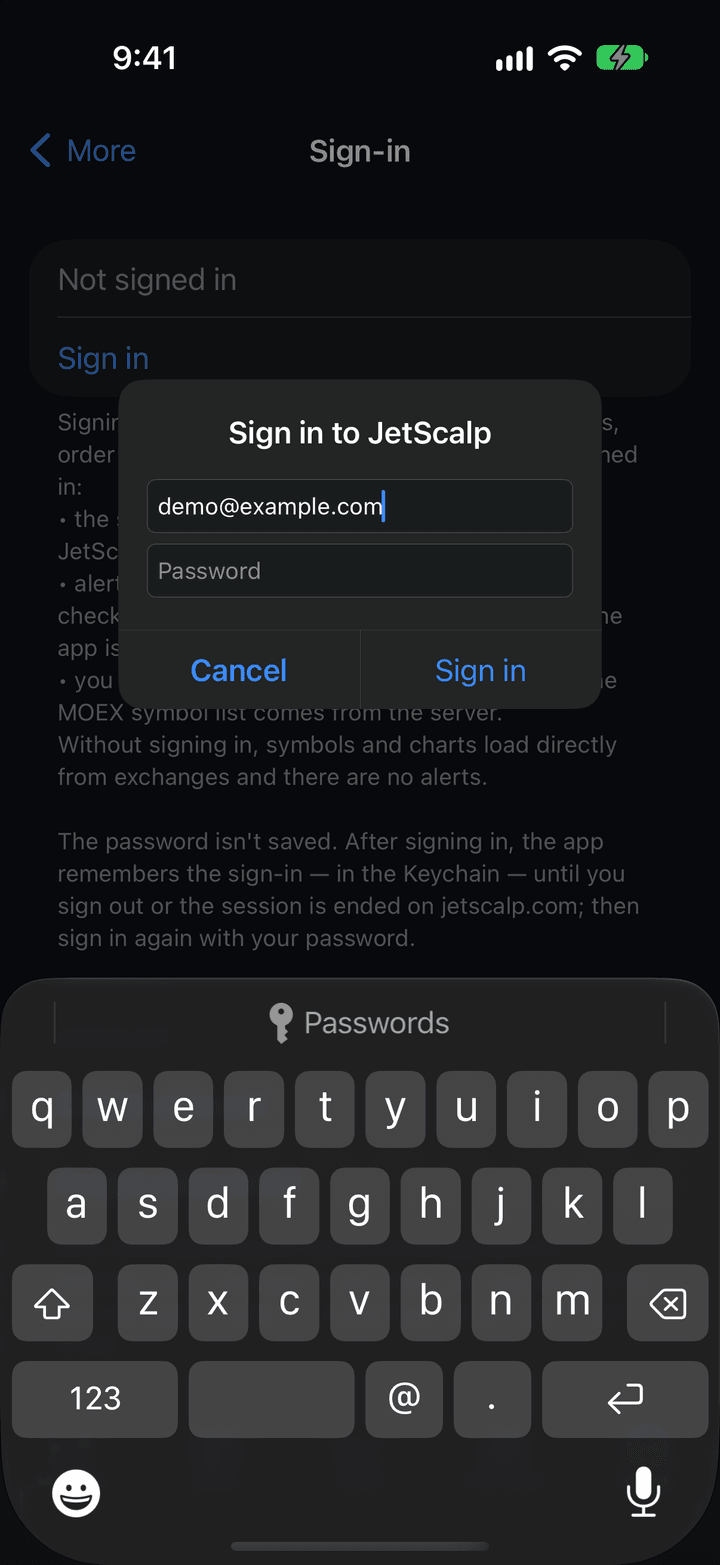
- Open More → Sign-in.
- Tap Sign in.
- In the Sign in to JetScalp window, enter your account email in the Login field and your password in the Password field.
- Tap Sign in.
You can fill in the login and password from your device’s password manager. If the server rejects the sign-in, for example because of a wrong password, the sign-in window appears again with the server’s reply.
The sign-in status is the first row of the Sign-in screen:
| Status | Description |
|---|---|
| Not signed in | You haven’t signed in or have signed out. Below it is Sign in. |
| Connecting to server… | Signing in is in progress. |
| Signed in · email | You are signed in. Below it is Sign out. |
| Error message | Signing in failed. Retry signs in again without a password if the network or the server was the problem; Sign in again opens the sign-in window. |
Password and session
The app doesn’t save your password. After you sign in, the device keeps only your login and a session key — in the Keychain on iPhone and iPad, in Android secure storage on Android. On later launches you are signed in automatically, without the password.
You need the password again when the session ends: you tapped Sign out, changed your password, or ended the session in your account on the website or on another device. Sign-in then shows “Session ended: on jetscalp.com, on another device or by a password change. Sign in again” — tap Sign in again and enter your password.
Signing up in the app
The sign-up options are shown under More → Sign-in while you are not signed in.
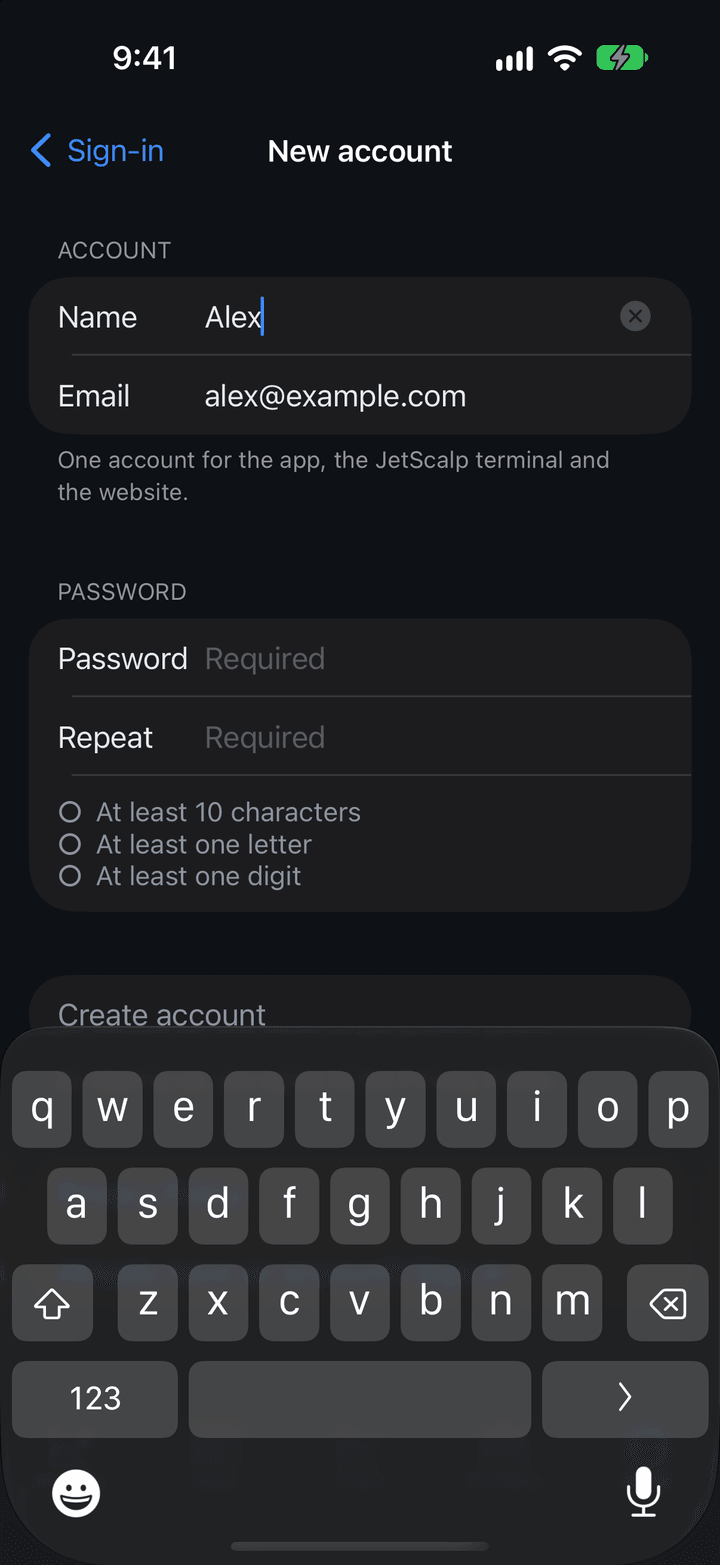
- Open More → Sign-in and tap Create account.
- On the New account screen, enter your Email, choose a Password and repeat it in the Repeat field. Name is optional.
- Tap Create account. By signing up, you agree to the Privacy Policy — the Privacy Policy button on the same screen opens it.
- Open the JetScalp email on the same phone and follow the link in it: the app confirms the address and signs you in.
The password must be at least 10 characters, with a letter and a digit. The rules get check marks as you type: At least 10 characters, At least one letter, At least one digit, Passwords match. Errors are shown in red under their field.
After signing up, the Check your email screen opens:
- Send the email again — if the email hasn’t arrived. Check your spam folder too.
- Change the email — go back to the fields if the address has a typo.
- Done — close the screen.
If you already have an account, tap Already have an account? Sign in.
Email confirmation
The link in the email opens the app. If the app was restarted after signing up, it asks for the password: in the Confirm email window, enter the password you chose when signing up and tap Confirm. When it’s done, the Email confirmed window appears.
If the link opens in the browser, confirm the address on the website: enter the password you signed up with there.
On Android the link may open the website if jetscalp.com links aren’t assigned to the app. In that case the Check your email screen shows how to turn them on in Android settings: Settings → Apps → JetScalp → Open by default → Supported links.
If the link has expired, the confirmation window offers Send the email again when the app remembers the sign-up address. Otherwise request the email again on the sign-in page on the website.
Password reset
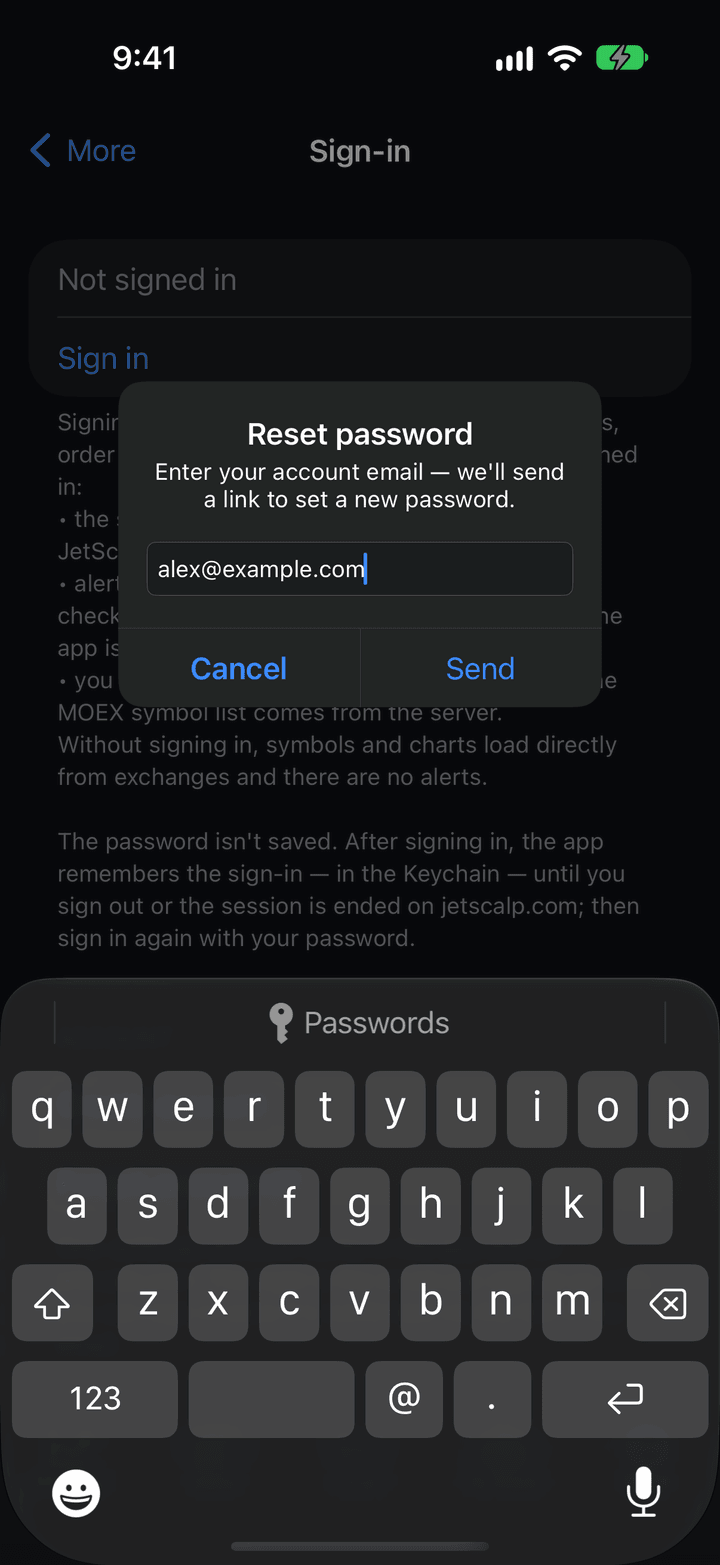
- Open More → Sign-in and tap Forgot password?.
- In the Reset password window, enter your account Email and tap Send.
- Open the email on this phone and follow the link.
- In the New password window, enter the new password twice and tap Save.
The new password works on the website, in the terminal and in the app; sessions on other devices end. If you have signed in to this account on the phone before, the app signs in with the new password right away; otherwise sign in under More → Sign-in yourself.
To change a password you know, use your account page on the website — see Password recovery and change.
Signing out
Tap Sign out under More → Sign-in. Signing out also ends the session on the server and erases your login and session key from the device. Exchange connections, demo accounts and settings stay.
Deleting the account
You can delete your account right in the app while you are signed in.
- Open More → Sign-in and tap Delete account at the bottom of the screen.
- Read the warning in the Delete your account? window and enter your Password.
- Tap Delete for good.
What deletion does:
- sign-in to the website, the terminal and the app is closed;
- your email, name, IP addresses and password are erased;
- your ideas and comments on the website stay, signed “Deleted user”;
- the app signs out and erases the account data from the phone.
When it’s done, the Account deleted window appears. Quotes, order books and trading through exchange connections work without an account. You can sign up with the same email again later.
Important: Account deletion cannot be undone.
You can also delete your account on your account page on the website.