Tablet
On an iPad or Android tablet, JetScalp makes use of the large screen: the order book stands next to the chart, in landscape a portfolio column is added, the order book and chart get a quotes strip, and a Screener tab follows Markets. Everything else works the same as on a phone.
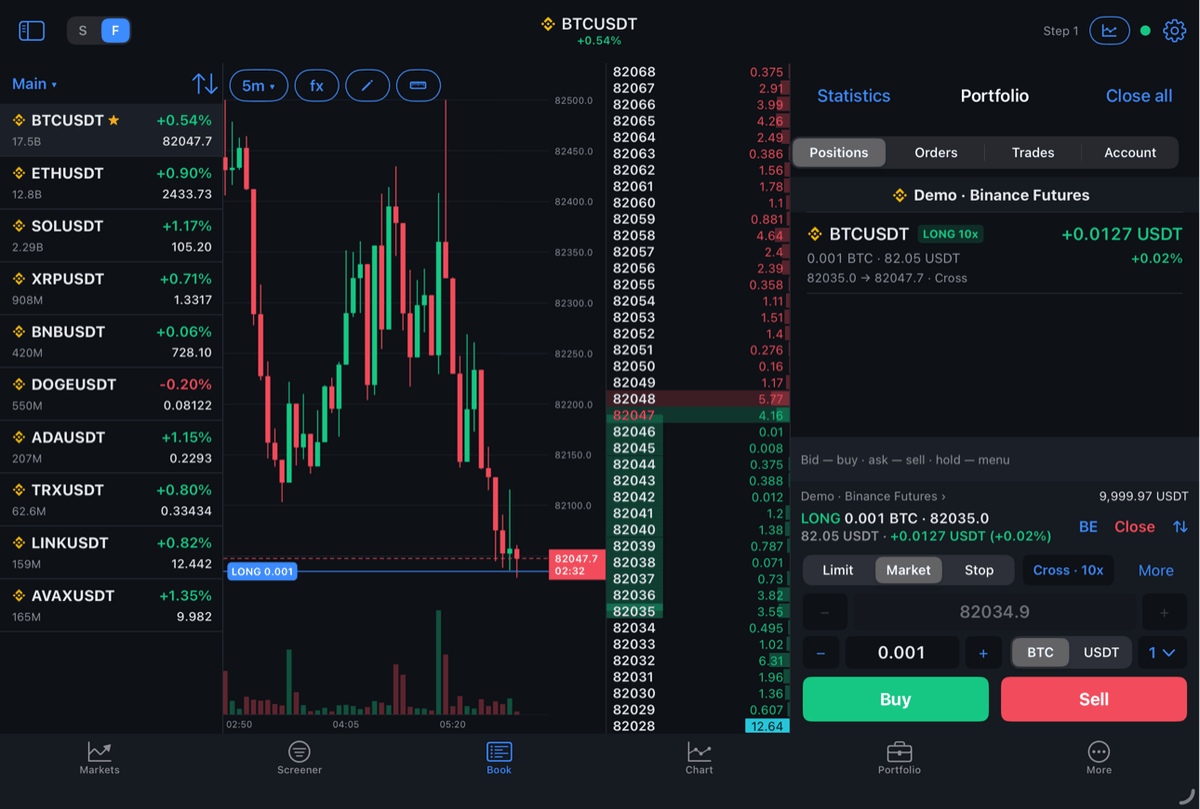
On a tablet the tabs are at the bottom of the screen, as on a phone. The app works in any orientation.
Order book next to the chart
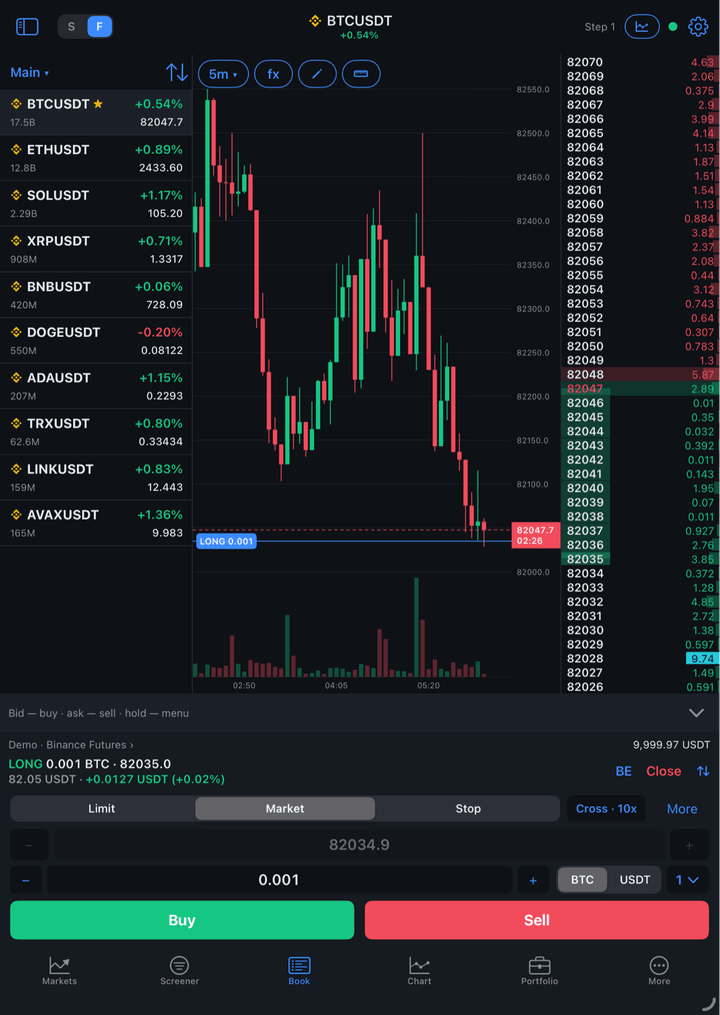
Portrait. On a tablet the chart is open next to the order book from the start: the order book is narrow, and the rest of the space goes to the chart. The chart icon in the order book header, as on a phone, switches between Order book only, Chart and Clusters and tape; the choice is remembered. How each option works is described in Order book.
Landscape — three columns:
- The chart or clusters with the tape.
- The order book.
- The trading column: at the top — the portfolio (positions, orders, trades, account and Statistics, as on the Portfolio tab), below it — the action bar, account bar and order panel.
The portfolio column exists only in landscape. When the keyboard for the price and size fields leaves it too little room, it hides until the keyboard closes.
Order book rows on a tablet are the same height as on a phone, so there are more of them — you see more prices.
Quotes strip
To the left of the order book and chart is a narrow quotes strip. Tap a symbol in it — the order book and chart switch to it, and you stay on the same tab. The symbol currently open is highlighted in the strip.
| Button | Description |
|---|---|
| List name ”▾” | Choose which list the strip shows. Until you choose, the strip shows the current Markets list. |
| Sort icon | Sorting and Favorites only — the same menu as on Markets. A list has one sorting: it changes on Markets too. |
A strip row shows the name and the 24-hour change, and below them the turnover and last price.
To hide or show the strip, tap the Quotes strip button at the left edge of the order book or chart header, left of S | F. It hides the strip on both screens at once. In a narrow window (for example, with another app open next to JetScalp) there is no strip.
Columns on Markets
On the Markets tab you can show other lists next to the main one — as columns with live quotes. All columns work the same way, the first one included: each has its own header, and each list can be edited right in its column.
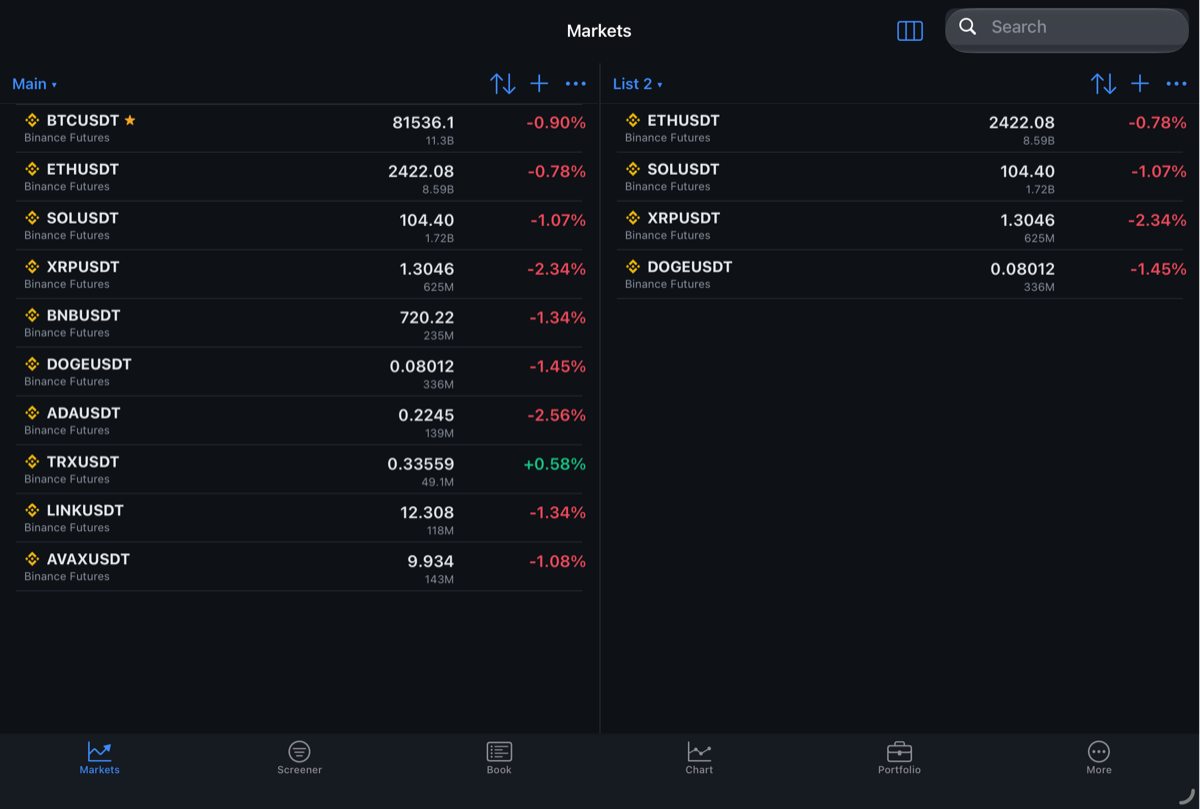
| Column header | What it does |
|---|---|
| List name ▾ | The lists menu: show another list in the column, Rename, Delete list, New list. If the chosen list is already open in another column, the columns swap places. |
| Sort | Your own order, by name, by daily gain or loss, by volume; Favorites only is there too. |
| + | Add a symbol to this very list. |
| ⋯ | Edit — remove rows and change their order, Close column. |
Add column is the three-column button at the top of the screen. Its menu has the lists that are not on screen yet and New list, which opens right away in a new column.
Touch and hold a row in any column for the symbol menu: Add to favorites, Move up and Move down (in your own order), Move to… and Copy to… another list, Remove.
- The search at the top of the screen filters all columns at once.
- A tap on a symbol in a column opens its order book.
- The first column can be closed too if there are others: the next one takes its place.
- A deleted list closes its column. Columns are saved between launches.
If there is no width left for columns, the Add column menu shows “There is no room for another column on this screen”. In a narrow column, rows take two lines.
Screener
The Screener tab comes after Markets, on tablets only. The screener picks the symbols where things are moving right now: price change, number of trades, turnover and volatility over the chosen periods. It is computed by the JetScalp server from exchange trades, and the table updates several times a second.
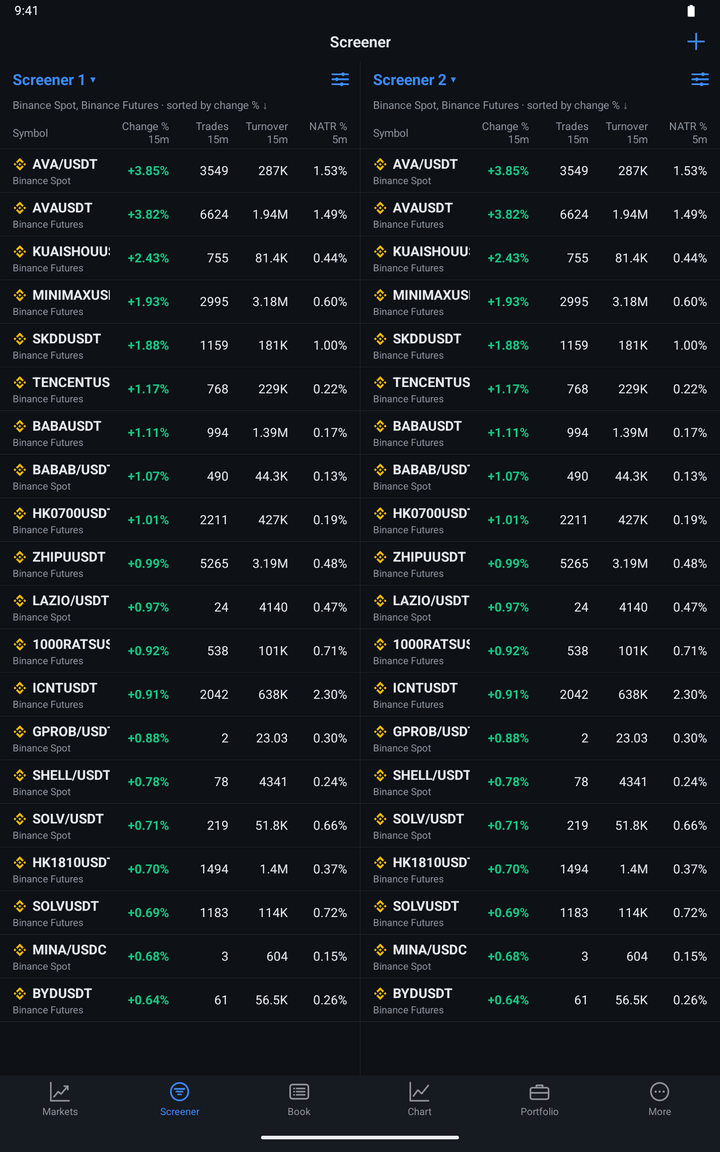
The screener requires signing in to your JetScalp account. Without sign-in the tab shows an explanation and a Sign in button. How to sign in is described in Account and sign-in.
| Column | Description |
|---|---|
| Symbol | Exchange icon and symbol name, with the exchange and market below. |
| Change % | Price change over the period, gains in green, losses in red. |
| Trades | Number of trades over the period. |
| Turnover | Turnover over the period. |
| NATR % | Normalized ATR — volatility as a percentage of the price. |
Under each column title is its period from the filter: “15m”. Above the table is the filter line: the chosen exchanges and sorting, “Binance Spot, Binance Futures · sorted by change % ↓”.
Tap a row to open the symbol’s order book on the Book tab. If quotes from the symbol’s exchange are turned off in More → Settings → Select exchanges, the row is gray, and a tap offers to turn the exchange on: Turn on.
Filter
Tap the icon to the right of the screener name to open the filter screen. Changes apply immediately and are saved.
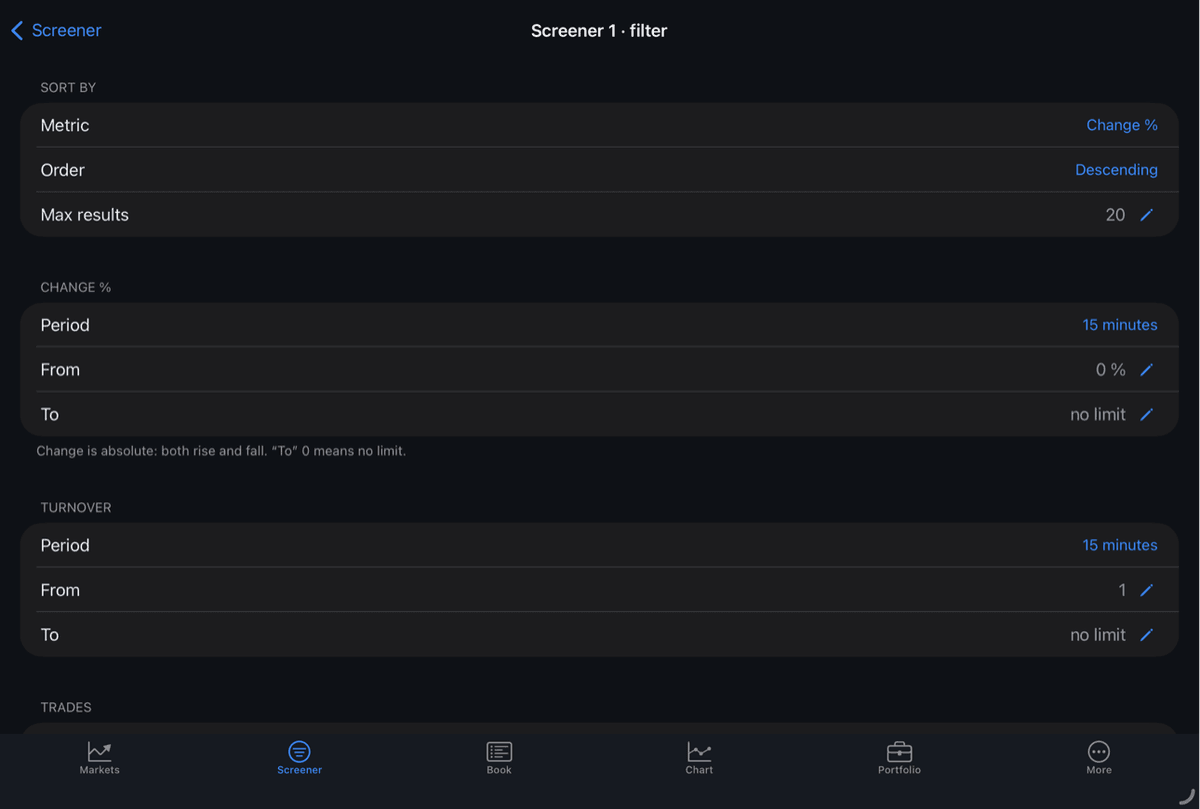
| Group | Description |
|---|---|
| Sort by | Metric — what to sort by: Change %, Turnover, Trades or NATR. Order — Descending or Ascending. Max results — from 1 to 200. |
| Change %, Turnover, Trades, NATR | Period — 1, 5, 15 or 30 minutes (for NATR — 1 or 5 minutes). From and To — the value limits; “To” 0 means no limit. Change is absolute: both rise and fall count. |
| Exchanges | Switches for exchanges and markets: Binance Spot, Binance Futures, Bybit, OKX and others. At least one must be on. |
| Reset filter | Return to the values of a new screener. |
A new screener shows 20 Binance Spot and Binance Futures symbols with the largest price change over 15 minutes.
Several screeners
Tap ”+” at the top right — Add screener: another screener with its own filter appears next to it. If there is not enough room, the app says: “There is no room for another screener on this screen.”
Tap the screener name ”▾” to open a menu:
| Command | Description |
|---|---|
| Screener filter | Open the filter, like the icon to the right of the name. |
| Rename | Give the screener your own name instead of “Screener 2”. |
| Close screener | Remove the screener. The last one can’t be closed. |
Screeners and their filters are saved between launches.
Tip: Keep two screeners side by side with different jobs. For example, the first sorted by price change over 5 minutes to catch sharp moves, the second by turnover over 15 minutes to see where most of the trading is happening. Tap a row — and the order book is already open.
The first time you open the tab, the app shows tips one at a time: what is in the table, where the filter is and how to add a screener. To see them again — More → Settings → Show tips again.
Drawing on the chart
On the Chart tab of a tablet, the drawing panel is a column to the left of the timeframes and chart: the tools, Magnet, the lock and Delete all objects. It stays open until you close it with the pencil in the header; once closed, it stays closed. The hint and the selected object’s buttons are above the chart, as on a phone.
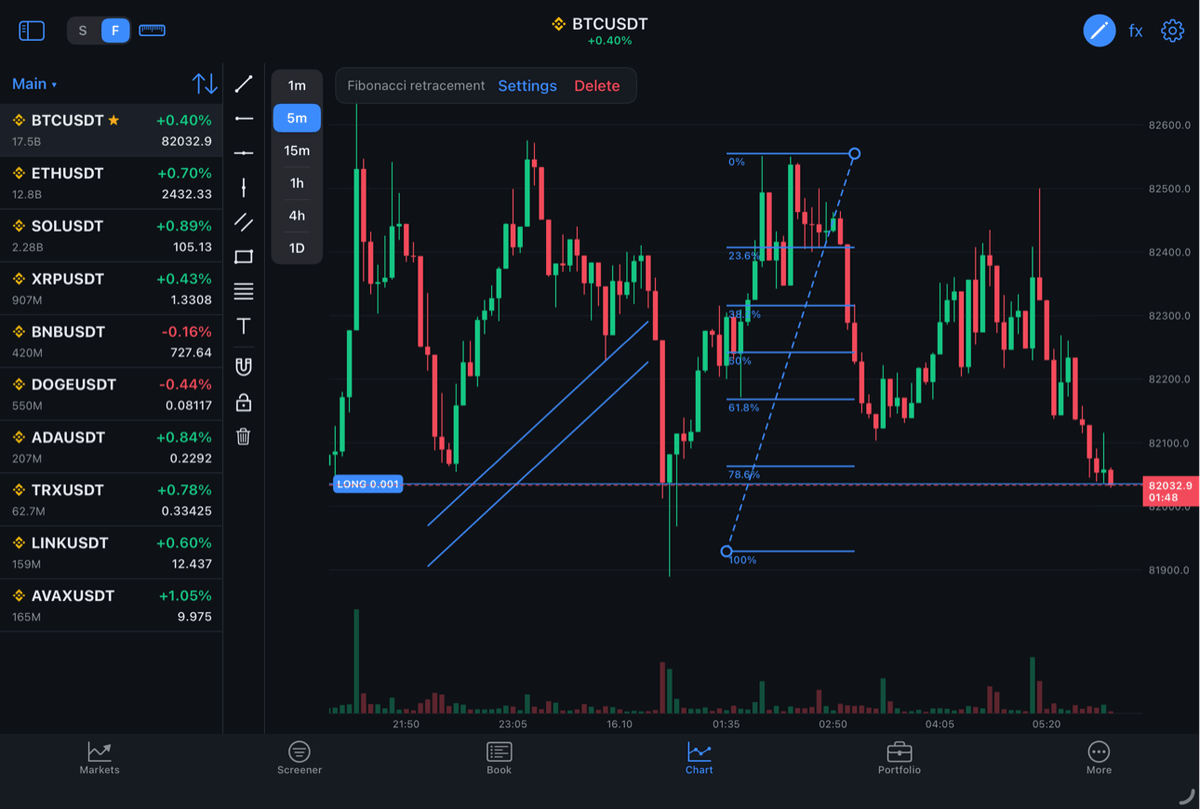
Drawing on the chart next to the order book is available only on a tablet. The pencil among the buttons above the chart (next to the timeframe, fx and the ruler) opens and closes the same panel as a column to the left of the chart. While the panel is open, taps on the chart edit objects; when it is closed, the chart next to the order book works as usual, and taps are for trading.
How to place and edit objects is described in Chart.
Keyboard
With a keyboard attached, you can control the order book with keys. They work while the order book is on screen; if a text field has focus, letters go into the field. Letters also work in the Russian layout: И, Ы, С, Ч, К, У.
| Command | Key |
|---|---|
| Buy (as the panel button) | B |
| Sell (as the panel button) | S |
| Cancel symbol orders | C |
| Close position | X |
| Reverse position | R |
| Stop to breakeven | E |
| Back to price | Space |
| Larger step, Smaller step | =, - |
| Scroll up, Scroll down — by 5 rows | ↑, ↓ |
| Page up, Page down | Shift+↑, Shift+↓ or Page Up, Page Down |
| Volume 1 … Volume 5 — order size | 1 … 5 |
| Tabs | ⌘1 … ⌘6 on iPad, Ctrl+1 … Ctrl+6 on Android |
Buy and Sell from the keyboard work like the order panel buttons, with the same confirmations; while the order panel is hidden they do nothing. The other keys work like the account bar buttons and order book gestures.
To see the list of keys on iPad, hold ⌘; on Android, press Meta+/ (the system shortcut list).
Mouse and trackpad
| Action | What it does |
|---|---|
| Pointer over the order book | The row under the pointer is highlighted. |
| Click | The same as a tap. |
| Right-click on an order book row | The level menu, like touching and holding the row. |
| Pointer over the chart | The crosshair follows the pointer, with the bar’s prices. |
| Right-click on the chart | The crosshair is pinned to the price: on the Chart tab — with the alert bell, next to the order book — with a ”+” and the order menu. |