Portfolio
The Portfolio tab shows open positions, active orders, trades and account funds — for both demo accounts and connected real accounts. Here you can also close or reverse a position, set a stop loss and take profit, change or cancel an order and view statistics of closed trades.
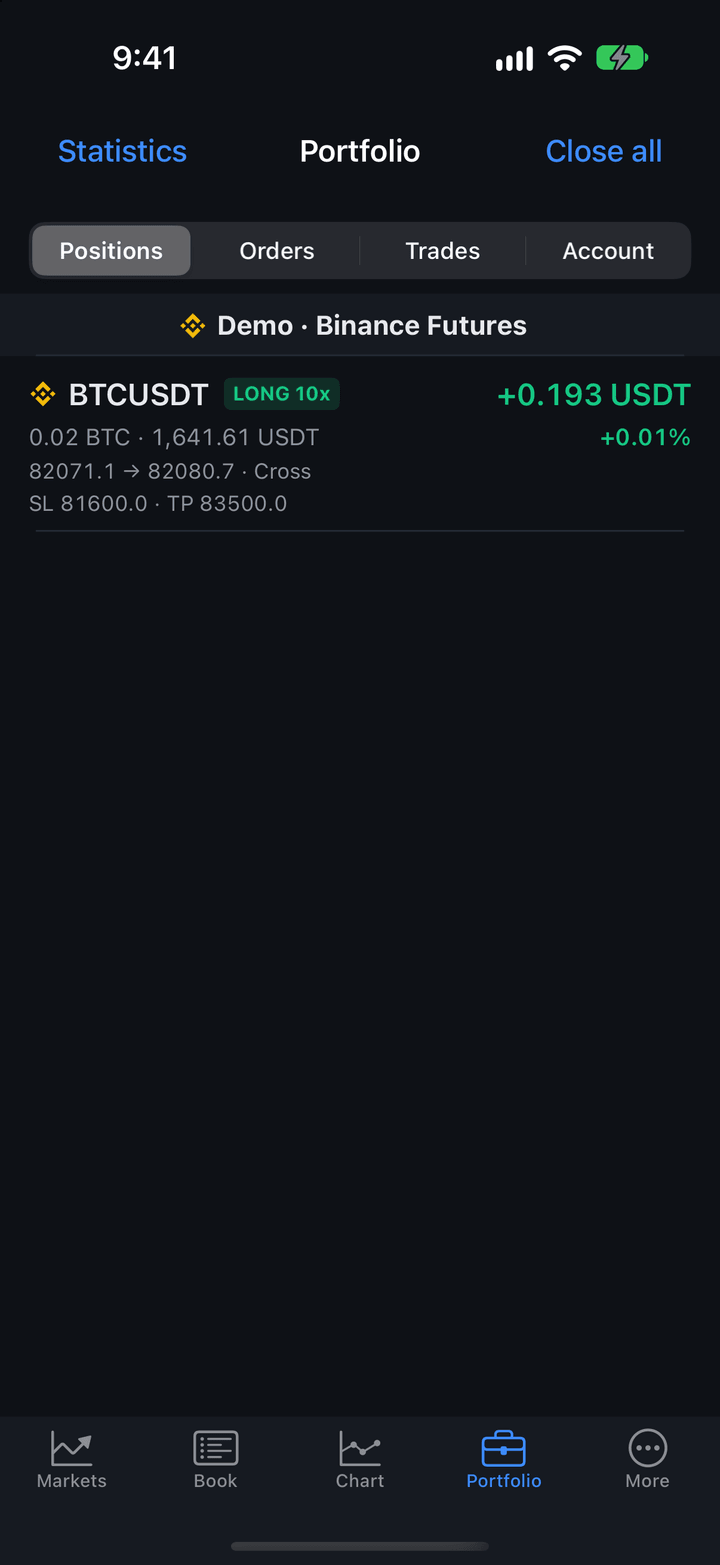
Portfolio sections
The sections are switched at the top of the screen.
| Section | Description |
|---|---|
| Positions | Open positions and, below them, positions closed today with a result or fees. |
| Orders | Active orders that are not fully filled yet. |
| Trades | Executed trades, newest first. |
| Account | Account funds: balance, available funds, result and fees. |
Rows are grouped by connection: the group header shows the exchange logo and the connection name, for example “Binance · Futures” or “Demo · Binance Futures”. Real accounts come first, then demo accounts. Times of orders and trades here and in Statistics are in the phone’s time zone. The name of a real connection is shown in the color chosen in its settings (Connection settings).
An empty section shows “No positions”, “No orders” or “No trades” in the middle of the screen. The Account section without accounts tells you where to connect an exchange or turn on demo accounts.
On a tablet in landscape orientation, the portfolio is also shown as a column next to the order book.
Positions
A position row shows:
- the exchange logo and the symbol name;
- a side and leverage badge, for example “LONG 20x”, in the side color;
- on the right, in large type, the result in currency, for example “−0.05 USDT”, in green or red; futures funding is not included;
- the quantity and value (“0.392 LTC · 24.92 USDT”) and the price move from the average price in the position’s direction, in percent;
- the average and last price, the margin mode and the liquidation price: “63.70 → 63.57 · Cross · Liq. 9.79”;
- the stop loss and take profit, if set: “SL 60.00 on the exchange · TP 70.00 on the exchange”.
The mark next to a level tells you where it is executed: “on the exchange” means the stop order has been accepted by the exchange, “placing…” means the order has been sent and is waiting for the exchange, and no mark means the app executes the level. See Where stop loss and take profit are executed.
For the Moscow Exchange, the quantity is shown in lots: “1 lot”, “3 lots”.
A position closed today stays below the open ones with the “Closed” badge: its total is on the right, and the realized PnL and fee are below. A closed position has no actions.
Orders
An order row shows a side and type badge (“BUY Limit”), the order price on the right (for a stop order, the trigger price), and below — the quantity and value at the order price, how far the order is from the market in percent, how much is filled and when the order was placed. A stop limit order also shows its limit price.
Tap an order to open its card.
Trades
A trade row shows a “BUY” or “SELL” badge, the price on the right, and the quantity, value and time below. Today’s trades show the time only, earlier ones also the date. If the exchange reported a fee, it is shown too.
Account
The Account section shows the funds of each account: per coin on a crypto exchange, per market section at a Moscow Exchange broker. Coins with a zero balance are hidden.
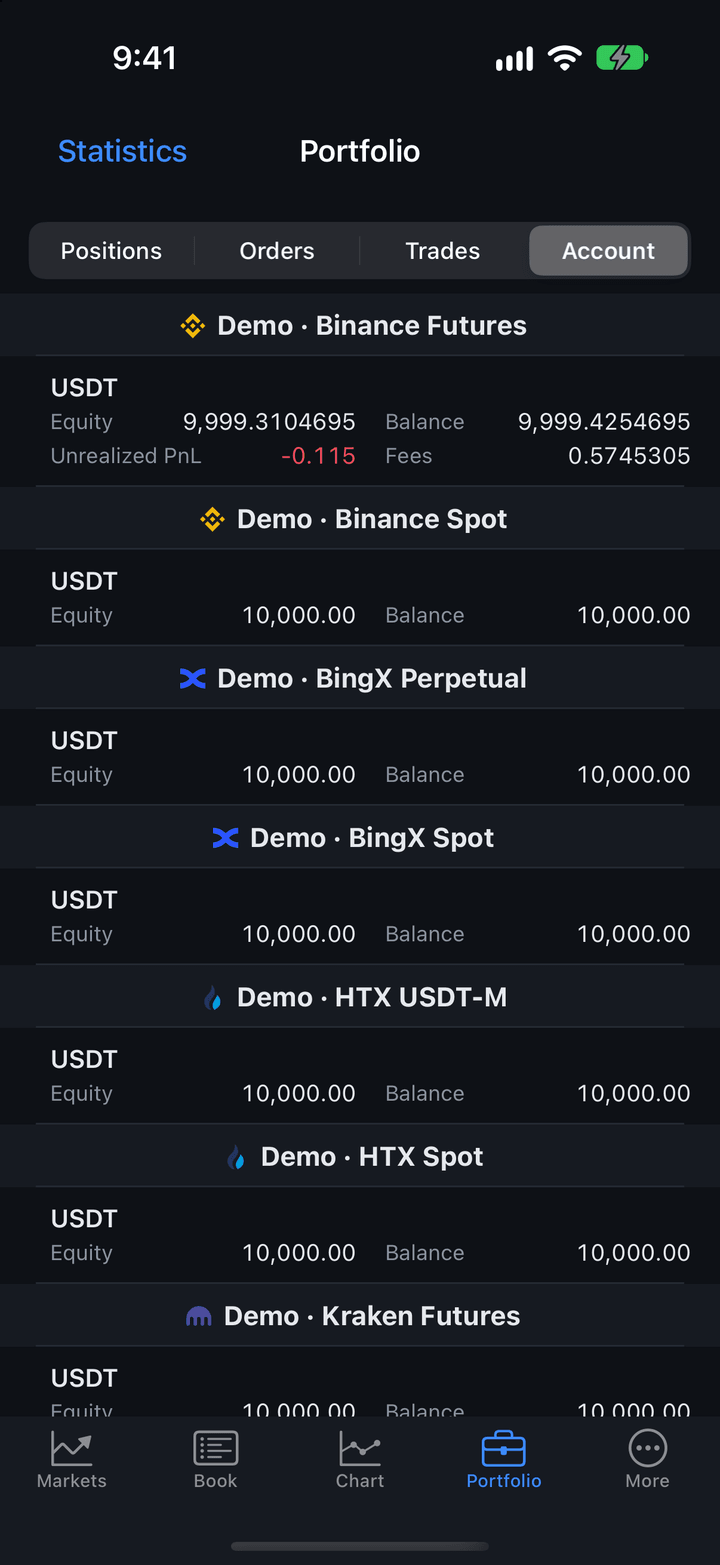
| Figure | Description |
|---|---|
| Balance | Total funds in the account. |
| Available | The part of the balance available for new orders. |
| Locked | Funds tied up in active orders or other operations. |
| Unrealized PnL | Result of open positions. |
| Realized PnL | Result of closed trades. |
| Fees | Exchange fees. |
| Net PnL | Total financial result: the result of positions and trades minus fees, without futures funding. |
| Equity | Demo account only: the balance plus the result of open positions. |
Balance and available funds are always shown; the other figures only when they are not zero. Next to a crypto exchange coin, its approximate value in US dollars is shown, for example ”≈ 31,250.40 USD”. Moscow Exchange brokers and demo accounts have no such estimate.
While an account is connecting or loading, its status is shown instead of the amounts. BCS funds are not shown yet — check them in the broker’s app.
Close all and cancel all
At the top right, the Positions section has a Close all button and the Orders section has Cancel all. Close all closes all open positions in the list at market, Cancel all cancels all active orders. Both ask for confirmation if it is turned on in More → Settings → Confirmations (on by default).
Cancel all does not cancel the stop orders that hold a position’s stop loss and take profit on the exchange: they are part of the position, not separate orders.
Row actions
Tap an open position to open the position card, or tap an order to open the order card.
iPhone
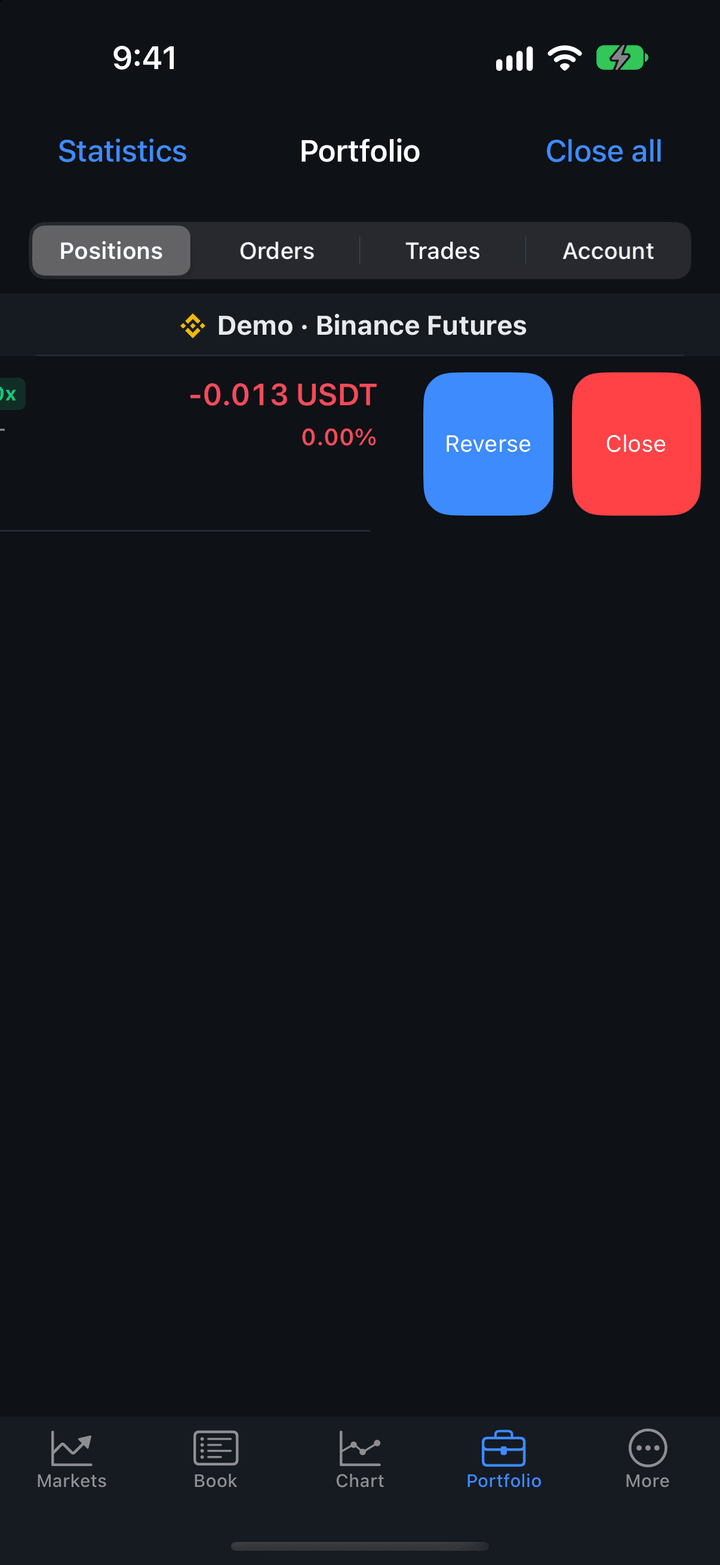
To act without opening the card, swipe a row left:
- for a position — Close (close at market) and Reverse;
- for an order — Cancel.
Close and Reverse are confirmed the same way as in the position card, with the account name. Cancel cancels the order at once.
Android
Both a tap and a long press on a row open the position or order card.
Position card
The position card gathers everything you can do with a position: stop loss and take profit, breakeven, partial close, reverse, leverage and margin, and opening the order book. The price and result update with the market. When the position closes, the card closes by itself.
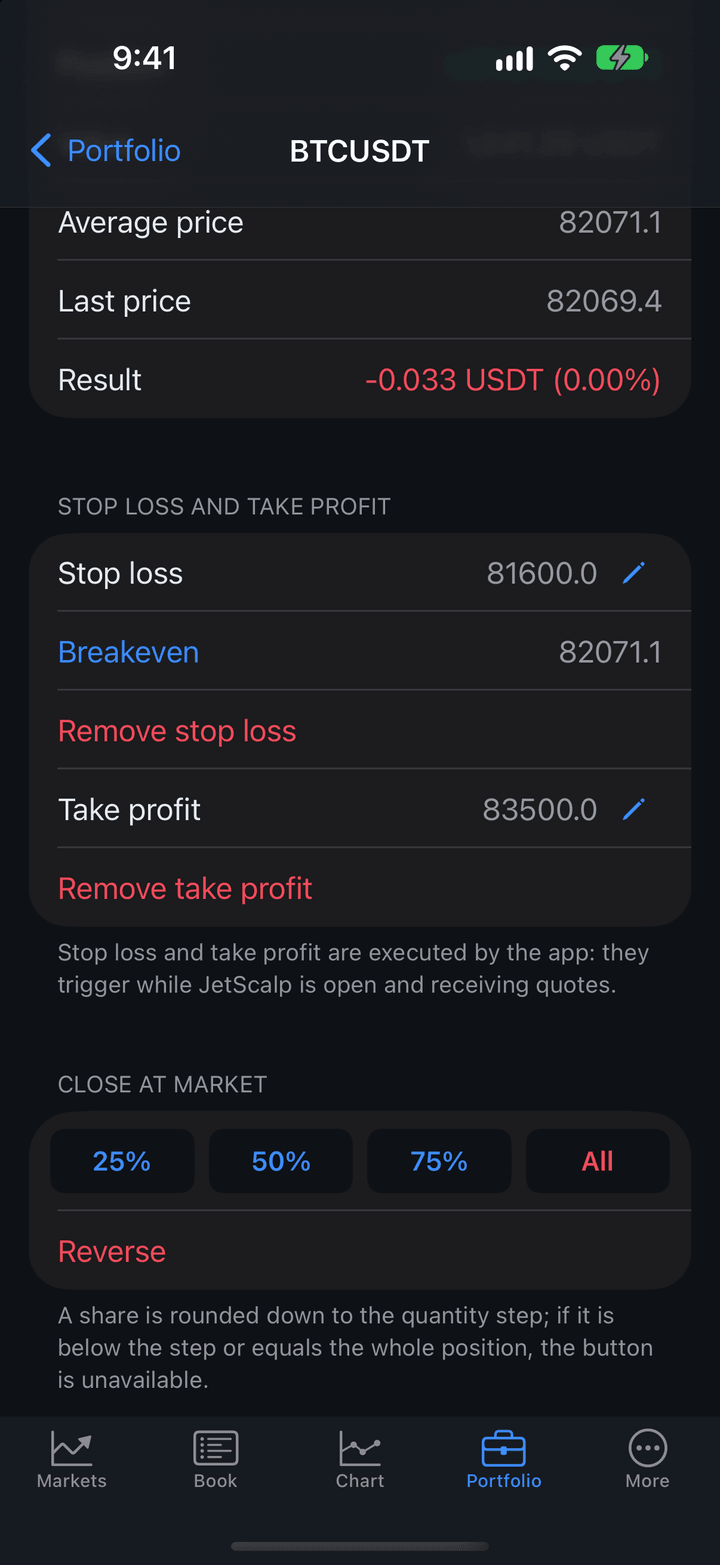
Summary
| Row | Description |
|---|---|
| Account | The position’s connection. A real account is shown in the connection’s name color. |
| Position | Side and quantity, for example “LONG 120 XRP”. |
| Value | Position value in currency. |
| Average price | Average entry price. |
| Last price | Last price of the symbol. |
| Result | Result in currency and in percent. |
| Position margin | Margin of an isolated position, with Add and Remove buttons — see Position margin. |
| Liquidation | The price at which the exchange closes the position by force. Shown if the exchange reports it. |
Stop loss and take profit
In the Stop loss and take profit section, each level shows its price and where it is executed (” · on the exchange”, ” · placing…”), or Set if there is no level.
- Tap Stop loss or Take profit.
- Enter the price: the ”−” and ”+” buttons change it by the symbol’s price step; you can use a point or a comma as the decimal separator.
- Confirm.
A new level opens with the market price, and you cannot confirm it without changing it: at that price the level would trigger immediately. The app does not set a level that would trigger immediately and explains why.
To change a level that is set, tap its row again. To remove it, tap Remove stop loss or Remove take profit.
Breakeven is the row below the stop loss with the entry price. A tap moves the stop loss to the entry price at once, without a question. If the market isn’t in profit yet, such a stop loss would trigger immediately — the app won’t move it and explains why.
The note below the levels says who executes them: the exchange (“placed as orders on the exchange”) or the app. A level set in the card immediately appears in the order book and on the chart, and vice versa.
Position levels are available on every account, spot included.
A stop loss and take profit executed by the app (the demo account and some exchanges) don’t trigger in the background — see Where stop loss and take profit are executed.
Close at market
The Close at market section has the 25%, 50%, 75% and All buttons.
The share is rounded down to the quantity step. If it is below the step or equals the whole position, the button is unavailable: for example, a one-lot position can’t be closed in parts. All closes the whole position. The stop loss and take profit stay in place after a partial close.
Reverse closes the position and opens the same one in the opposite direction. The opposite order is sent only after the close is confirmed, so the position is never doubled.
Closing and reversing ask for confirmation if it is turned on in More → Settings → Confirmations (on by default).
Position margin
For an isolated position on Binance, Aster DEX, Bybit, OKX, Gate, Bitget, BingX and Hyperliquid, the summary has a Position margin row and the Add and Remove buttons.
- Tap Add or Remove.
- Enter the amount in the margin currency, in cents. The input window shows the current position margin.
- Confirm.
More margin moves the liquidation price away; removing margin brings it closer. The exchange reports the new margin and liquidation price with the next position update. If the exchange refuses, the app shows its response.
Leverage and margin, Open in order book
Below the card sections there are two rows:
- Leverage and margin — the symbol’s margin mode and leverage on the position’s account. The row is shown if the symbol’s leverage can be changed. It is the same screen as the one opened from the order panel in the order book.
- Open in order book — the symbol’s order book with this position’s account. If another account is chosen for orders, the app switches to the position’s account; switching to a real account asks for confirmation.
Order card
Tap an order in the Orders section to open its card.
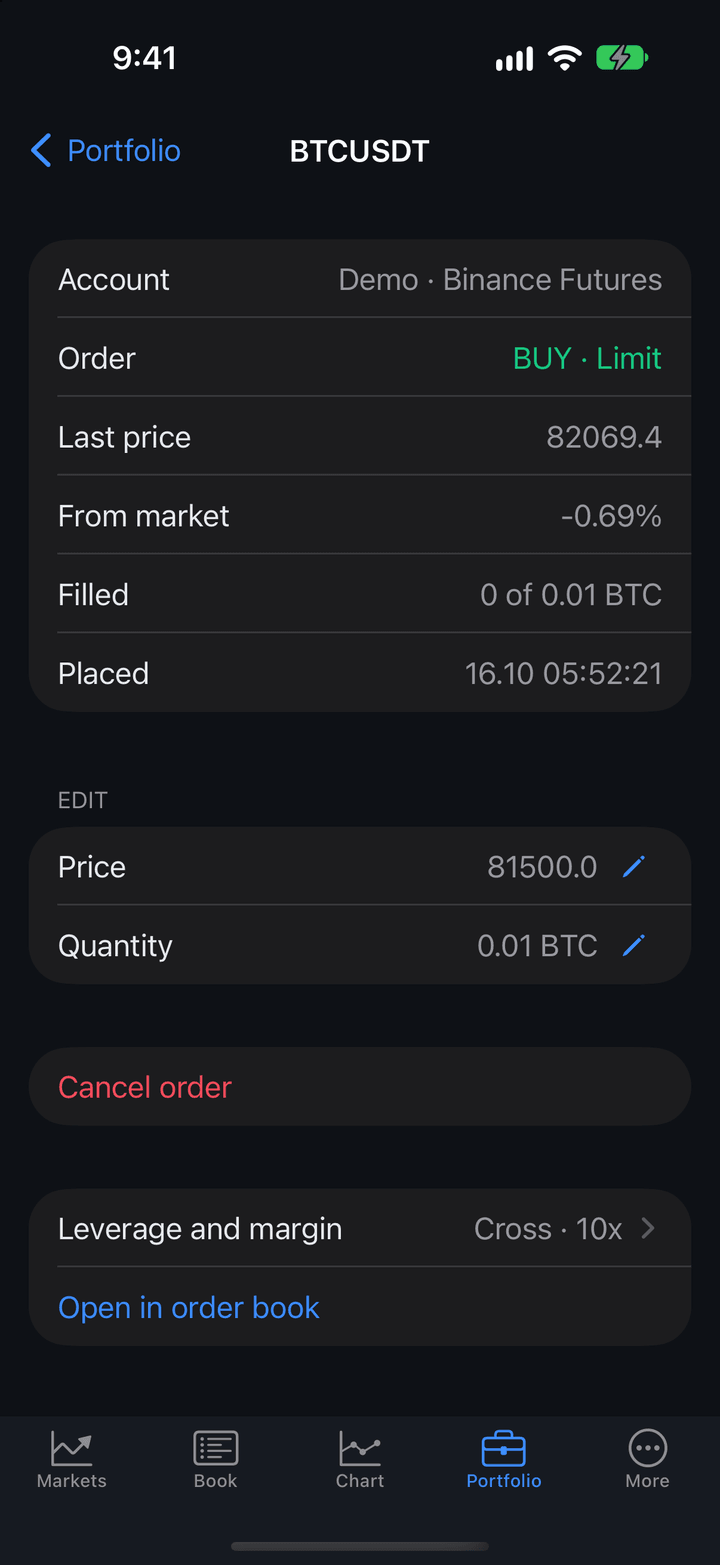
| Row | Description |
|---|---|
| Account | The order’s connection. |
| Order | Side and type, for example “BUY · Limit”. |
| Limit price | For a stop limit order, the price at which it is placed after triggering. |
| Last price | Last price of the symbol. |
| From market | How far the order price is from the last price, in percent. |
| Filled | The filled part, for example “0.002 of 0.01 ETH”. |
| Placed | Date and time the order was placed. |
In the Edit section, tap Price (for a stop order, Trigger) or Quantity and enter a new value. The new quantity must be larger than the filled part. Limit and stop orders can be changed; for other orders the price and quantity are shown in the summary.
If the new price of a limit order is beyond the spread, the app warns that the order will fill immediately at market. If the exchange can’t amend the order in place, the input window warns that the order will be canceled and placed again — the order loses its place in the queue.
Cancel order cancels it at once, without a question. Below are Leverage and margin and Open in order book, as for a position. When the order is filled or canceled, the card closes by itself.
Statistics
The Statistics button at the top left opens the totals of closed trades and an equity chart — like the Statistics window in the terminal.
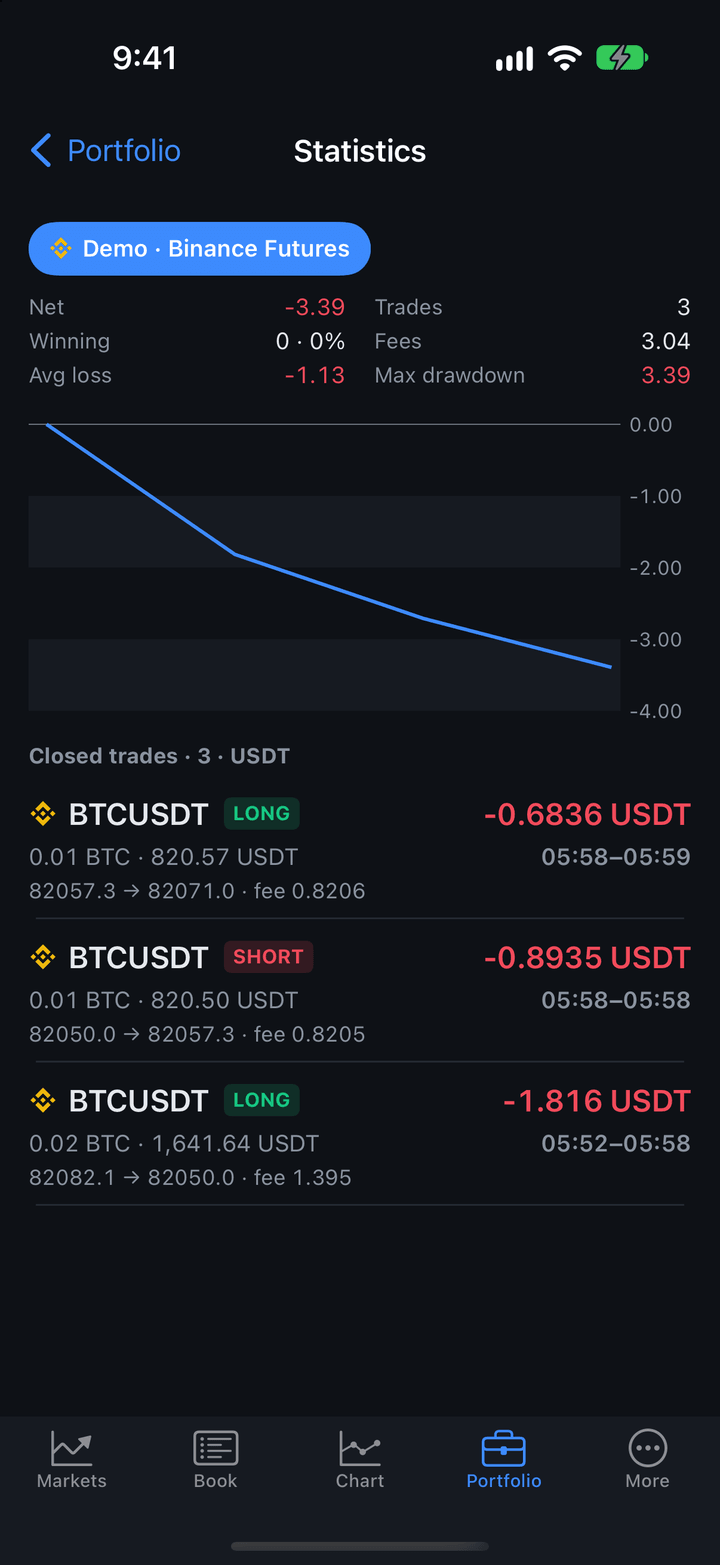
Statistics are calculated per account; the account switch is at the top of the screen. If an account has trades in several result currencies (for example, pairs against USDT and USDC), a Currency button appears above the totals: the chart and totals use the trades in the chosen currency. The choice is remembered.
| Figure | Description |
|---|---|
| Net | Realized result minus fees. |
| Trades | Number of closed trades. |
| Winning | Share of profitable trades. |
| Fees | Total fees. |
| Avg win | Average result of a profitable trade. |
| Avg loss | Average result of a losing trade. |
| Max drawdown | The largest drop of the total from its previous peak. |
| Profit factor | Total profits divided by total losses. |
The chart shows the cumulative total in the order trades were closed, starting from zero. Tap the chart to see the trade number and the total at that point.
Below the chart is the Closed trades list: symbol, side, total with fees, value, entry and exit prices, time. Moscow Exchange brokers send the trades of the current day.
While there are no closed trades, the screen says: “No closed trades yet. They’ll appear here once you close positions.”
Risk limits
Risk limits stop new entries on a real account once the set daily loss or number of trades is reached: trying to open a position then shows the “Trading stopped” window with the reason. You can always close a position and cancel orders. How to set the limits is described in Risk limits in More and settings.