More and settings
The More tab gathers everything you need less often than trading: account sign-in, connections, alerts, app settings and links to the website and support.
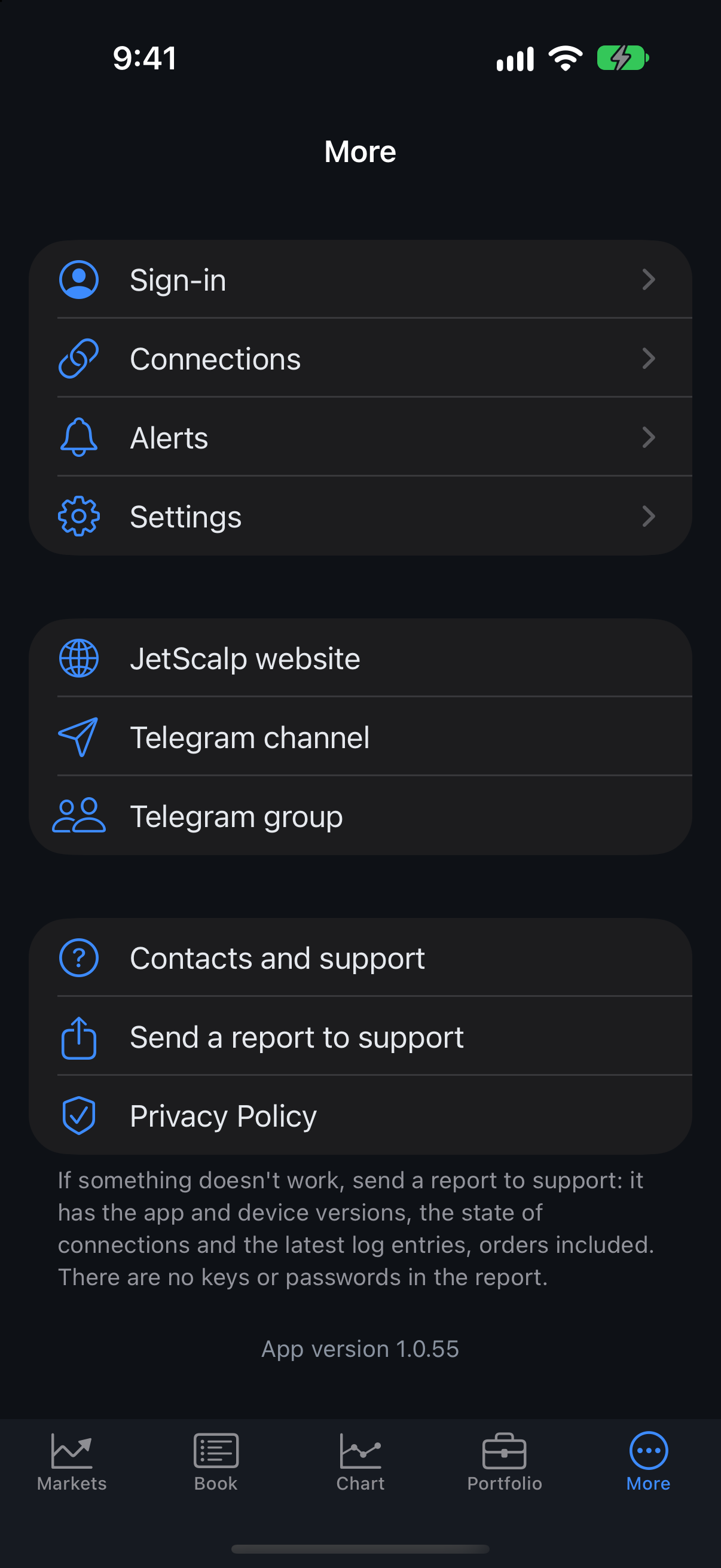
The More screen
| Item | Description |
|---|---|
| Sign-in | Signing in to your JetScalp account, signing up, password reset, signing out and account deletion — Account and sign-in. |
| Connections | Exchange keys, wallets, brokers and demo accounts — Connections and accounts. |
| Alerts | Alert levels and push notifications — Alerts and notifications. |
| Settings | App settings — Settings. |
| JetScalp website | Opens jetscalp.com in the browser. |
| Telegram channel | JetScalp news. |
| Telegram group | Chat and questions. |
| Contacts and support | The contacts page on the website. |
| Send a report to support | A report on how the app is running — Report to support. |
| Privacy Policy | The privacy policy on the website. |
The installed app version number is shown at the bottom of the screen.
Update
If you are signed in and a new version is out, an Update section appears at the top of the More screen, and the More tab shows a red badge until you open the screen.
- Update to version … opens the new version: in the app store or on a download page.
- What’s new — the list of changes, if there is one.
- Version … is available without a link — update the app from the app store or install the new APK from the Download page.
If the update is required, you can’t sign in to the JetScalp server without it: until you update, symbols and charts load directly from the exchanges.
Settings
More → Settings holds market data, screens, order sizes, accounts, security, confirmations and the language.
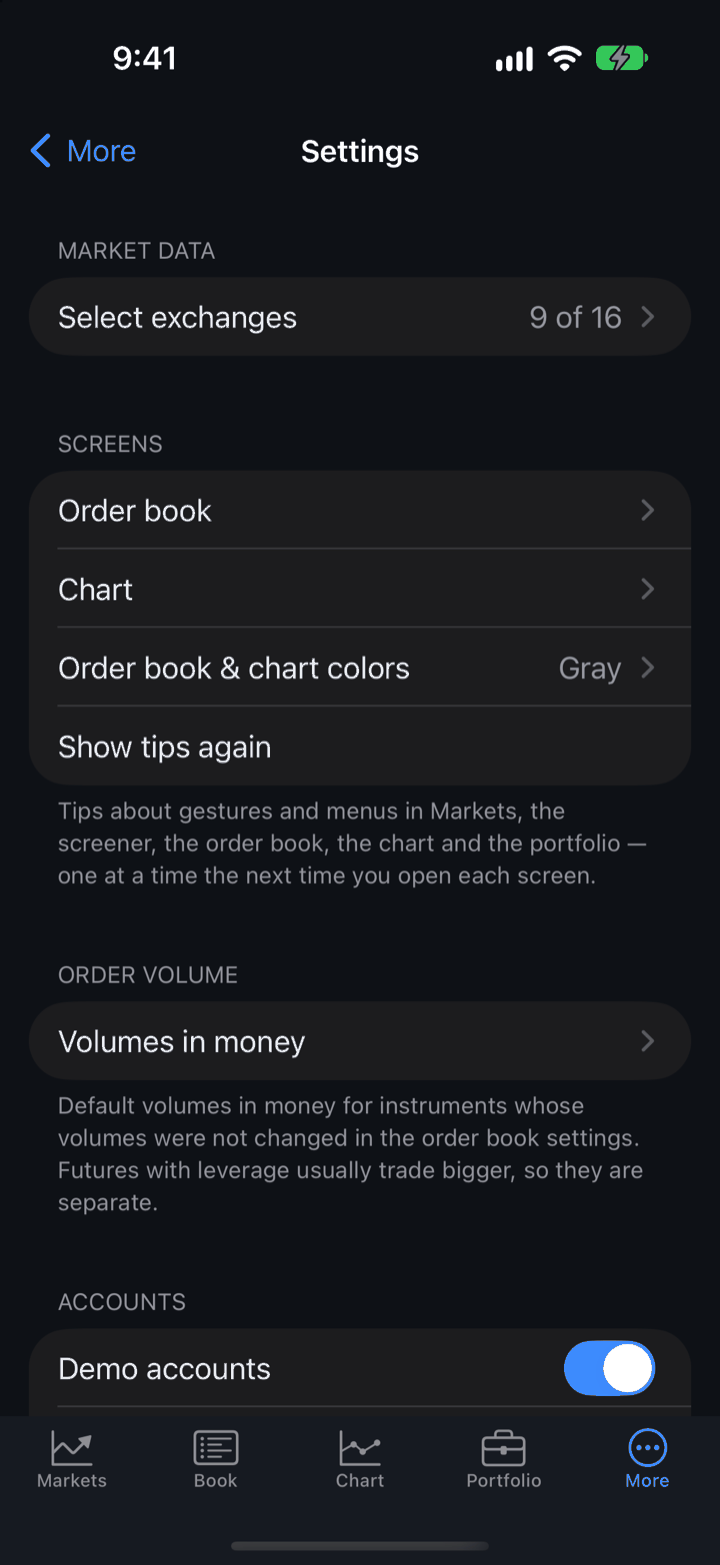
Market data
The Select exchanges item (on the right — how many exchanges are on) opens the switches for the exchanges whose quotes and order books the app shows. This is public data, so no keys are needed. An exchange’s spot and futures are turned on together; an enabled exchange connects right away, and its symbols appear in search — the + button on the Markets tab.
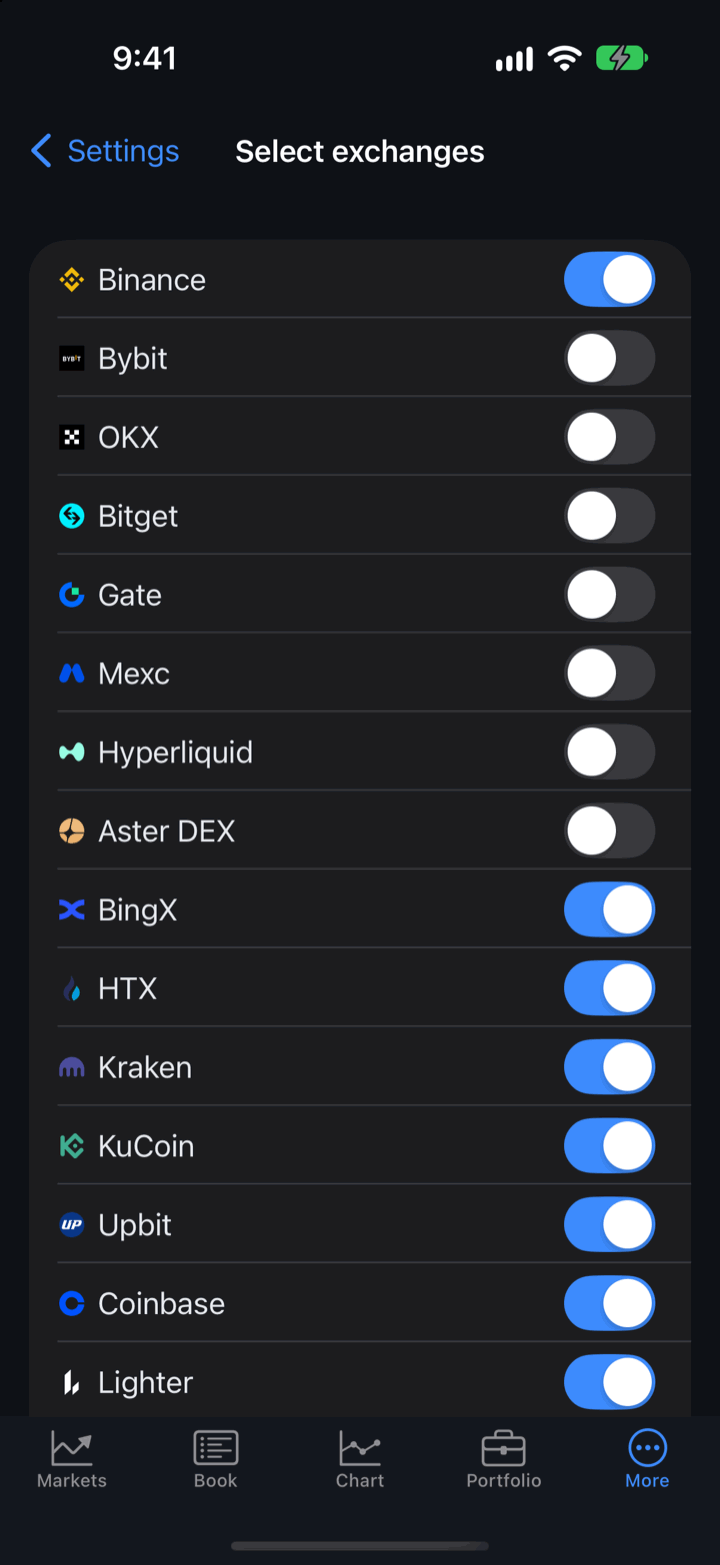
Binance is on by default. You can also turn on Bybit, OKX, Bitget, Gate, Mexc, Hyperliquid, Aster DEX, BingX, HTX, Kraken, KuCoin, Upbit, Coinbase, Lighter and Binance Alpha. The Moscow Exchange isn’t turned on here: its quotes come through a broker connection (Connections and accounts).
Screens
| Parameter | Description |
|---|---|
| Order book | Order book settings — Order book settings. |
| Chart | Chart settings — Chart settings. |
| Order book & chart colors | A color template and your own colors — Order book and chart colors. The selected template is shown on the right. |
| Show tips again | Tips about gestures and menus in Markets, the screener, the order book, the chart and the portfolio appear again, one at a time, the next time you open each screen. |
Order volume
| Parameter | Description |
|---|---|
| Volumes in money | The five default order sizes in money, separately for spot and for futures; by default 10, 20, 30, 40 and 50. They apply to symbols whose sizes weren’t changed in the order book settings. Under By exchange, an exchange can have its own — for example, in rubles for MOEX; Use common volumes brings the common ones back. |
Accounts
| Parameter | Description |
|---|---|
| Demo accounts | Trading with no keys and no risk at exchange prices, one account per exchange. When off, demo accounts aren’t offered in the account choice next to the order book or shown in the portfolio, and their orders and positions are erased. On by default. |
| Risk limits | Daily limits for real accounts — Risk limits. |
Lock Screen
| Parameter | Description |
|---|---|
| Open position | An open position with its profit or loss on the Lock Screen and in the Dynamic Island. The figures update while the app is open; without it they turn gray, next to the time of the last data. On by default. |
On Android this section is called Open positions, and the switch is Position in notifications: the position is shown in a notification. See Alerts and notifications for details.
Security
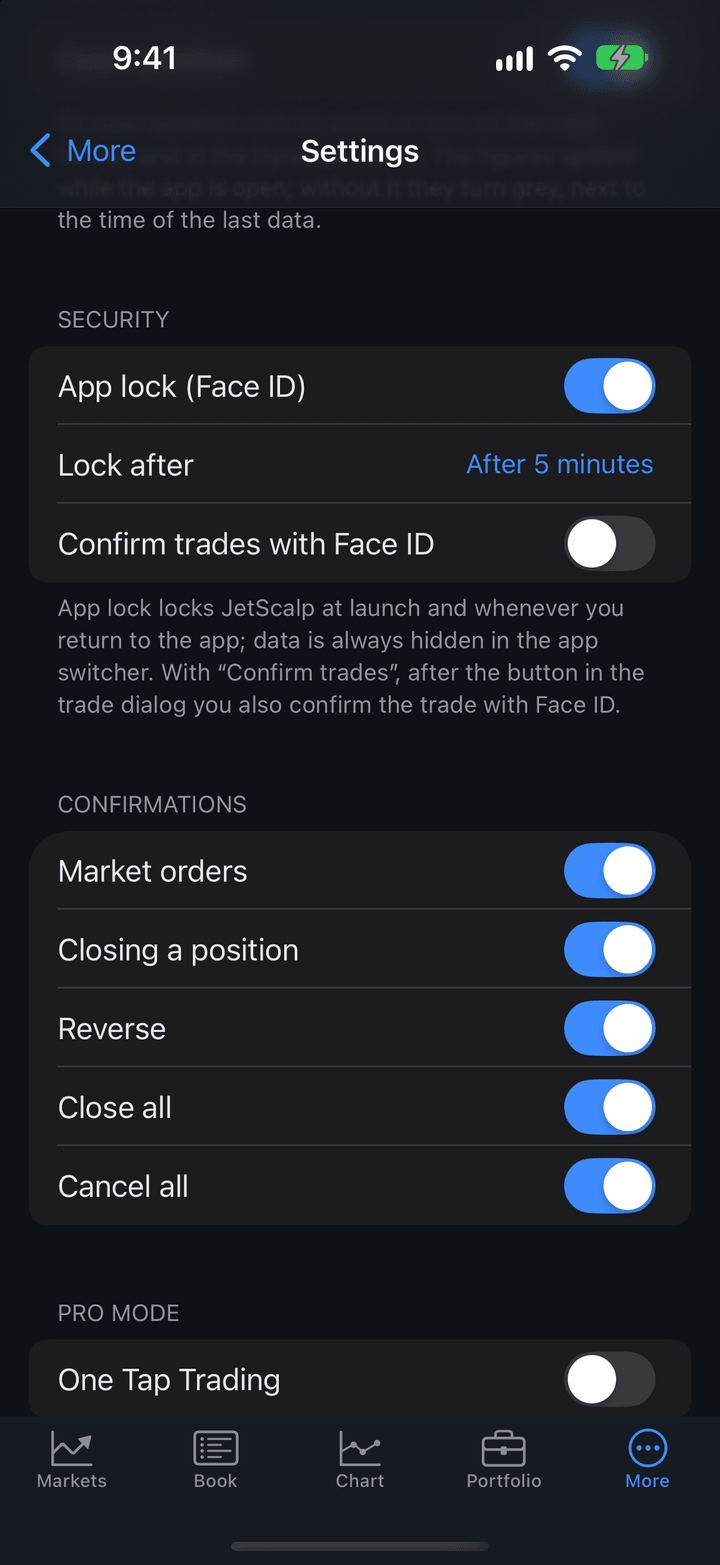
| Parameter | Description |
|---|---|
| App lock (Face ID) | Locks JetScalp at launch and whenever you return to the app: it opens with Face ID, Touch ID or the device passcode. On by default. |
| Lock after | How long after you leave the app it asks for Face ID again: Immediately, After 1 minute, After 5 minutes (default) or After 15 minutes. |
| Confirm trades with Face ID | After the button in the trade confirmation dialog, you also confirm the trade with Face ID. Off by default. |
The names include your device’s verification method: on iPhone, Face ID, Touch ID or passcode; on Android, App lock (fingerprint) and Confirm trades with fingerprint (or face, PIN).
- You can turn off the app lock or trade confirmation only after Face ID or a fingerprint; turning the lock on asks for it too, so you can’t lock yourself out.
- The timer starts when the app goes to the background: a call or Control Center doesn’t lock the app.
- In the app switcher (on Android, the recent apps list) positions and balances are always hidden.
- If the device has no passcode or screen lock, the app lock isn’t available, and a warning is shown under the section. Set a passcode in the system settings.
Confirmations
A confirmation dialog before the action. All are on by default.
| Parameter | Description |
|---|---|
| Market orders | Before buying and selling at market. |
| Closing a position | Before closing a position. |
| Reverse | Before reversing a position. |
| Close all | Before closing all positions. |
| Cancel all | Before canceling all orders. |
Pro mode
| Parameter | Description |
|---|---|
| One Tap Trading | Market orders and reversals are sent instantly on tap, without confirmation. It doesn’t turn off the Close all and Cancel all confirmations. Off by default. |
To turn on One Tap Trading, accept the warning with I understand, turn on, then confirm with Face ID or a fingerprint. Why the mode is risky and how it changes trading from the order book is described in One Tap Trading.
Language
| Parameter | Description |
|---|---|
| App language | System, Русский or English. “System” means Russian if the system is in Russian, and English otherwise. |
The language changes after a restart: swipe JetScalp away from the app switcher and open it again.
Order book and chart colors
More → Settings → Order book & chart colors. A template sets every order book and chart color, and you can replace any of them with your own.
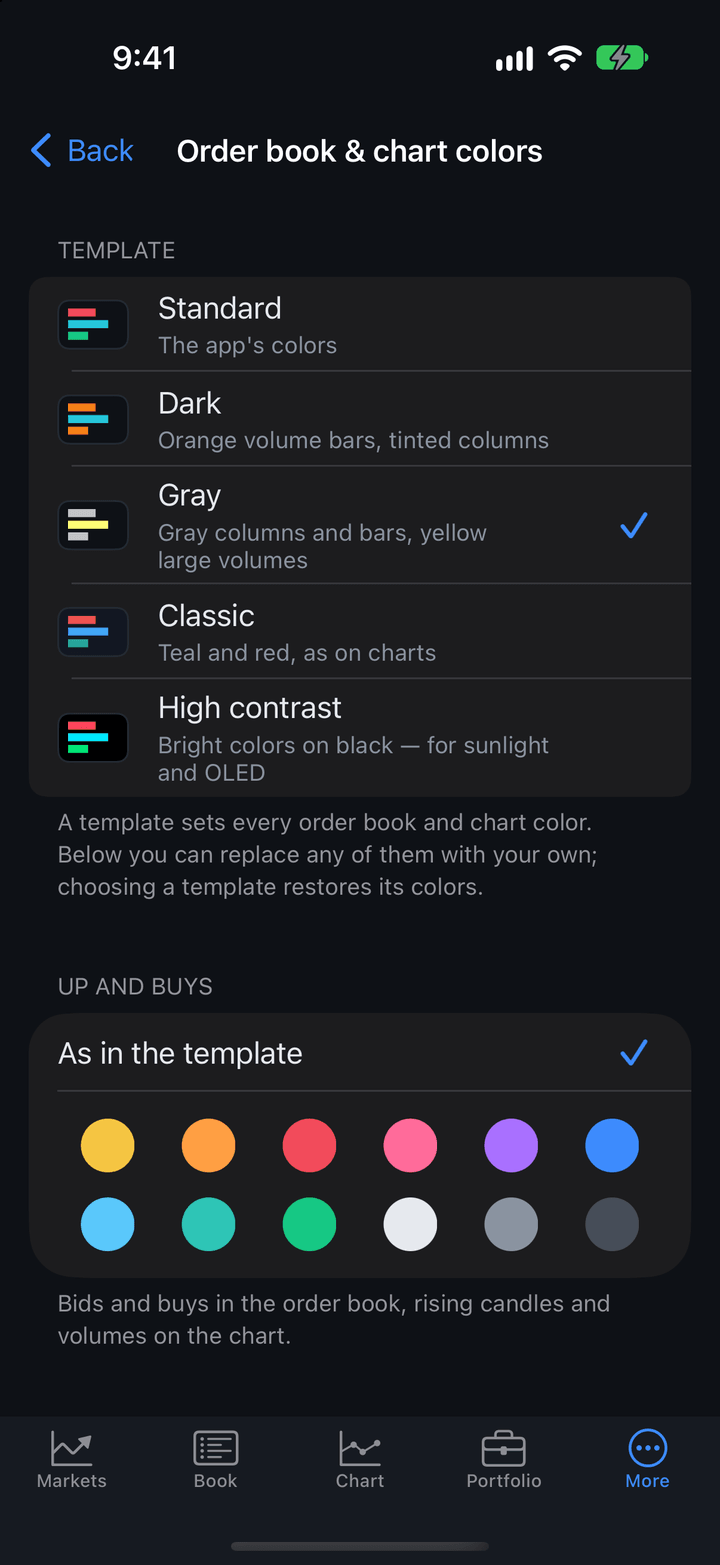
| Template | Description |
|---|---|
| Standard | The app’s colors. |
| Dark | Orange volume bars, tinted columns. |
| Gray | Gray columns and bars, yellow large volumes. |
| Classic | Teal and red, as on charts. |
| High contrast | Bright colors on black — for sunlight and OLED screens. |
Your own colors are set for Up and buys, Down and sells, Volume bars, Large volumes and Last price. As in the template brings back the template’s color. Choosing a template restores all its colors.
Risk limits
More → Settings → Accounts → Risk limits — daily limits on losses and the number of trades: once the set daily loss or number of trades is reached, new entries on the account stop. The limits are set for each real account; demo accounts have none. While there is no real account, the screen suggests connecting one under More → Connections.
| Parameter | Description |
|---|---|
| Daily loss | The largest daily loss in the account currency: today’s closed trades with fees plus the current result of open positions. |
| Trades per day | The largest number of closed trades per day. |
| Losing trades in a row | How many losing trades in a row start a pause. |
| Pause after the streak | The pause length after a losing streak: 15, 30, 60, 120 or 240 minutes. |
| Close positions when hit | When on, the account’s positions are closed at market and its orders are canceled once a limit is hit. |
A value of 0 means no limit and is shown as “Off”. Above the settings are today’s totals, for example “Today: −12.5 · trades 3”, or the reason trading was stopped.
Once a limit is hit, new entries on that account are blocked until the end of the day, or after a losing streak — until the pause ends. Trying to open a position shows the “Trading stopped” window with the reason. You can always close a position, cancel orders, move the stop loss and take profit and move the stop loss to breakeven. At 80% of a limit, the app warns you once a day.
A limit can be tightened at once. Loosening or turning it off takes effect only from the next day: “The looser limits apply from …” appears under the account. The day starts at 00:00 phone time.
Important: The limits apply only in this app. Trades made in other programs count only if the exchange reports them.
Report to support
If something doesn’t work — for example, an exchange doesn’t connect — send a report to support: More → Send a report to support. The Share window opens with the report — choose where to send it: mail, Telegram (the JetScalp group or support — Contacts and support) or save it to a file.
The report has the app and device versions, the state of connections and the latest log entries, orders included. If the app has recently closed because of an error, the crash report is included too. There are no keys or passwords in the report; you choose the recipient yourself.
If support asks you to open the detailed diagnostics, press and hold the “App version” line at the bottom of the More screen.
If the app closed because of an error, on the next launch it shows the “JetScalp closed because of an error” window: Send… opens the choice of where to send the crash report, Not now closes the window.