Order book
The Book tab shows buy and sell orders at each price and lets you trade right from it: an order is placed with a tap on a row, and below the book are your position, account and the order panel. Next to the order book you can open a chart or clusters with the trade tape.
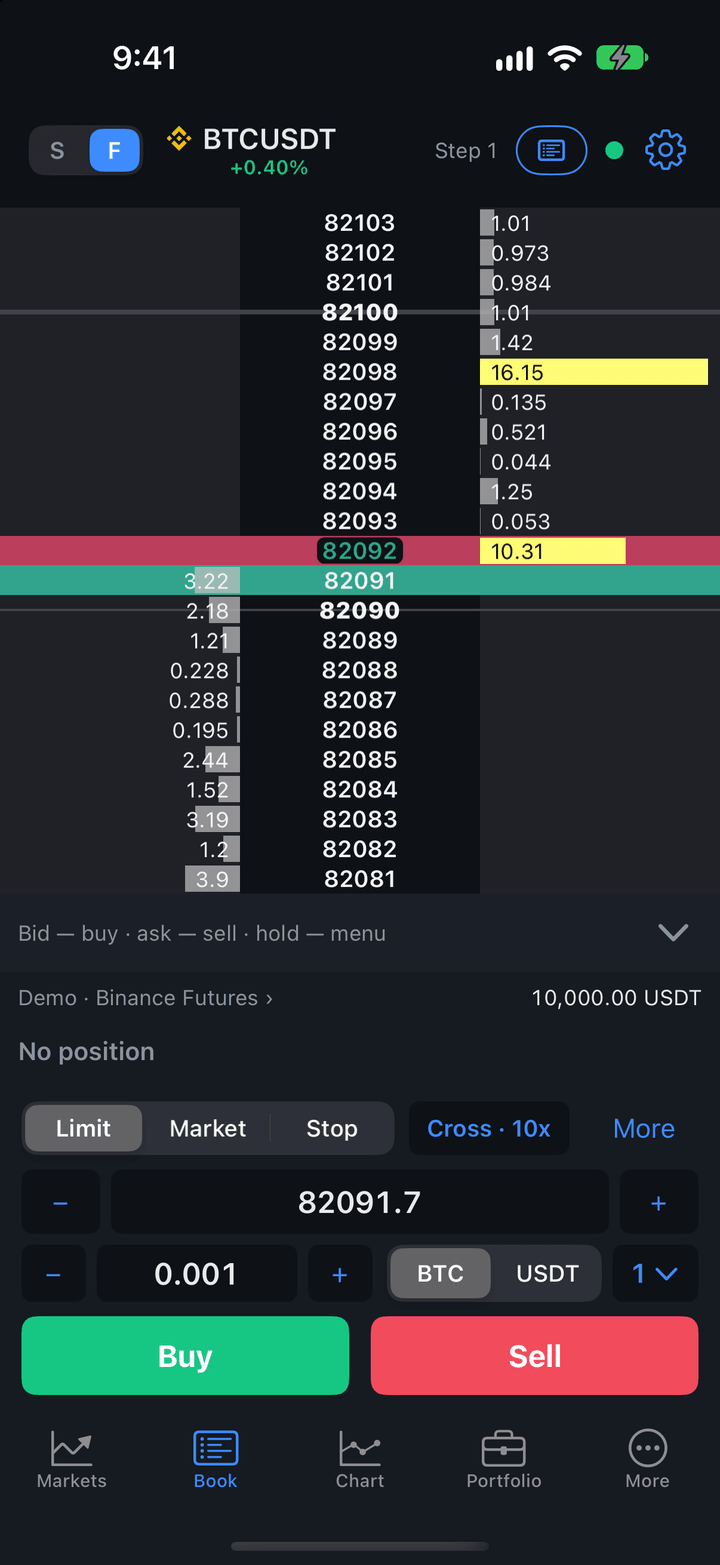
The symbol for the order book is chosen on the Markets tab. Until a symbol is chosen, the screen says “Select a symbol on the Markets tab”.
Screen layout
From top to bottom:
- Header — the symbol name, the spot or futures switch and the screen’s buttons.
- Order book — participants’ orders, your orders and position.
- Action bar — the hint “Bid — buy · ask — sell · hold — menu” or an order waiting to be sent.
- Account bar — the account for orders, funds, the position and buttons to manage it.
- Order panel — type, price, size, Buy and Sell.
Header
| Button | Description |
|---|---|
| S | F | Switch between spot and futures of the same symbol. Shown only if the exchange has the pair: for example, BTCUSDT on Binance spot and futures. The order book and chart open the other market. |
| Name | Exchange icon, symbol name and the 24-hour price change. |
| “Step 0.2” | The price step of the rows when prices are combined with a pinch. Without combining there is no label. |
| Chart icon | What to show next to the order book: Order book only, Chart or Clusters and tape. See Next to the order book. |
| Dot | Data freshness: green — data is live, yellow — delayed, gray — no fresh data. |
| Gear | Order book settings — the same as More → Settings → Order book. |
Order book rows
The order book has three columns: buy order sizes (bids) on the left, prices in the middle, sell order sizes (asks) on the right. Sells are above, buys below, with the spread between them. The bar behind a size shows how large it is.
| What you see | Description |
|---|---|
| Best bid and ask | Highlighted: the prices at which you can buy and sell right now. |
| Large volumes | Levels with much more volume than average are colored, twice the threshold — brighter. The threshold is the Large volumes setting. |
| Last trade | The last trade price is colored by its side: a buy in the buy color, a sell in the sell color. |
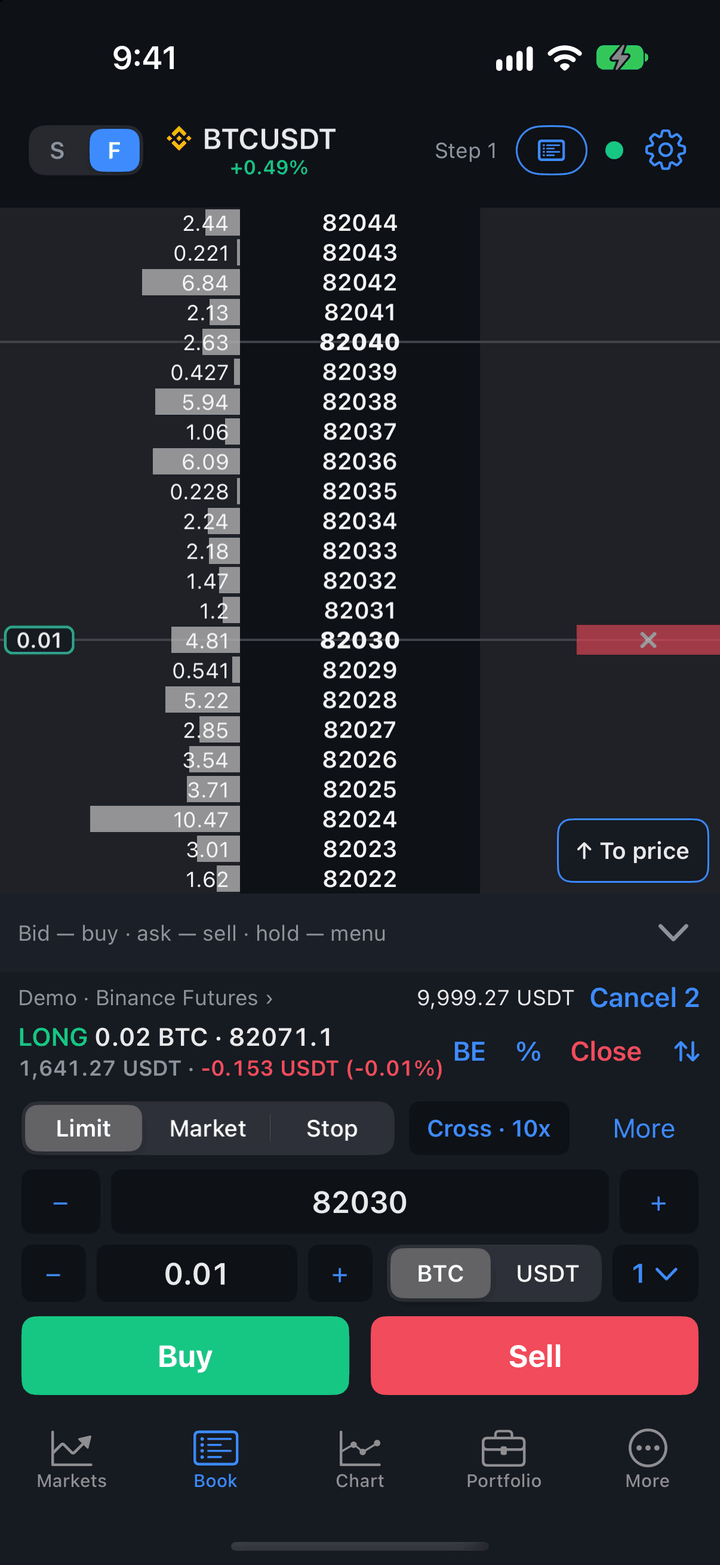
| Your order | A pill with the size at the edge of its column: “0.01”. A stop order — “S 0.01”. |
| Entry price | A highlight in the price column at the position’s average price. |
| Position result | The price column from the entry price to the market is green if the position is in profit and red if at a loss. |
| SL, TP | The position’s stop loss (on the left of the price column) and take profit (on the right). |
| LIQ | The position’s liquidation price, in orange. |
| ! | An alert level at this price. |
If the order book is empty (for example, trading is closed), “No orders” appears at the right edge.
Gestures
| Gesture | What it does |
|---|---|
| Tap a size | An order at the row price: in the bids — a buy, in the asks — a sell. See Order with a tap. |
| Tap a price | The row price goes to the price field of the order panel. |
| Touch and hold a row | The level menu: limit and stop orders, stop loss, take profit, position margin, alert. |
| Swipe the selected row | Send an order at the row price: right — a buy, left — a sell. |
| Swipe left on a row with your orders | Cancel your orders at that level. |
| Drag up or down | Scroll; released with a flick, the book keeps moving by inertia. |
| Pinch on the prices | The row price step: pinch in — larger, spread out — smaller. |
| Pinch on the sizes | The length of the volume bars: spread out — longer, pinch in — shorter. |
Scrolling. Until you touch the order book, it keeps the market in the middle by itself. Once scrolled by finger, it doesn’t follow the price and stays put, even if you switch to another tab. The To price button with an arrow in the bottom right corner shows where the market is and brings the book back to it.
Price step. A pinch on the prices combines neighboring prices into one row: the step grows along 1, 2, 5, 10, 20… The current step is in the header (“Step 0.2”) and is remembered for the symbol. The volume of such a row is the sum of its prices’ volumes.
Bar length. A pinch on the sizes sets the full scale volume: a bar with that volume fills the whole column. During the pinch the label “Full scale 250” shows in the middle. The scale is remembered for the symbol and recalculated when the step changes. To return to the automatic scale, set it to Auto in the order book settings.
Wide spread. If the best prices end up beyond the edges of the screen, their labels show at the top and bottom edges, and “Spread 38.8 · compress” in the middle. Tap the label — the app picks a step at which both sides are visible.
Order with a tap
A tap on the order book doesn’t send an order right away: the order first appears on the action bar, and you confirm it with a separate button. This way an accidental tap doesn’t become a trade.
- Tap the size in the row you need: in the bids to buy, in the asks to sell. The row gets a frame, and its price goes to the price field of the order panel.
- Tap Buy (or Sell) on the right of the action bar. The cross cancels the order.
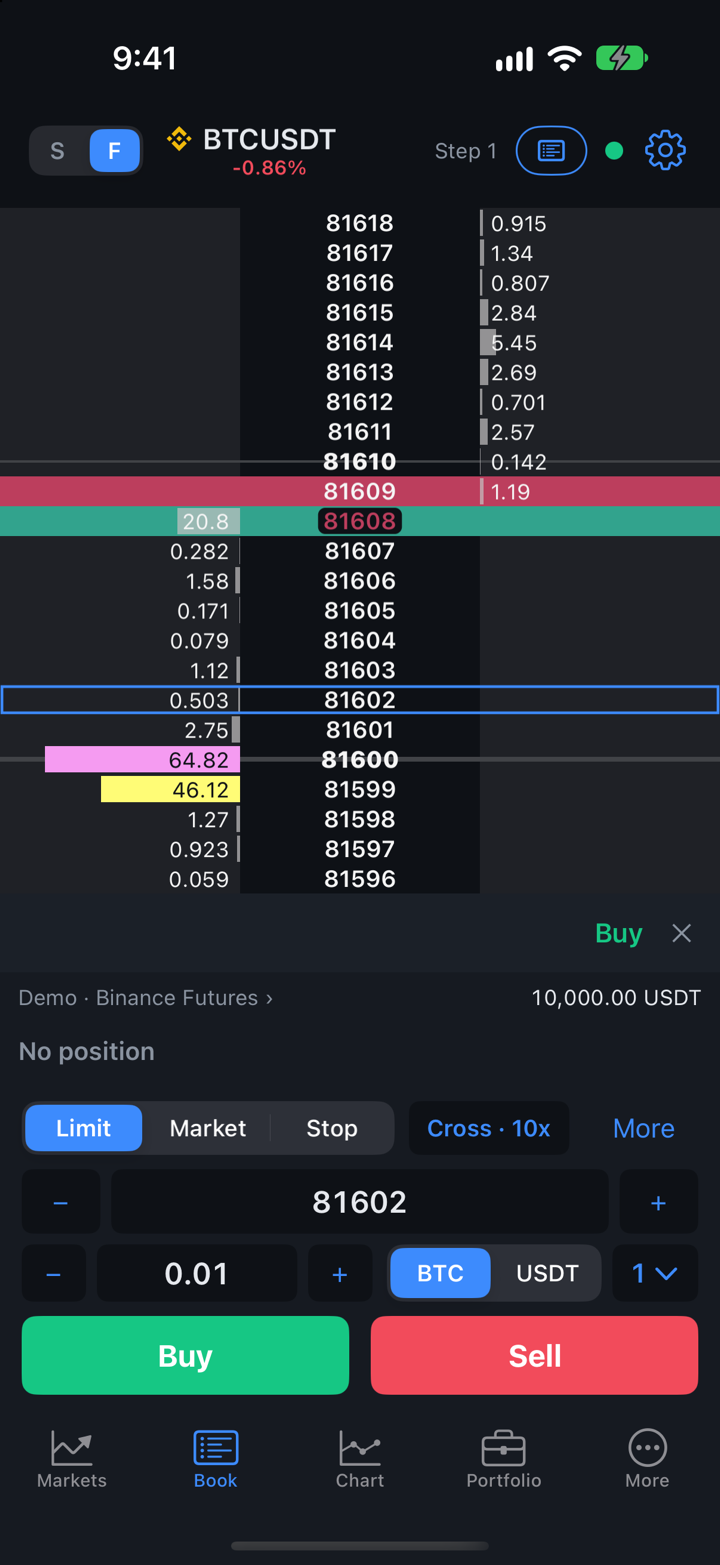
The size is the one selected on the order panel. If the price is across the spread, the button says Buy now (Sell now): such an order fills immediately, like a market order. A stop order from the level menu is sent with the Buy stop (Sell stop) button. If you tap nothing, the buttons disappear from the bar after a few seconds — the price may have moved.
The same bar can have two more buttons:
- the bell — set an alert level at the row price; a crossed-out bell removes the level if one is already there. Available after you sign in to your JetScalp account; see Alerts and notifications;
- SL or TP — with an open position, set a stop loss or take profit at the row price without sending an order. A stop loss goes only on the losing side of the market, a take profit — on the profitable side. A crossed-out button removes the level already set in this row.
By swipe
Instead of the button on the bar, you can drag the selected row with your finger: right to buy, left to sell at that row’s price, with the size from the order panel.
- Tap a size — the row is selected and the action bar appears below.
- Drag this row right or left: a green “Buy” or a red “Sell” strip follows your finger.
- When the strip gets brighter and the phone gives feedback, lift your finger — the order is sent.
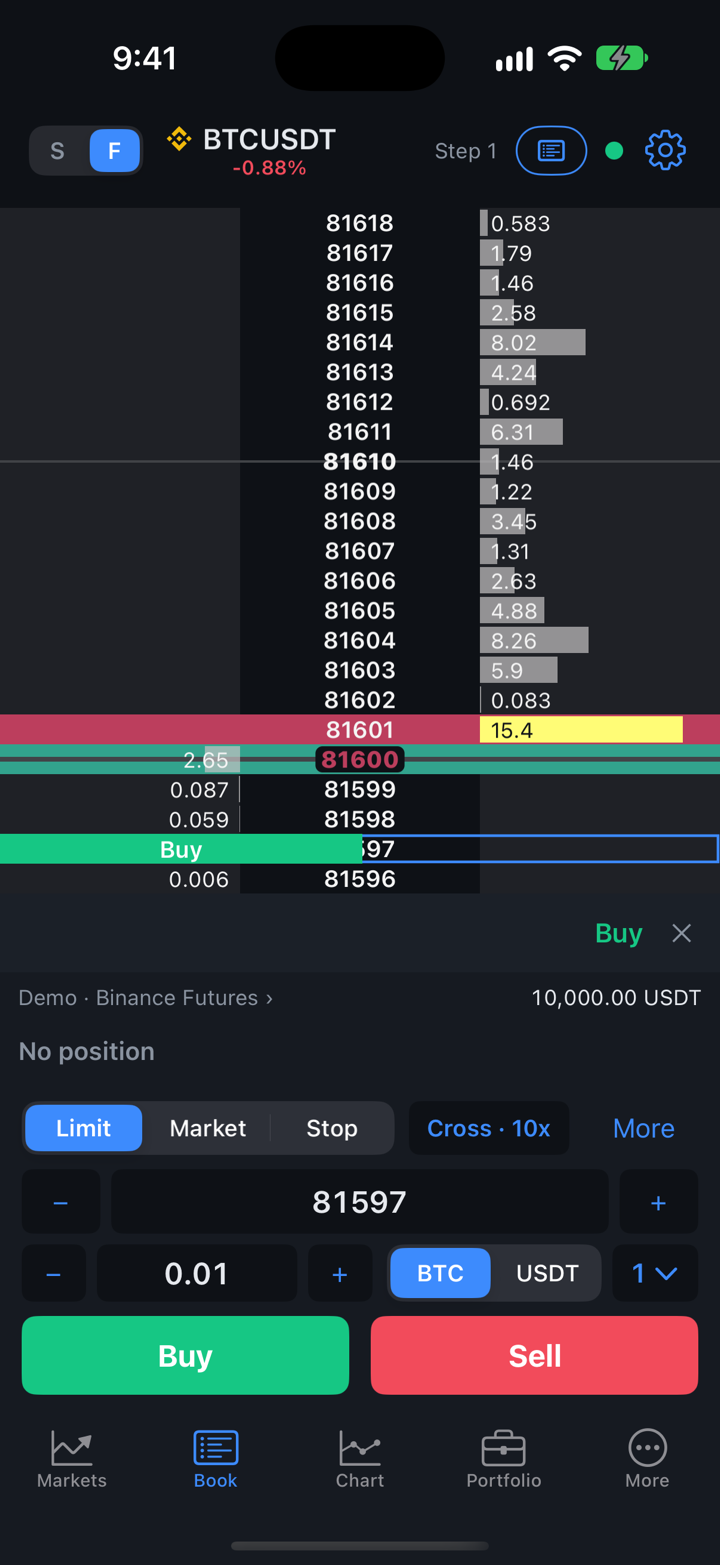
If you lift earlier or move back, nothing happens: the row stays selected. If the price is across the spread, the strip says “Buy · fills now” or “Sell · fills now”: such an order fills immediately, like a market order. The swipe works only on the selected row; on other rows a swipe left still cancels your orders.
One Tap Trading
In One Tap Trading mode a tap on a size sends the order at once, without the action bar, and market orders and position reversals go without a question. Stop loss, take profit and alerts are then set from the level menu. The mode is turned on with the One Tap Trading switch in More → Settings → Pro mode after you confirm the risk.
Important: In One Tap Trading mode one accidental tap on the order book is a sent order. Turn it on only if you trade deliberately and have checked the order size.
Confirmations
- Orders placed with a tap on the order book are confirmed with the button on the action bar or a swipe of the selected row.
- Market orders, limit orders across the spread, closing and reversing a position, canceling all orders — with a question. Which of them to confirm is set in More → Settings → Confirmations.
- If Confirm trades with Face ID (on other devices — Touch ID, fingerprint and so on) is on in More → Settings → Security, the app asks for it too before such actions.
- On a real account the confirmation shows the account name and the order amount, and for futures — the margin.
When an order fills, the exchange rejects it, or a stop loss or take profit triggers, the phone vibrates and shows a short message.
Your order
Tap your order (the pill with the size) to select it: the action bar shows “Buy 0.01 @ 116.20 · tap a level to move” and the −, + and Cancel buttons.
- − and + move the order one row down or up.
- A tap on another level moves the order there.
- Cancel cancels the order.
To cancel all your orders at a level, drag the row to the left: a red strip with ”×” appears behind it. When the strip gets brighter and the phone gives feedback, lift your finger — the orders are canceled. If you lift earlier or move back, nothing happens.
Level menu
Touch and hold a row to open a menu of actions at that row’s price. The menu has only what can be done at this price and on this account.
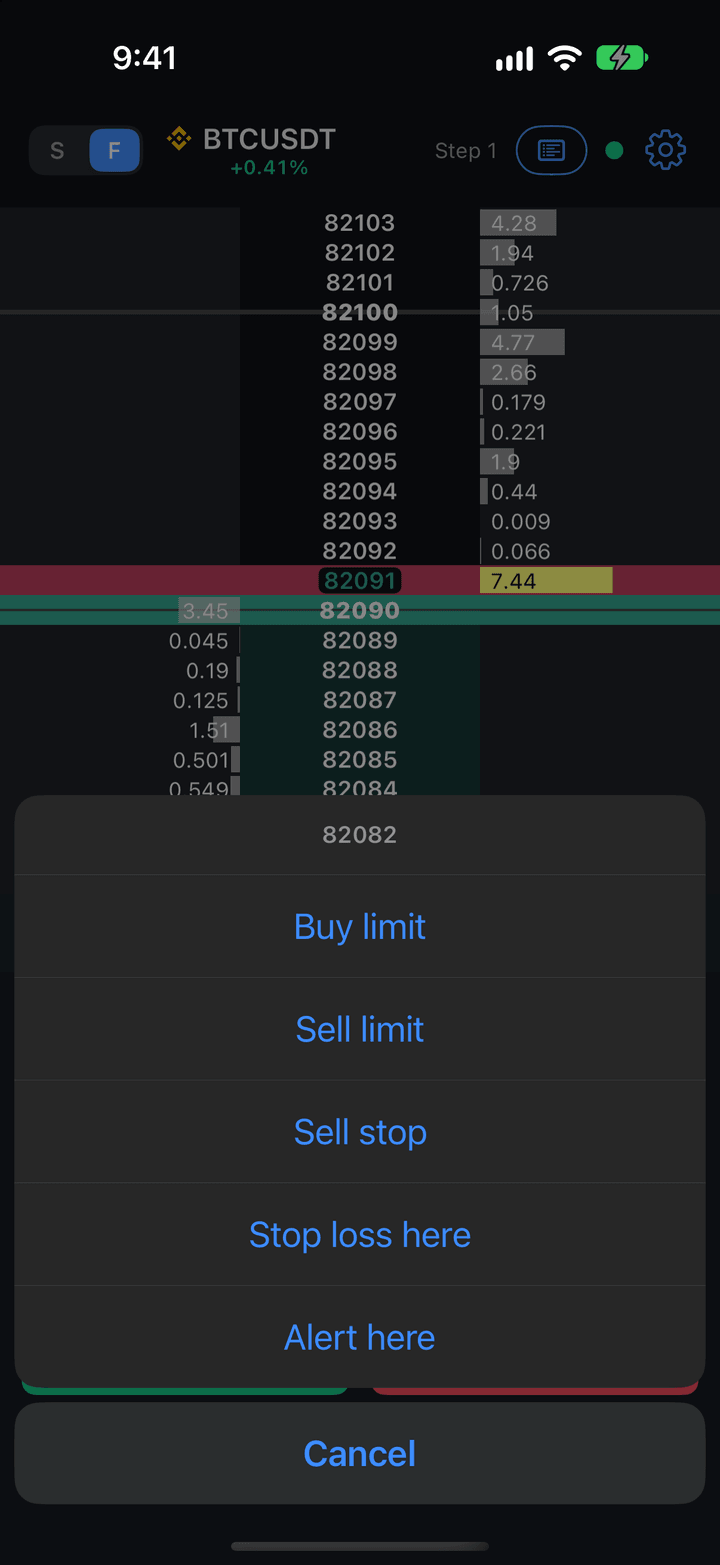
| Command | Description |
|---|---|
| Buy limit, Sell limit | A limit order at the row price — it appears on the action bar for confirmation. Can be placed on either side of the market; an order across the spread fills immediately. |
| Buy stop | A buy stop order. Only at prices above the best ask. |
| Sell stop | A sell stop order. Only at prices below the best bid. |
| Stop loss here | The position’s stop loss at the row price. Only on the losing side of the market. |
| Take profit here | The position’s take profit at the row price. Only on the profitable side of the market. |
| Remove stop loss, Remove take profit | Remove the position’s level if it is set. |
| Position margin | Add or remove margin of an isolated position — the same window as the M button on the order panel. |
| Cancel orders at level (N) | Cancel all your orders in this row. |
| Alert here, Remove alert | Set or remove an alert level at this price. Requires signing in to your JetScalp account. |
Stop orders are in the menu if the account’s exchange accepts them; stop loss and take profit — if the account sets them. Inside the spread there are no stop orders, stop loss or take profit: they would trigger immediately.
Account bar
The account bar is between the order book and the order panel.
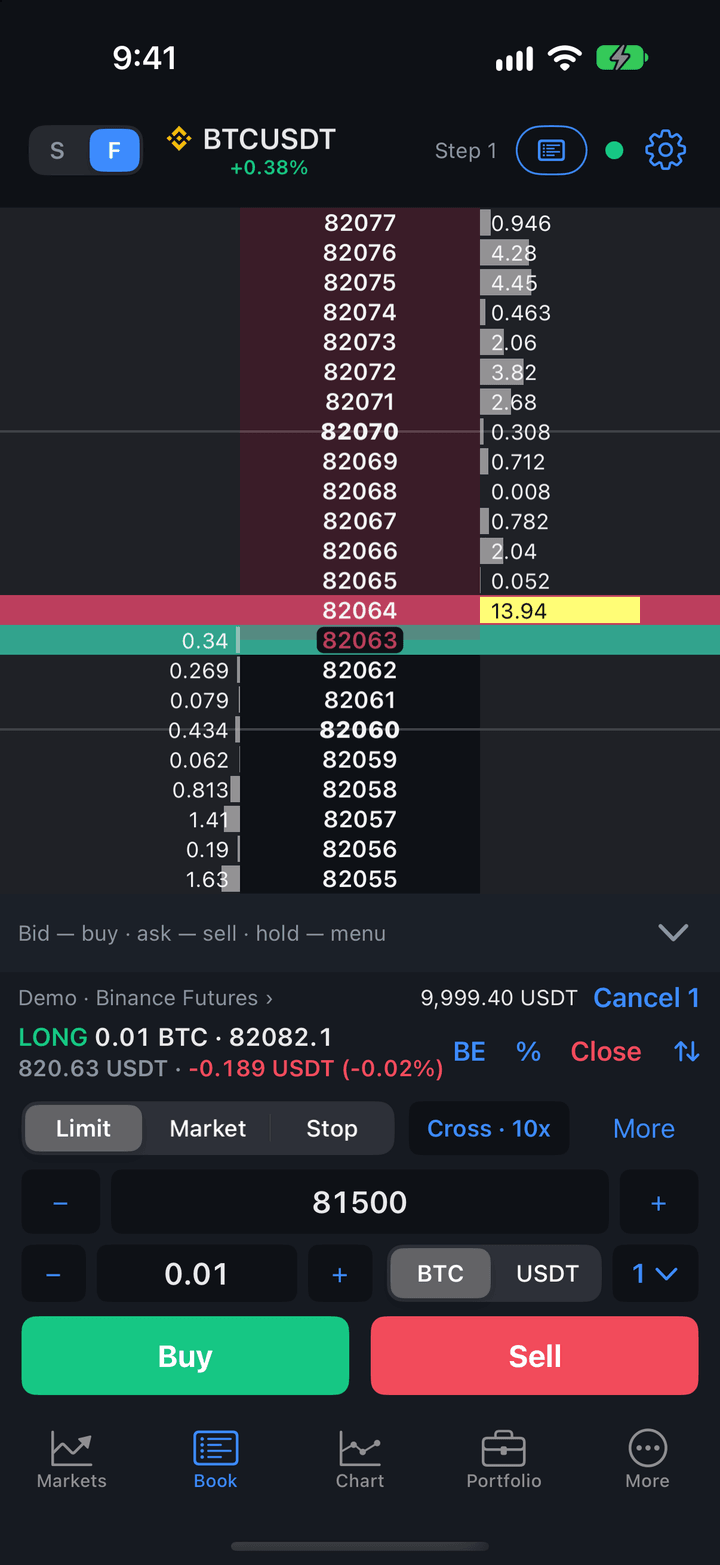
| Button | Description |
|---|---|
| Account name | The account orders go to: “Demo · Binance Futures ›”. A real account is shown by its connection name, in its color. If the connection to the account dropped and the app is reconnecting — “Binance · reconnecting ›”: orders aren’t sent until the connection is back. Tap it to choose the account. |
| Funds | Equity for a demo account, free funds for a real one: “available 1,250.00 USDT”. |
| Cancel N | Cancel all your orders for the symbol on this account. Shown when you have orders. |
| Position | “LONG 0.392 LTC · 63.70” — side, quantity and average price; below — the value in money and the result: “24.92 USDT · −0.05 USDT (−0.20%)”. Without a position — “No position”. |
| BE | Move the stop loss to the entry price (breakeven) with one tap, without a question. Works once the market has moved into profit. |
| % | Close part of the position at market: 25, 50 or 75%. |
| Close | Close the whole position at market. |
| ⇅ | Reverse the position: close at market and open the same size in the opposite direction. The opposite order is sent only after the position is closed. |
Choosing the account
Tap the account name on the account bar to open the Account for orders menu: a demo account or a real account of a connection to this exchange. Without a connected account, orders go to a demo account. How to choose the account and how a demo account differs from a real one is described in Choosing the account for orders.
Order panel
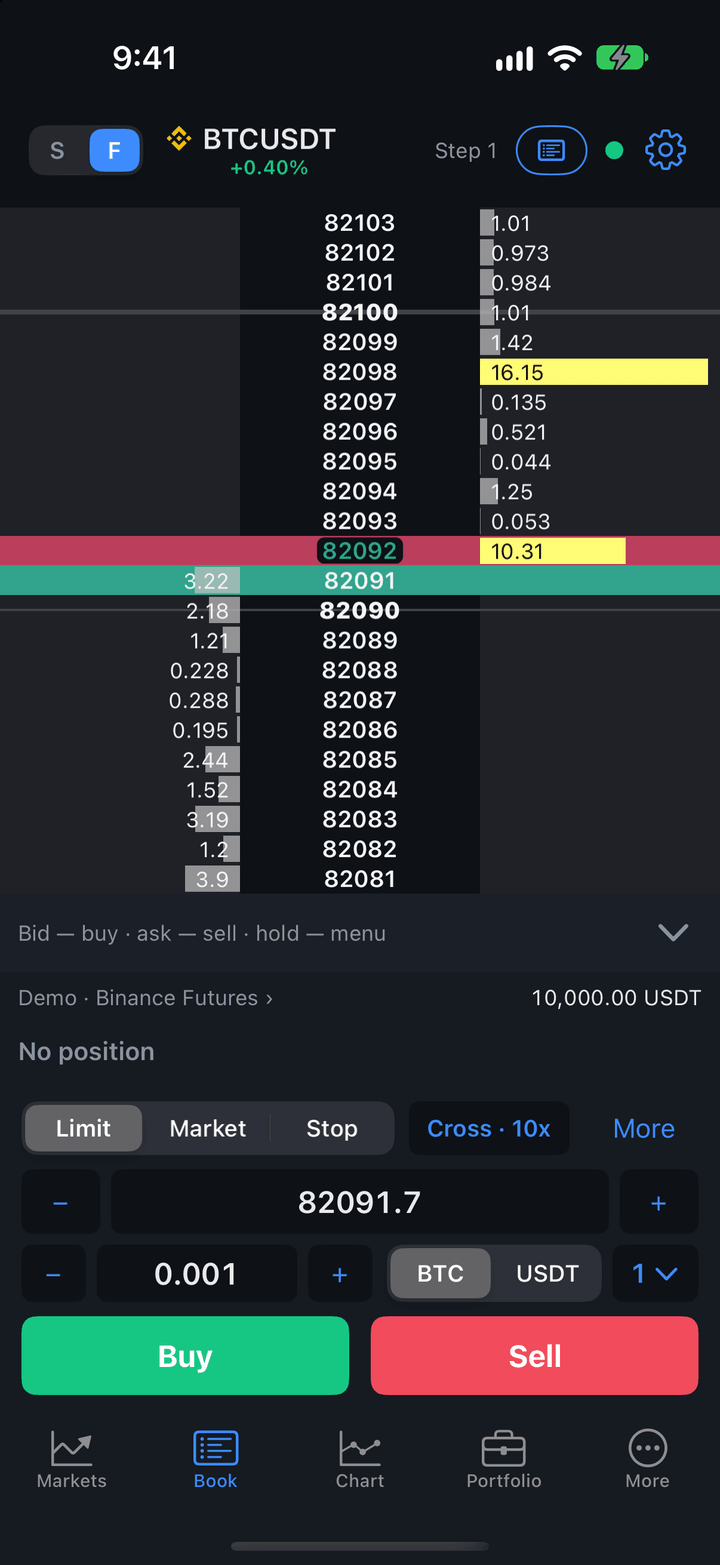
| Button | Description |
|---|---|
| Limit | Market | Stop | Order type. Types the account doesn’t support are unavailable. A new symbol starts with a limit order. |
| “Cross · 10x” | Margin mode and leverage. Shown for futures on accounts where leverage can be changed. Tap it for the Leverage and margin screen. |
| M | The margin of an open isolated position — the Position margin window. Shown only if the exchange lets you change it. |
| More | Order options. If SL/TP on entry is on, the button reads SL/TP. |
| Price with − and + | The order price; − and + move it to the next order book row: at step 1 — by one price step, at a larger step — by the row step (from a price between rows — to the nearest row). A market order has no price. A tap on an order book row puts its price here. |
| Size with − and + | The selected order size. − and + change it by about a tenth: 30 → 31, 250 → 260. |
| “BTC | USDT” | Size in the coin or in money. For contracts the coin is replaced with “cont.”, for Moscow Exchange — “lot”. The choice is shared by all symbols. |
| Numbered button | “1 ⌄” — a menu of five order sizes, the selected one with a check mark. |
| Buy, Sell | Send the order. A market order (and a limit order across the spread) is sent after confirmation. |
Order sizes
Each symbol has five order sizes in lots and five in money. Choose a size from the numbered button’s menu or type it into the field: editing the field changes the selected size. Trading from the chart uses the same size.
- Default sizes in lots are 1, 5, 10, 50 and 100 quantity steps of the symbol.
- Default sizes in money are shared: separately for spot and futures, in More → Settings → Volumes in money. There an exchange can also get its own (By exchange) — then they are the default.
- The symbol’s own sizes are in More → Settings → Order book → Order volume.
In money, the quantity is calculated from the order price (for a market order — from the best price) and rounded down to the quantity step. If the amount is less than one step, the order isn’t sent, and the app tells you how much a step costs.
Order options
The More button opens the Order options menu. There is no button if the account has no such options.
| Command | Description |
|---|---|
| SL/TP on entry | Turn SL/TP on entry on or off for the symbol. Next to it — the set distances: ” · SL 20 steps · TP 40 steps”. Shown if distances are set. |
| Set up SL/TP on entry… | Open More → Settings → Order book → SL/TP on entry. |
| Reduce only | The order only reduces the position and never opens a new one. Available for futures. When on, it is marked ”✓”. |
SL/TP on entry. Once the entry order fills, the app itself sets a stop loss and take profit at the given distance from the position’s average price — for orders from the panel, from a tap on the order book and from the chart. The distance is set in price steps or percent in More → Settings → Order book → SL/TP on entry · BTCUSDT: Distance, Stop loss and Take profit (0 — no level). A level that is already set isn’t changed. If the market has already moved past the level, the app doesn’t set it and shows “Entry stop loss not set”.
Leverage and margin
Tap the “Cross · 10x” chip to open the Leverage and margin screen for the order book’s account and symbol.
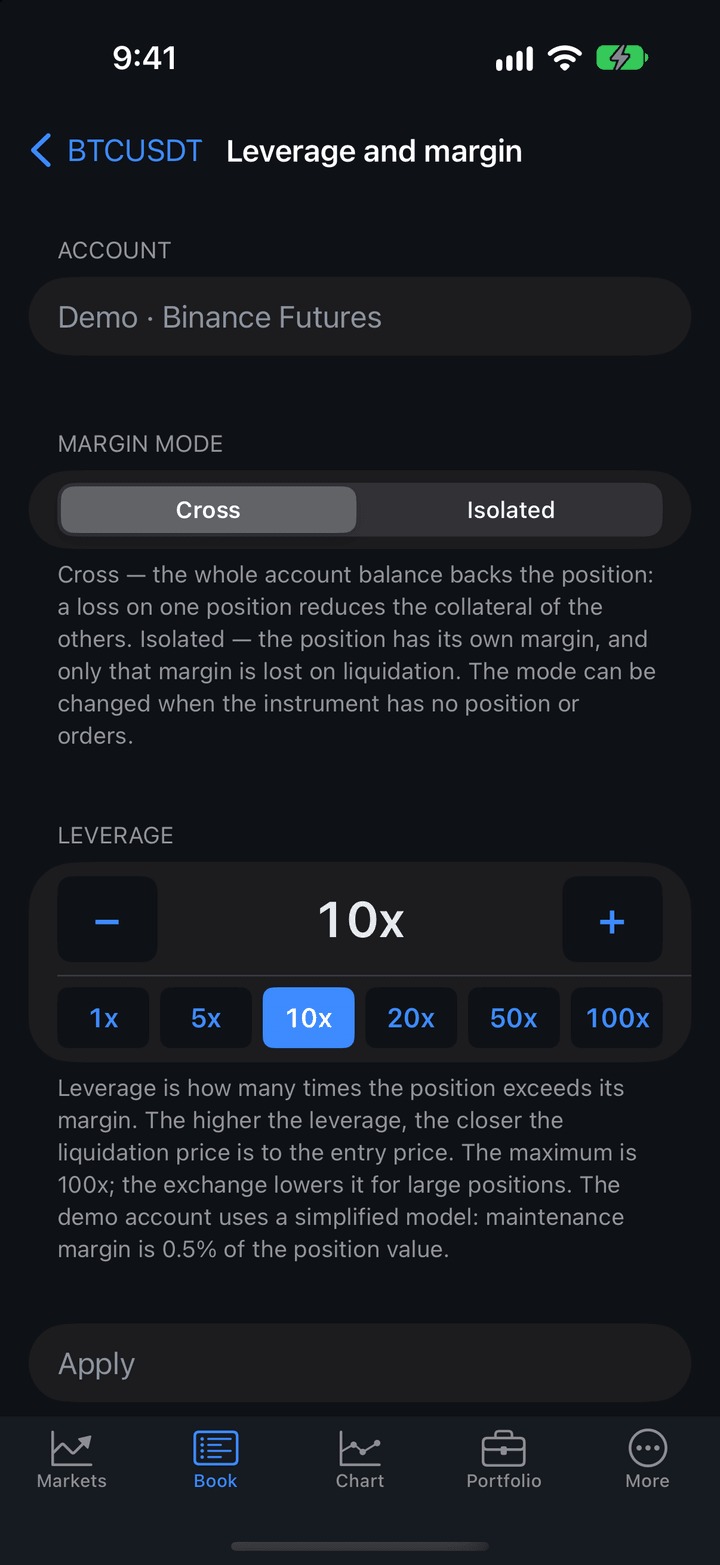
- Choose the Margin mode: Cross — the whole account balance backs the position, Isolated — the position has its own margin.
- Set the Leverage with − and + or a preset value.
- Tap Apply.
The margin mode can be changed only when the symbol has no position or orders. On some exchanges the mode applies to the whole account — the screen warns about it. The demo account’s default leverage is 10x, the maximum is 100x.
The M button (and the Position margin item of the level menu) opens the Position margin window: the position, its margin and liquidation price, the Add and Remove buttons. More margin moves the liquidation price away; removing margin brings it closer.
Stop loss and take profit
You can set a position’s stop loss and take profit in several ways:
- with the SL and TP buttons on the action bar after tapping a row;
- with Stop loss here and Take profit here in the level menu;
- with the BE button on the account bar — a stop loss at the entry price;
- automatically after entry — SL/TP on entry;
- on the chart and in the position card on the Portfolio tab.
A level set on one screen is immediately visible on the others: as SL and TP marks in the order book and as lines on the chart.
On a demo account and on some exchanges the app itself executes the stop loss and take profit, and they won’t trigger in the background — see Where stop loss and take profit are executed.
Next to the order book
The chart icon in the header opens a menu: Order book only, Chart or Clusters and tape. The choice is remembered.
With a chart or clusters the order book becomes compact and moves to the right: each row has the price and one size colored by side. Tapping a row works the same way: at a bid price — a buy, at an ask price — a sell, inside the spread — the price goes to the order panel. You can select your order with a tap on either side — for example, a sell stop order among the bids.
Chart
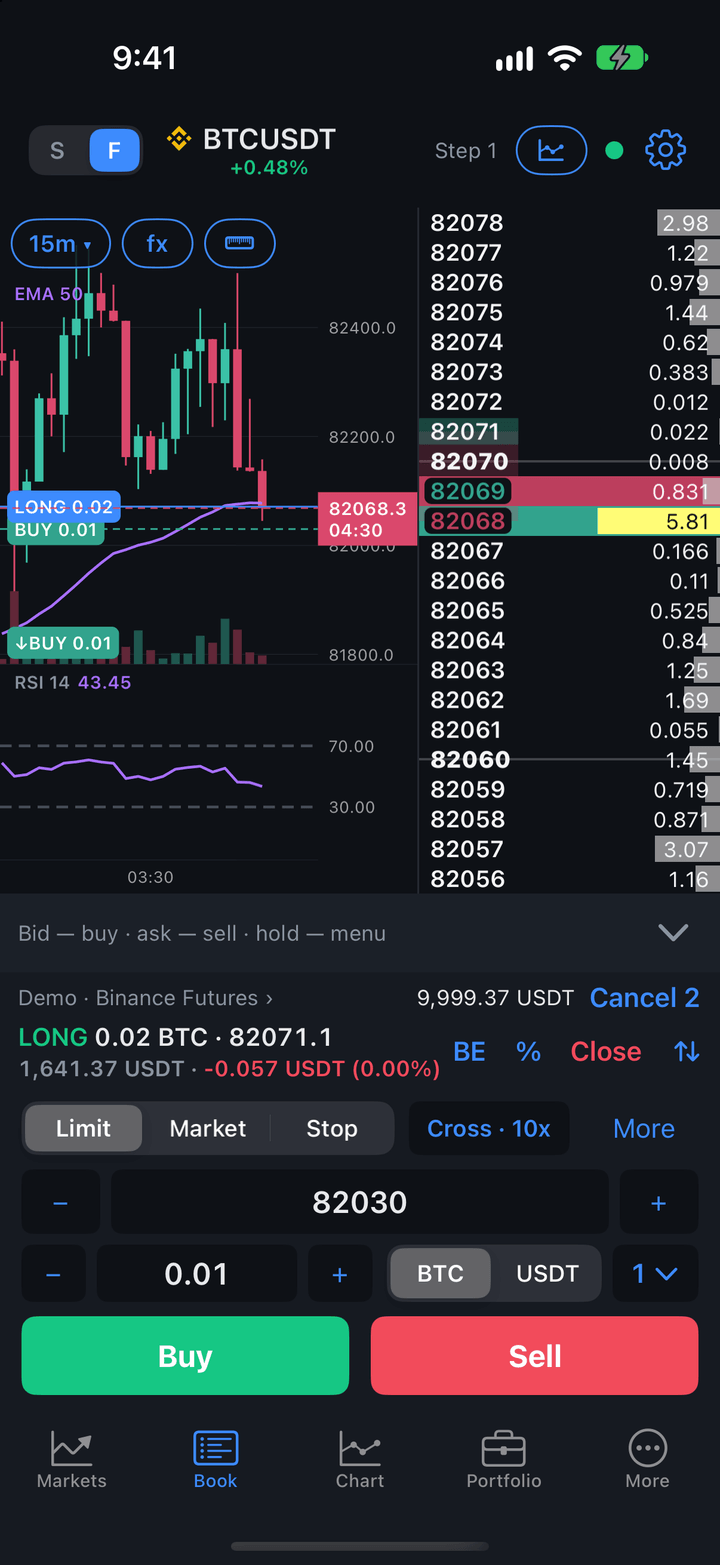
- The “15m ▾” timeframe button in the top left corner of the chart opens a menu of timeframes — the same as on the Chart tab.
- fx — indicators, shared with the Chart tab.
- The ruler icon — measuring on the chart, as on the Chart tab: Ruler.
You can trade from this chart — see Trading from the chart below. The Chart tab doesn’t place orders: there the crosshair has an alert bell. On a tablet you can also draw here — see Tablet.
Trading from the chart
The size is the one selected on the order panel, and the menu shows it in the unit selected there: “Buy limit 0.01 BTC” or “Buy limit 100 USDT”. The account is the same as the order book’s.
Order at a price.
- Touch and hold the chart and move the crosshair to the price you need.
- Lift your finger. The crosshair stays at that price, and a ”+” appears at the price scale.
- Tap ”+” and choose an action in the menu.
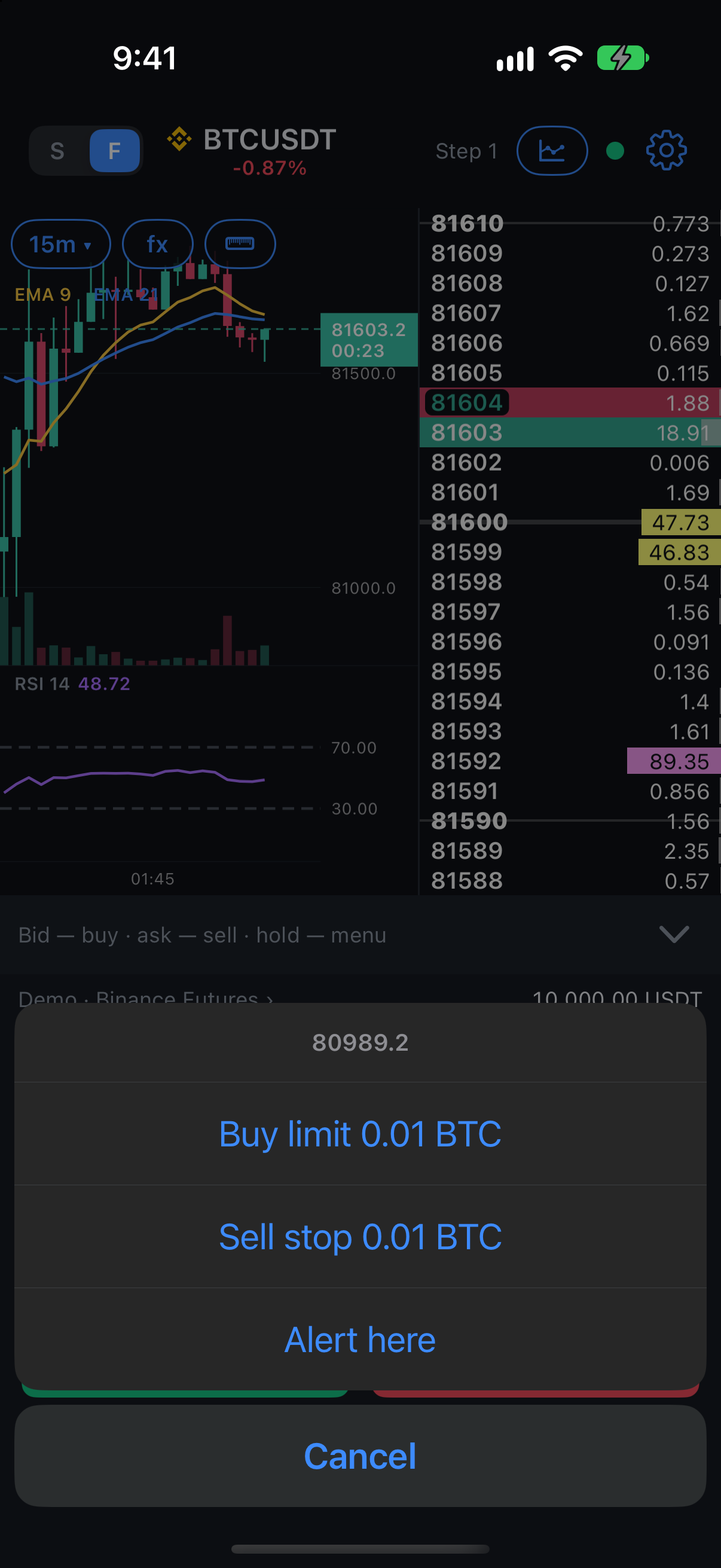
| Command | Description |
|---|---|
| Buy limit | A limit buy. At prices below the best ask. |
| Sell limit | A limit sell. At prices above the best bid. |
| Buy stop | A buy stop order. Above the market, if the exchange accepts stop orders. |
| Sell stop | A sell stop order. Below the market, if the exchange accepts stop orders. |
| Stop loss here, Take profit here | The position’s level at this price. A stop loss — only on the losing side of the market, a take profit — on the profitable side. |
| Alert here | An alert level at this price. Requires signing in to your JetScalp account; see Alerts and notifications. |
Choosing a menu item is the confirmation: the order is sent right away. On a real account the menu shows the account name under the price. A tap on the chart away from ”+” removes the crosshair.
There are no market orders in the menu: a price on the chart is picked with a finger, roughly, so the menu offers only orders that will rest in the order book, and the position’s levels.
Order and position lines. Your orders, the position’s entry price, stop loss (SL), take profit (TP), liquidation price (LIQ) and alert levels are shown on the chart as lines with a price label. Tap a line or its label to open a menu:
| Line | Commands |
|---|---|
| Your order | Cancel order. |
| Entry price | Close position, close part — Close 25%, Close 50%, Close 75%, Breakeven (stop loss at the entry price), Remove stop loss, Remove take profit. |
| SL, TP | Remove stop loss or Remove take profit. |
| Alert | Remove alert. |
| LIQ | No actions — only an explanation: the exchange calculates the liquidation price. |
Moving. Drag the line of your order, stop loss, take profit or alert to a new price.
- A limit order moved across the spread fills immediately at market — the app asks “Move to …?”; tap Move.
- A stop order, stop loss or take profit can’t be moved where it would trigger immediately: the app shows “Not moved: …”, and the line returns to its place.
Clusters and tape
Clusters show how much volume traded at each price in each bar, and the tape shows the latest trades. The cluster rows are the same prices as in the order book next to them.
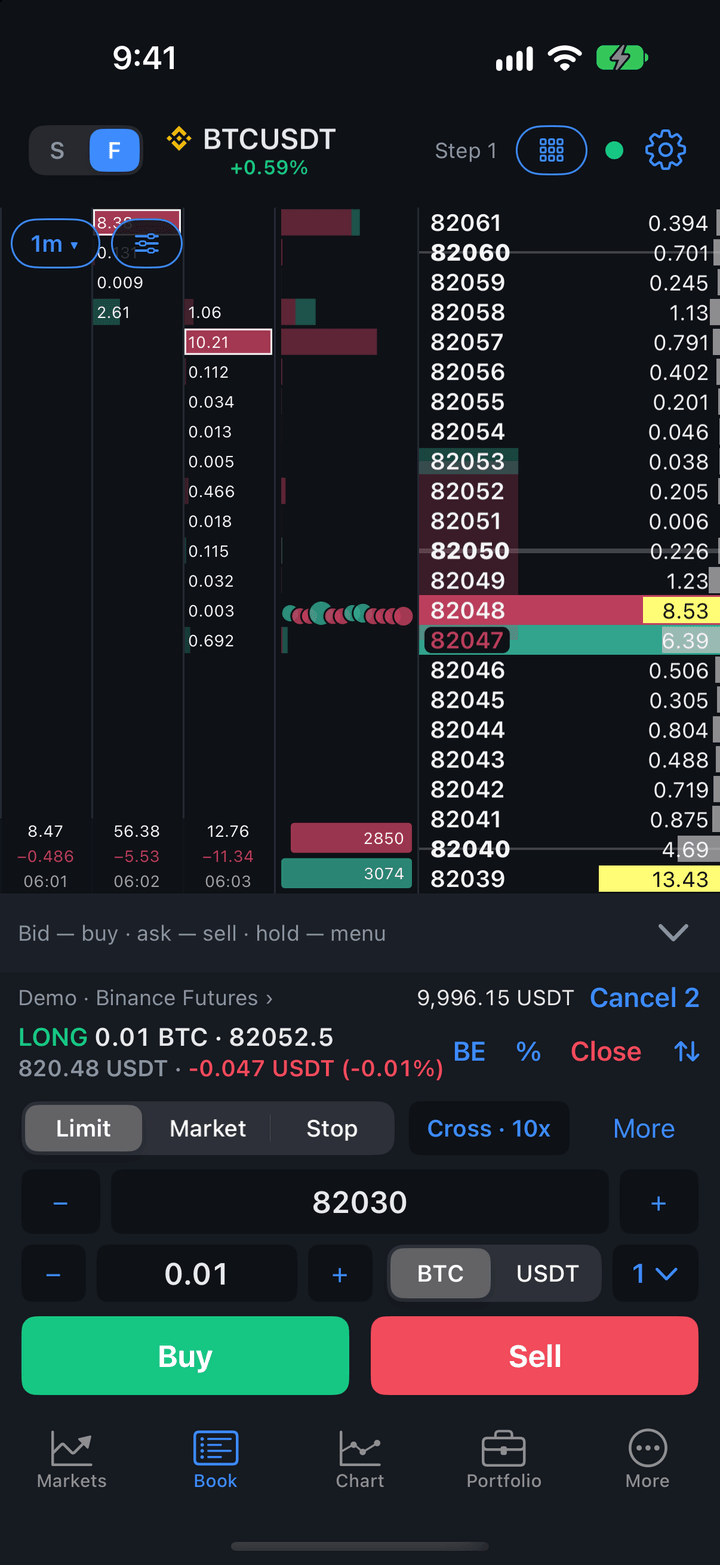
| What you see | Description |
|---|---|
| Clusters | Bar columns, older ones on the left. In a cell — a bar by volume, colored by delta: more buys — in the up color, more sells — in the down color. The cell with the largest volume is framed. Below a column — the bar’s volume, delta and time. |
| Tape | The right third: trade bubbles at their prices, newer ones on the right. Bubble size reflects volume, color — the side that traded at market. |
| Day volumes | Bars under the tape: how much was sold (left) and bought (right) at each price during the day. |
| Book balance | Two bars at the bottom of the tape: the total of all sell orders (upper) and buy orders (lower) in the whole order book. |
- The “1m ▾” period button in the top left corner sets the cluster period, from 1m to 1D. It is separate from the chart’s timeframe.
- The cluster view button next to it: what to show in a cell (Volume, Delta or Sells × buys), Day volumes, Book balance and All settings.
- A pinch on the clusters changes the bar length: spread out — longer, pinch in — shorter.
After you sign in to your JetScalp account, clusters come with history. Without sign-in they build up from the moment the order book is opened. The tape always shows trades from the moment of opening.
Large trade alert. In the cluster settings you can set the symbol’s Large trade alert from threshold: while the symbol’s order book is on screen, the app reports a trade of that size with a message “Large buy 12.5 at 81400”, vibration and a sound, and the trade gets a yellow outline in the tape.
Hiding the order panel
To give the order book more room, tap the arrow on the right of the hint bar — Hide order panel. The order book, action bar and account bar remain: a tap on the order book still places an order with the selected size, and you can close or reverse the position. The same arrow brings the panel back.
Landscape orientation
Turn the phone — the order book (and the chart, if on) takes the full height on the left, and the order panel, account bar and action bar line up in a column on the right. Rows stay the same height; there are simply more of them. In landscape the order panel can’t be hidden.
Order book settings
The gear in the header opens the order book settings; the same is More → Settings → Order book. The settings apply to all symbols, except the sections named after a symbol: they apply to the symbol open in the order book and appear only when one is selected.
| Group | Description |
|---|---|
| Order volume | Volumes: In lots or In money — for all symbols. Below are the symbol’s five order sizes in lots and in money; the one selected on the order panel has a check mark. Use common volumes brings back the sizes from More → Settings → Volumes in money. |
| SL/TP on entry · BTCUSDT | A stop loss and take profit set once the entry order fills, at the given distance from the position’s average price: Distance — In price steps or In percent, Stop loss, Take profit. 0 means no level. |
| Volumes | Volumes in $ shows level volumes in money instead of quantity. Large volumes highlights levels whose volume is much larger than average: Off, ×3, ×4 (default), ×5 or ×10. The symbol’s Full scale is the volume at which a bar fills the whole column; Auto takes it from the largest volume on screen. |
| Prices | Shorten zeros in small prices: zeros after the point are replaced with their count, “0.00001234” → “4’1234”. When price is below sets the threshold. |
| Levels | Level lines draw lines through every Nth order book row; Major — every and Minor — every set the intervals in rows; Bold major prices and Bold minor prices make level prices bold. |
| Clusters and tape | Cluster cell — Volume, Delta or Sells × buys; Color volume by delta; Frame the largest cell; Bar volume under the column and Bar delta under the column; Merge trades in the tape; Large trade alert sound. |
| Thresholds · BTCUSDT | From which volume to show numbers in cluster cells, make them bold, show trades in the tape and give a large trade alert; the full scale of the clusters. 0 means no threshold. |
Order book and chart colors are changed in More → Settings → Order book & chart colors. Other app settings are in More and settings.