Installation
The JetScalp app is free and runs on iPhone and iPad with iOS 16 or later and on Android 11 or later phones and tablets. You don’t need an account to install it.
| System | Requirements |
|---|---|
| iPhone, iPad | iOS and iPadOS 16 or later |
| Android | Android 11 or later, phone or tablet |
iPhone and iPad
Until the app is on the App Store, it is installed through TestFlight, Apple’s app for pre-release versions. JetScalp will appear on the App Store in future versions.
- Install TestFlight from the App Store.
- Open the Download page on your iPhone or iPad and tap Install via TestFlight.
- In TestFlight, tap Accept, then Install.
New builds arrive in TestFlight, and that is where the app is updated.
Android
On Android the app is distributed as an APK file from the Download page. It will appear on Google Play in future versions.
- Open the Download page on your phone or tablet and tap Download APK.
- Open the downloaded file.
- If Android asks you to allow installing apps from this source (your browser or file manager), allow it in the settings that open and return to the installation.
- Confirm the installation.
To update the app, download the new APK from the same page and install it over the old one: your settings, connections and sign-in are kept.
Important: Download the APK only from the Download page on jetscalp.com. A file from another source may be a fake that steals your exchange keys.
Updates in the app
If you are signed in and a new version is out, a red badge appears on the More tab, and an Update section with Update to version … appears at the top of the More screen. See More and settings for details.
First launch
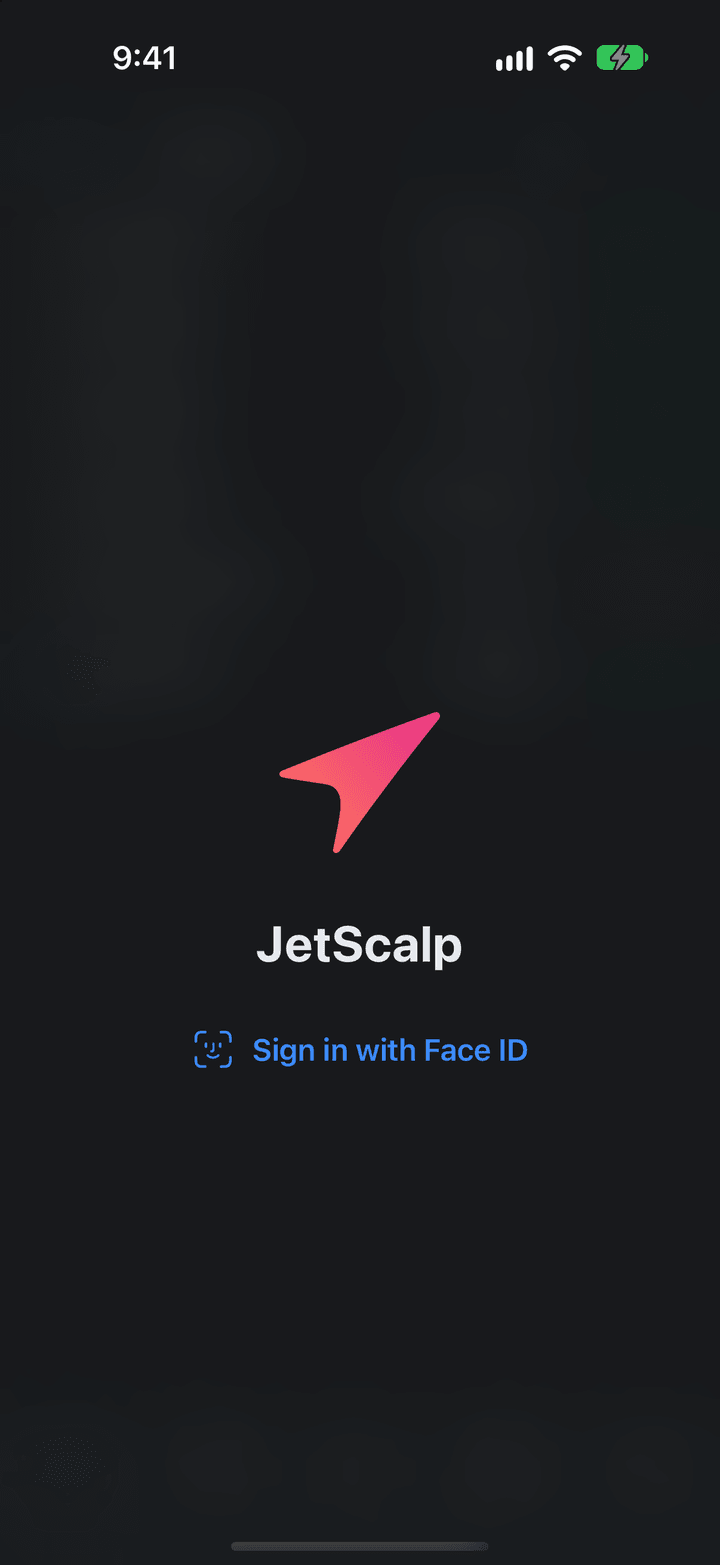
App lock. If your device has a passcode or screen lock, JetScalp asks for Face ID, Touch ID or your fingerprint at every launch: the screen shows the logo and a Sign in with Face ID button (on Android, Unlock with fingerprint). On the first launch, iPhone asks whether JetScalp may use Face ID. You can turn the lock off or adjust it under More → Settings → Security (Security).
Quotes. Binance quotes and order books are available right away, with no account and no keys. Other exchanges are turned on under More → Settings → Select exchanges.
Demo accounts. Demo accounts are on by default: you can trade right away at exchange prices, with no keys and no risk. A real account is connected under More → Connections (Connections and accounts).
Tips. The first time you open Markets, Book, Chart and Portfolio, tips about gestures and menus appear at the bottom one at a time: Next shows the next one, Skip hides the rest on that screen. To see them again, use More → Settings → Show tips again.
Sign-in. Signing in is optional. You can sign in or create an account under More → Sign-in (Account and sign-in).
Notifications. The app asks for notification permission not at launch but when notifications are needed: with your first alert level or when you turn on push notifications under More → Alerts (Alerts and notifications).