Markets
The Markets tab shows your symbol lists with live quotes: last price, 24-hour change and turnover. From here you open the order book and chart of the symbol you need.
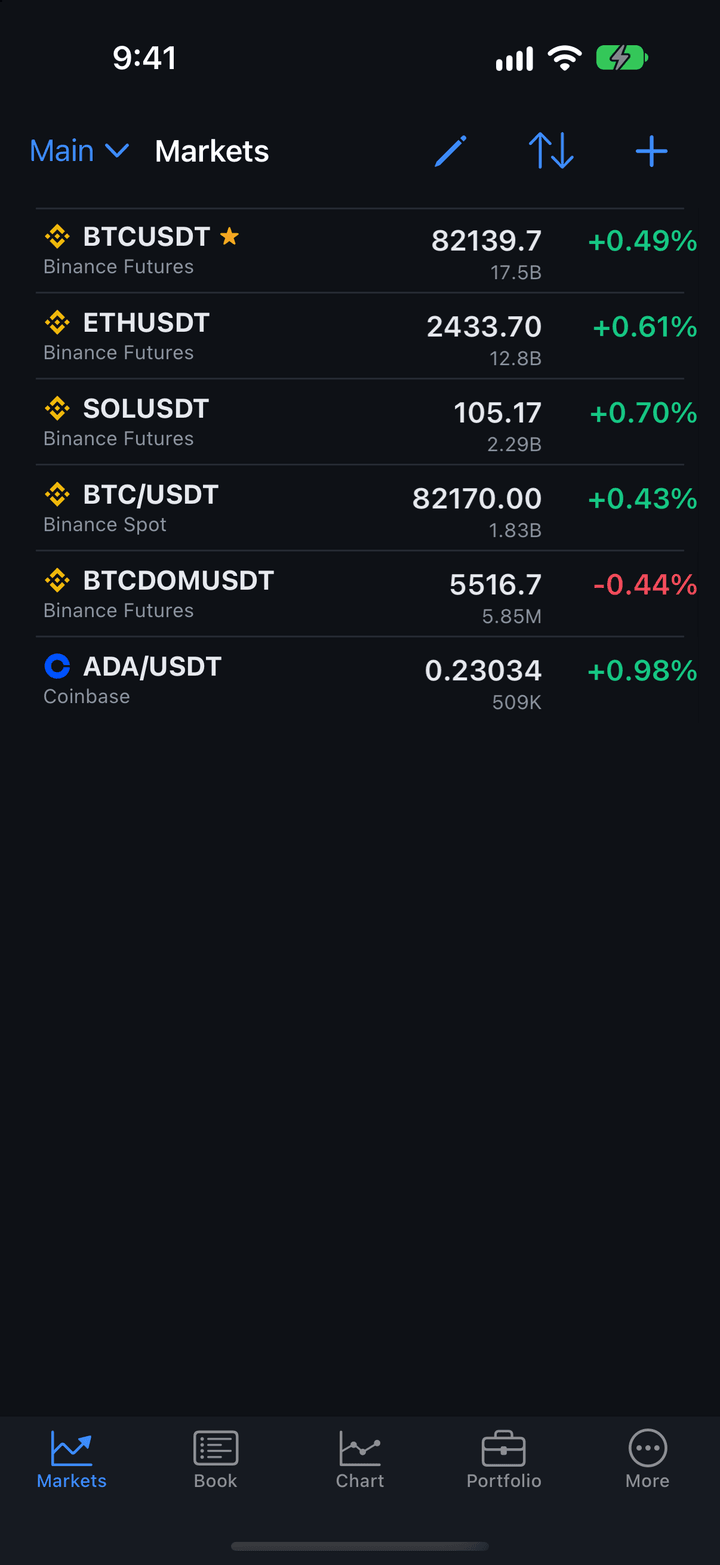
Exchange quotes are public data: they need no keys and no sign-in. Which exchanges send quotes is set in More → Settings → Select exchanges (right after installation it is Binance); see Market data.
Symbol row
| Field | Description |
|---|---|
| Name | Exchange icon and symbol name. Below it — the exchange and market: “Binance Futures”, “Binance Spot”. |
| Star | The symbol is a favorite. |
| Price | Last price. |
| Change | 24-hour price change in percent: gains in green, losses in red. Below 10% with two decimals (“+1.23%”), from 10% with one (“+12.3%”), from 100% with none (“+123%”). |
| Turnover | 24-hour turnover in the quote currency, in short form: “12.1B”. If the exchange does not send turnover, the field is empty. |
Tap a row to open the symbol’s order book on the Book tab; the Chart tab shows the same symbol. The app remembers the chosen symbol after a restart.
Lists
You can have several lists: for example, one for trading and another for watching. After installation there is a Main list with ten popular Binance futures, and BTCUSDT is already a favorite.
The current list’s name is at the top left, with an arrow. Tap it to open the lists menu.
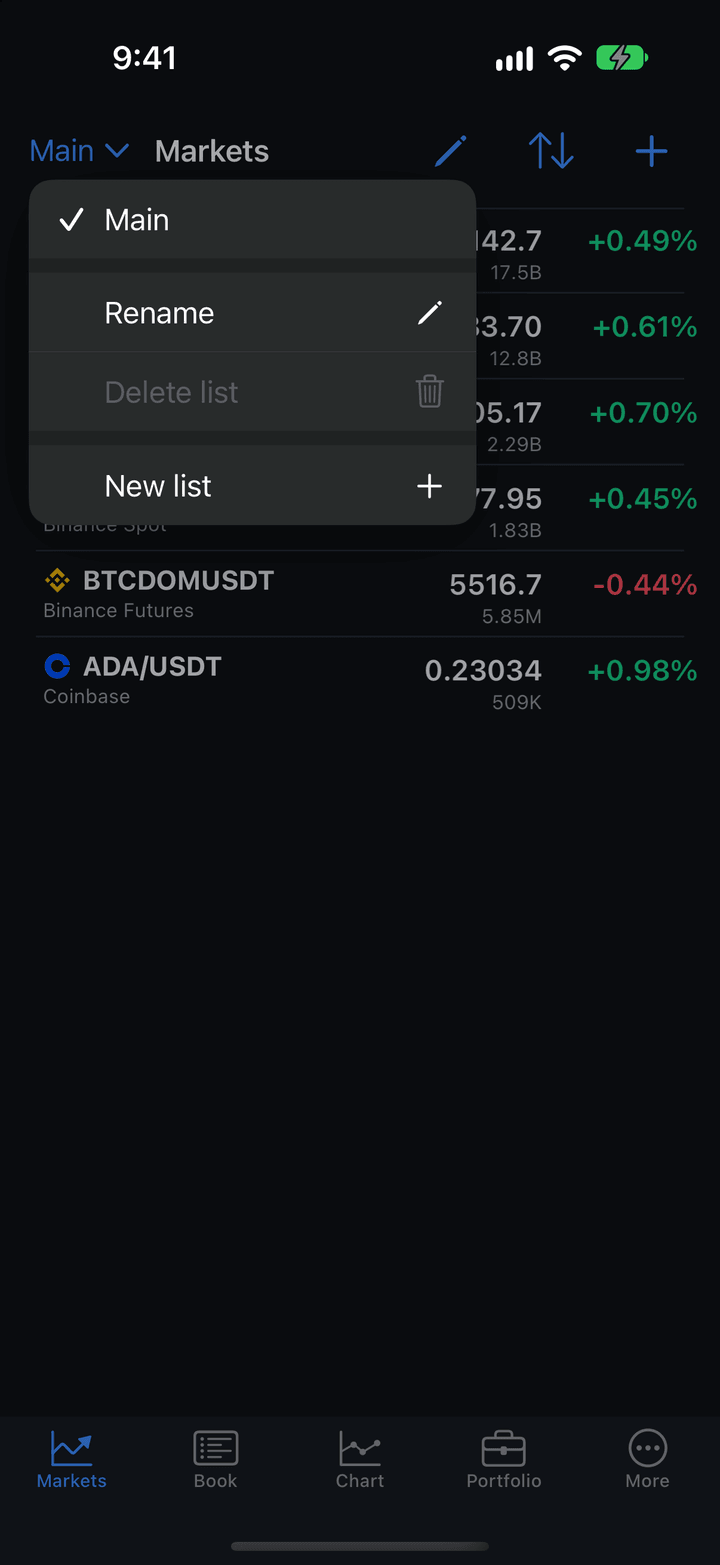
| Command | Description |
|---|---|
| List names | Switch to another list. The current one has a check mark. |
| Rename | Give the current list a different name. |
| Delete list | Delete the current list. Symbols in other lists stay. The last list can’t be deleted. |
| New list | Create an empty list. It becomes the current one right away. |
Each list has its own sorting and its own Favorites only mode, saved together with the list.
Sorting and favorites
Tap the sort icon at the top right and choose the row order.
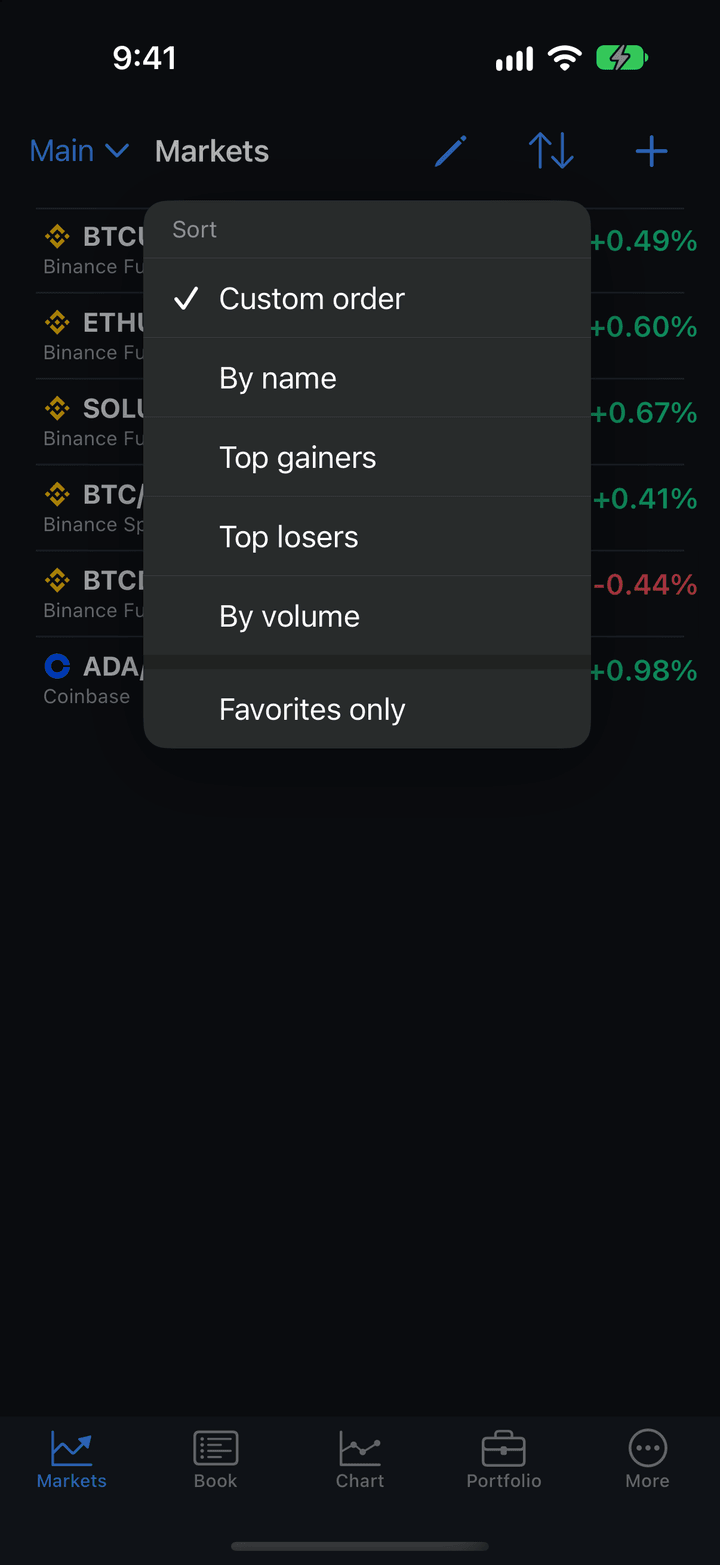
| Command | Description |
|---|---|
| Custom order | The order you set yourself. Rows can be rearranged only in this mode. |
| By name | Alphabetical. |
| Top gainers | Biggest 24-hour gains first. |
| Top losers | Biggest 24-hour losses first. |
| By volume | Highest turnover first. |
| Favorites only | Show only starred symbols. Choose it again to show all. |
How to mark a symbol as a favorite is described in Favorites, order and removal.
Searching the list
Pull the list down — a Search field appears above the rows. Type part of a name: only matching symbols stay in the list.
Adding a symbol
- Tap + at the top right. The Add symbol screen opens.
- Type a symbol name: BTC, ETH, SOL.
- Tap a symbol in the results — it is added to the current list.
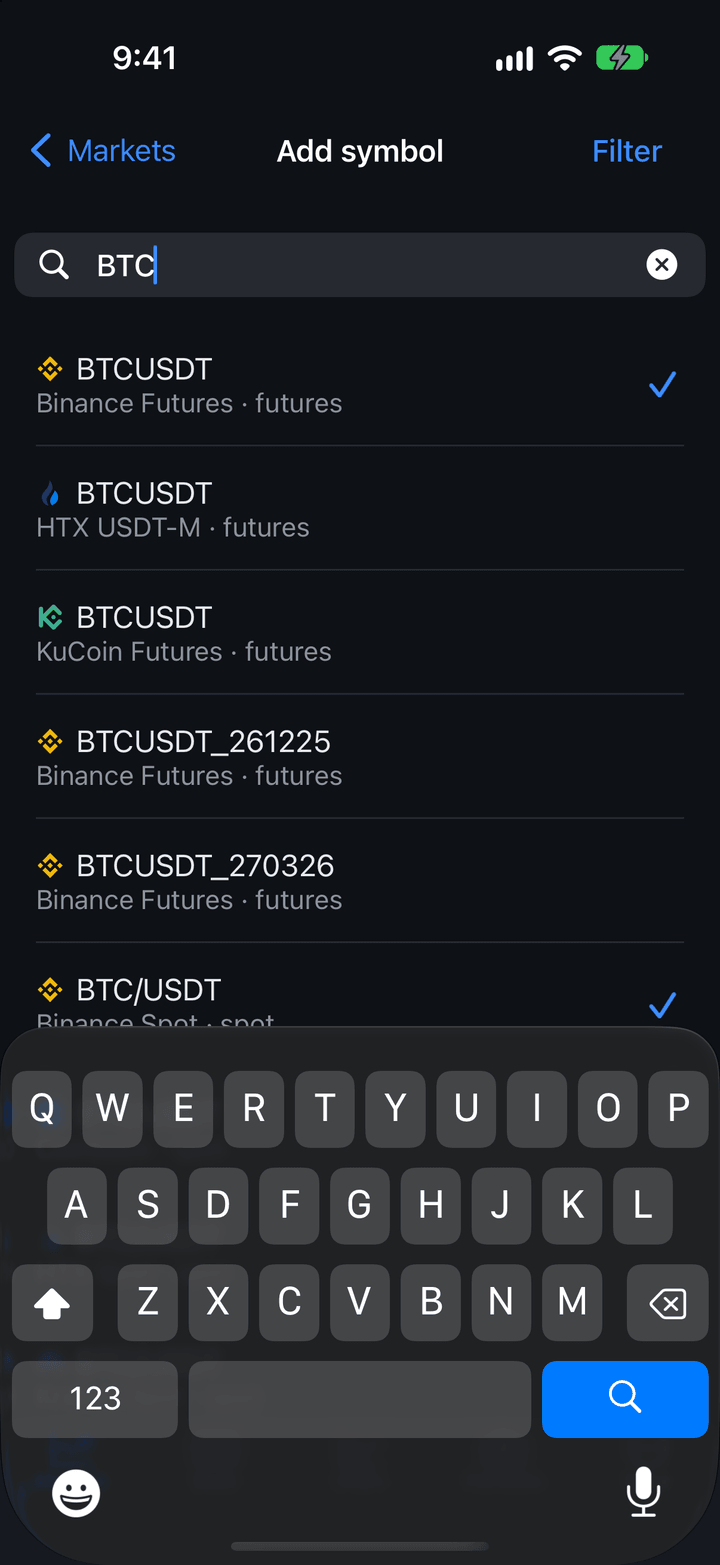
Under each name in the results you see the exchange and market: spot or futures. A symbol already in the list has a check mark. Search also finds a symbol by its base asset: “PEPE” finds “1000PEPEUSDT” too. Exact matches come first, then pairs to USDT and USDC; futures come before spot.
Tip: A symbol with the same name trades on different exchanges and markets. Before adding, check the exchange and market under the name.
Search shows symbols only from the exchanges turned on in More → Settings → Select exchanges. If the exchange you need is missing, turn it on there, and its symbols appear in search.
Many symbols at once
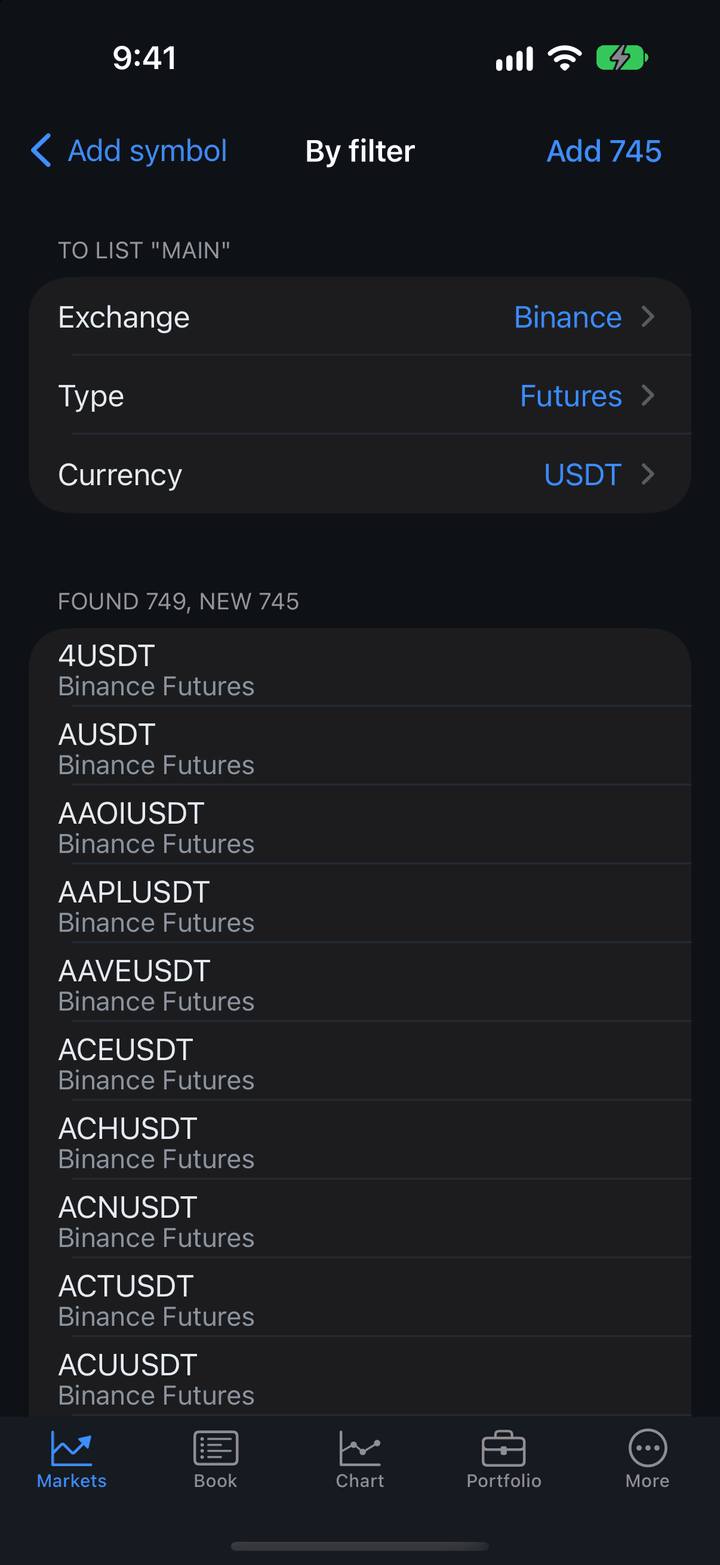
- On the Add symbol screen, tap Filter.
- Choose Exchange, then Type and Currency. Each item offers only the options available for the choice above it.
- Below the filters, check how many will be added: “Found 120, new 115”.
- Tap Add with the number of new symbols at the top right.
Symbols already in the list are not added twice. More than a hundred symbols are added only after you confirm: each symbol’s quotes are a separate exchange subscription.
Favorites, order and removal
iPhone
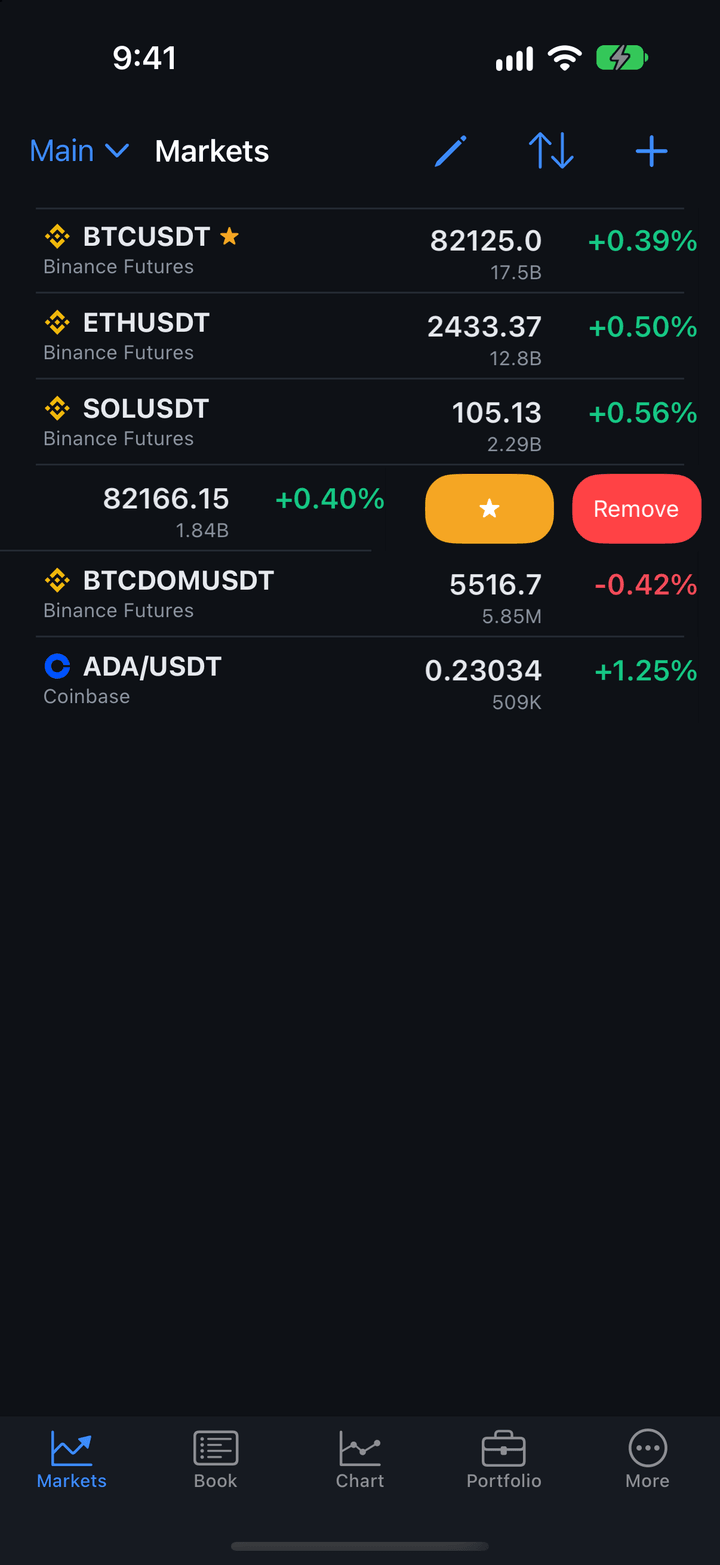
- Swipe a row left: ★ adds the symbol to favorites (☆ removes it from favorites), Remove removes the symbol from the list.
- Tap the pencil at the top right to start editing. Drag rows by the handle on the right (only with Custom order). The red ”−” on the left of a row removes it. The check mark in place of the pencil ends editing.
Android
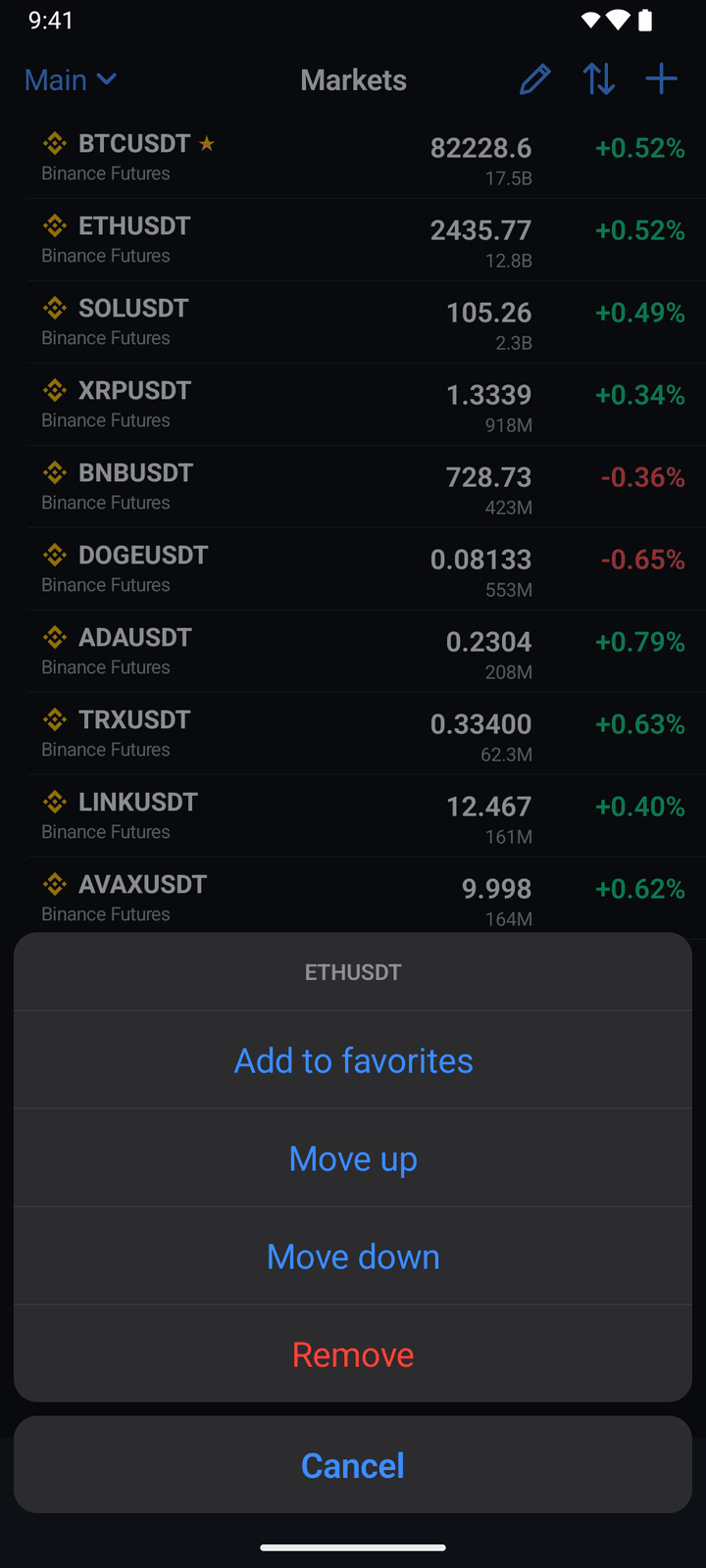
- Touch and hold a row to open a menu: Add to favorites (or Remove from favorites), Move up, Move down and Remove. Move up and Move down appear only with Custom order.
- Tap the pencil at the top right to start editing. Drag rows by the right edge (only with Custom order). Tap the red ”−” on the left, then Remove on the right — the row is removed from the list. The check mark in place of the pencil ends editing.
On a tablet
On an iPad or Android tablet you can show other lists as columns next to the main list, and a quotes strip next to the order book and chart. See Tablet.